This manual takes you from signing in to submitting marks and printing reports. It is arranged by role, so you only need the parts that apply to you.
Read Part 1 first, whoever you are. Everything after it assumes you can sign in and find your way around. Then read the part that matches your job — an instructor needs Parts 1 and 3; a department head teaches as well as approves, so they need Parts 1, 3 and 4.
Every picture here is of the real system. They were taken on a demonstration campus with invented people, so no student's name, photograph or identity number appears anywhere in this manual. Your screens will show your own campus and records, and will look exactly like these.
Part 1 — For everyone
Read this part whoever you are.
EveryoneChapter 1
Chapter 1 — Signing in
Part 1: for everyone.
Every person who uses CRIMS has their own account. Accounts are not created by the people who use them: your campus registrar creates yours and gives you the details. You cannot register yourself, and there is no public sign-up page.
1.1 What you need
To sign in you need three things:
| The address your registrar recorded for you. This is your user name. | |
| Password | The one your registrar gave you, or the one you chose yourself later. |
| Campus | The short name of your campus, in lower case — for example assosa, jimma, dessie, shambu. |
The campus matters. The same person may exist on more than one campus, and each is a separate account with its own records.
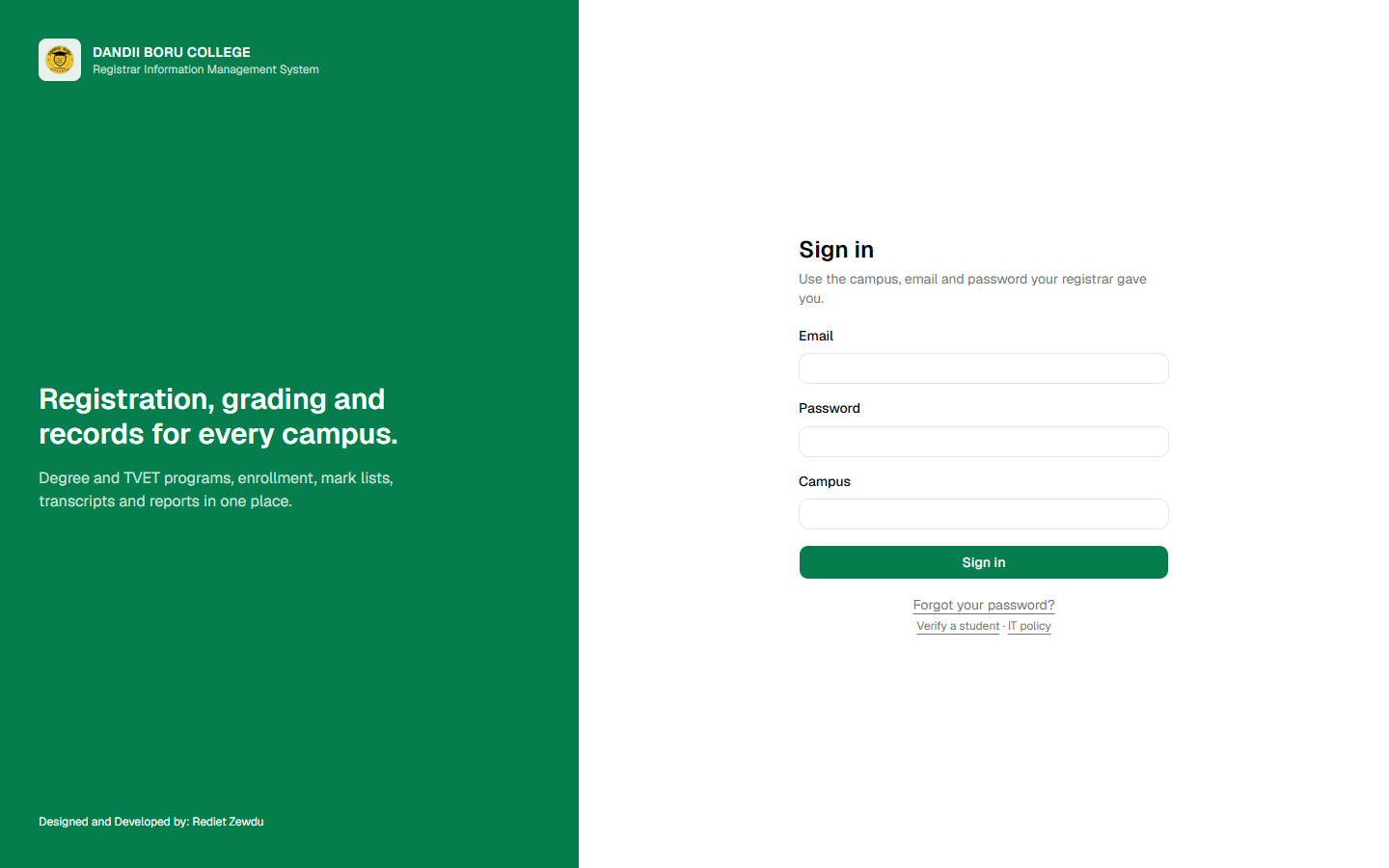
1.2 Signing in
Type your email, your password and your campus, then press Sign in (or just press Enter).
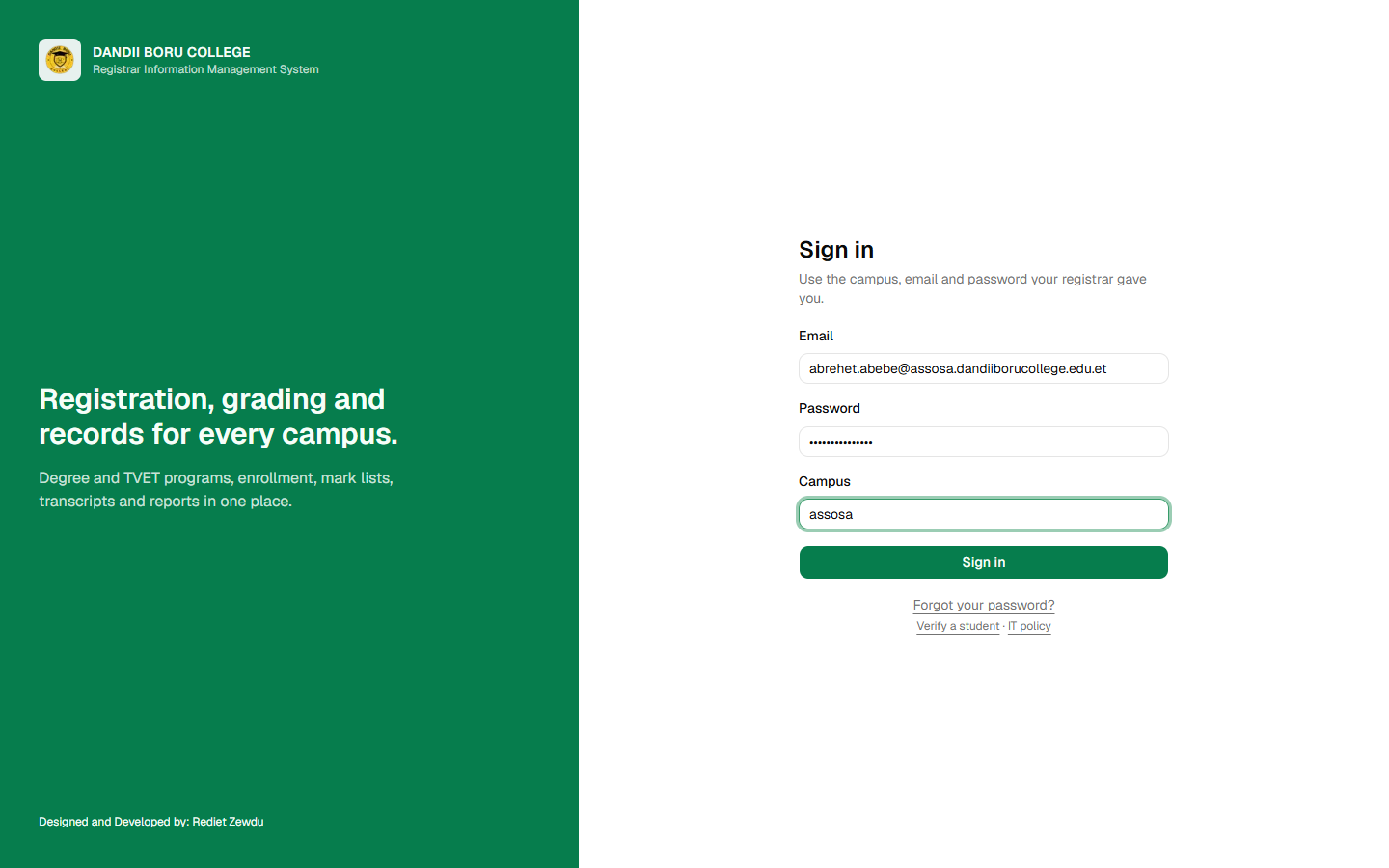
1.3 When it does not work
If anything does not match, you get one message:
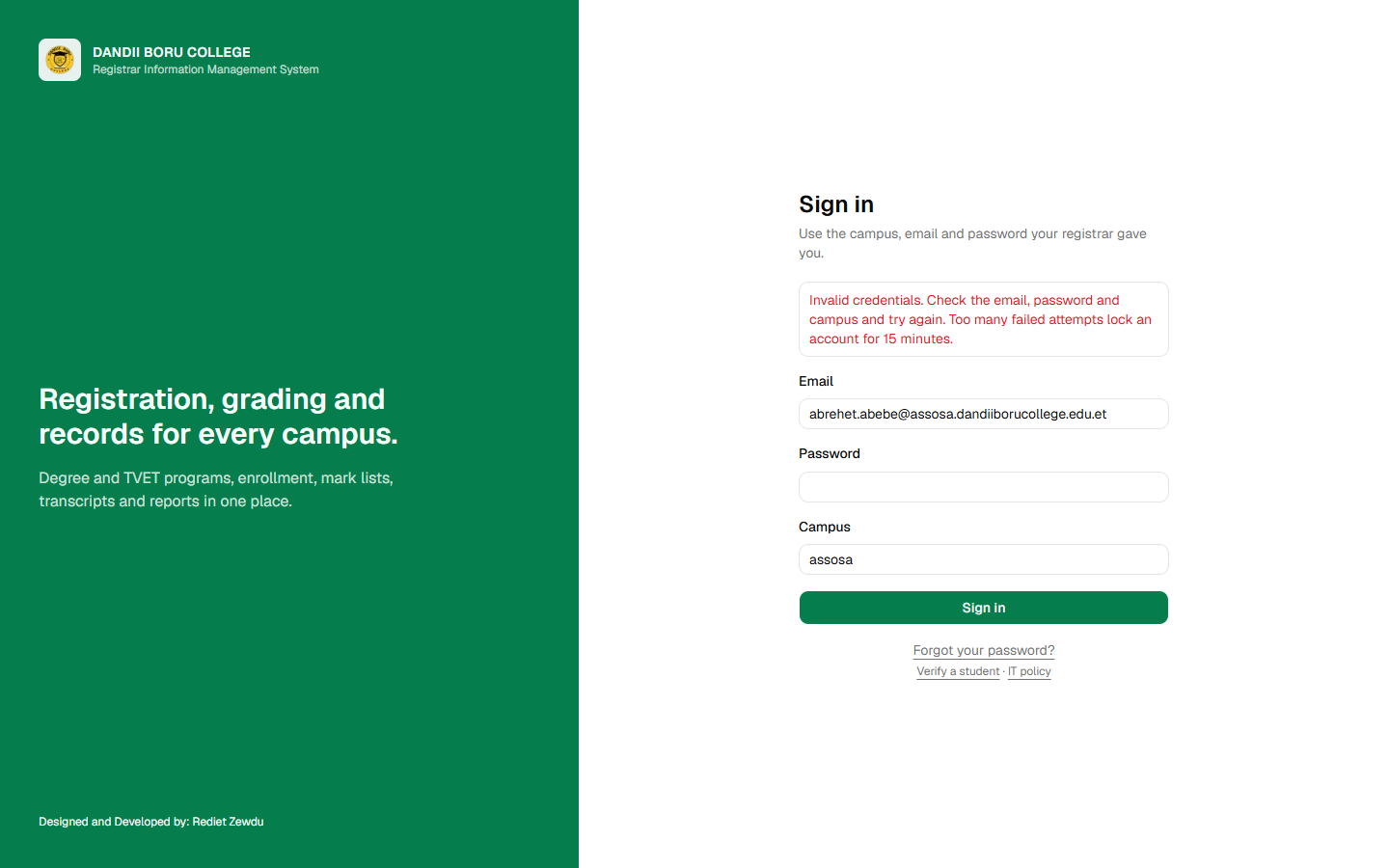
The message is deliberately vague. It does not say whether the email exists, whether the campus exists, or which of the three was wrong. This is on purpose: it stops a stranger using the sign-in page to find out who has an account and which campuses the college runs.
What to do:
- Check the campus first. It is the field people most often get wrong. It is short and lower case.
- Check the email for a typo, and that it is the address the college has for you, not a personal one.
- Try your password once more, carefully.
- If it still fails, use Forgot your password? or ask your campus registrar.
After several failed attempts the account is locked for a while. This protects your records from someone guessing. If you lock yourself out, wait, or ask your registrar.
1.4 Forgotten passwords
Forgot your password? on the sign-in page asks for your campus and email and sends a link to that address.
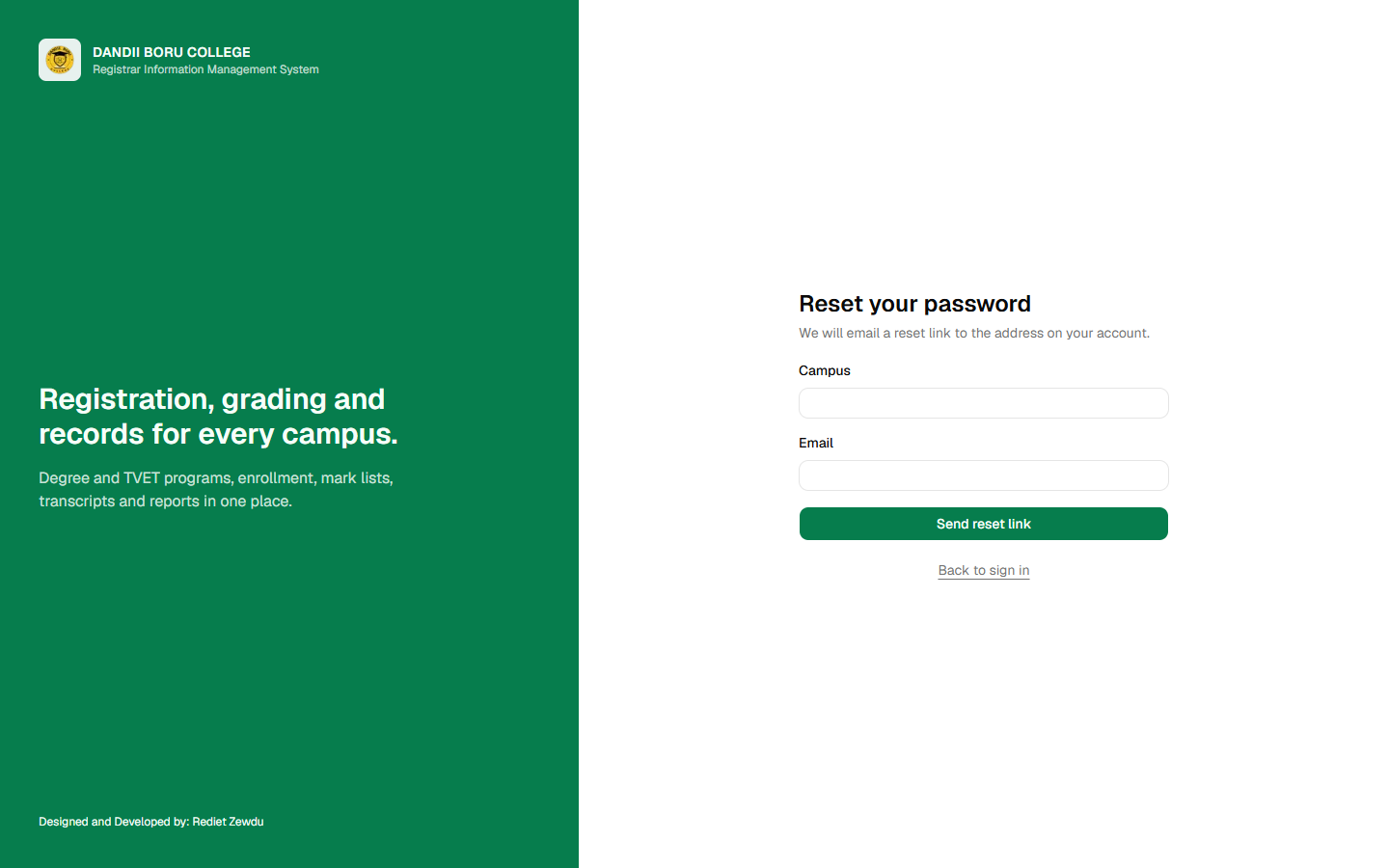
Two things to know:
- The reply is always the same, whether or not the address is known, for the same reason the sign-in message is vague. Seeing "check your email" does not prove the address exists in CRIMS.
- The link expires an hour after it is sent, and works once. If you take too long, ask again.
The email tells you which campus the account is on — useful if you were not sure.
If no email arrives within a few minutes, check the junk folder, then ask your campus registrar, who can give you a new one-time password directly.
1.5 Your first sign-in
An account created for you starts with a one-time password. The first time you use it, CRIMS stops and asks you to choose your own. You cannot reach anything else until you do.
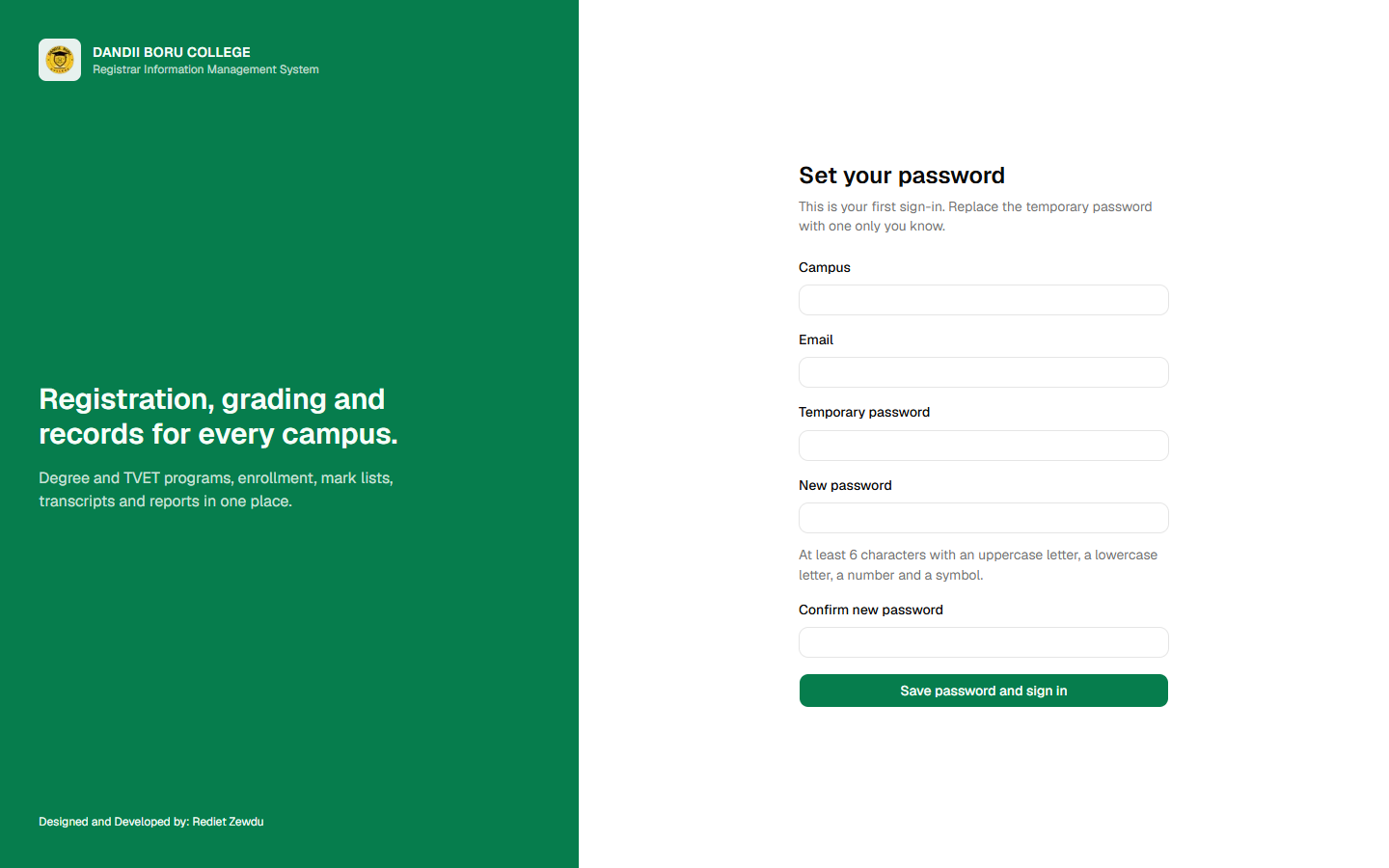
A password must be at least six characters and contain an upper-case letter, a lower-case letter, a number and a symbol.
Never share your password, and never let someone else use your account. Everything done in CRIMS is recorded against the account that did it. If a colleague enters marks using your sign-in, the record says you entered them.
1.6 What you see once you are in
The first page after signing in is your campus's overview — the numbers that describe the campus, and underneath them the work waiting for someone to do.
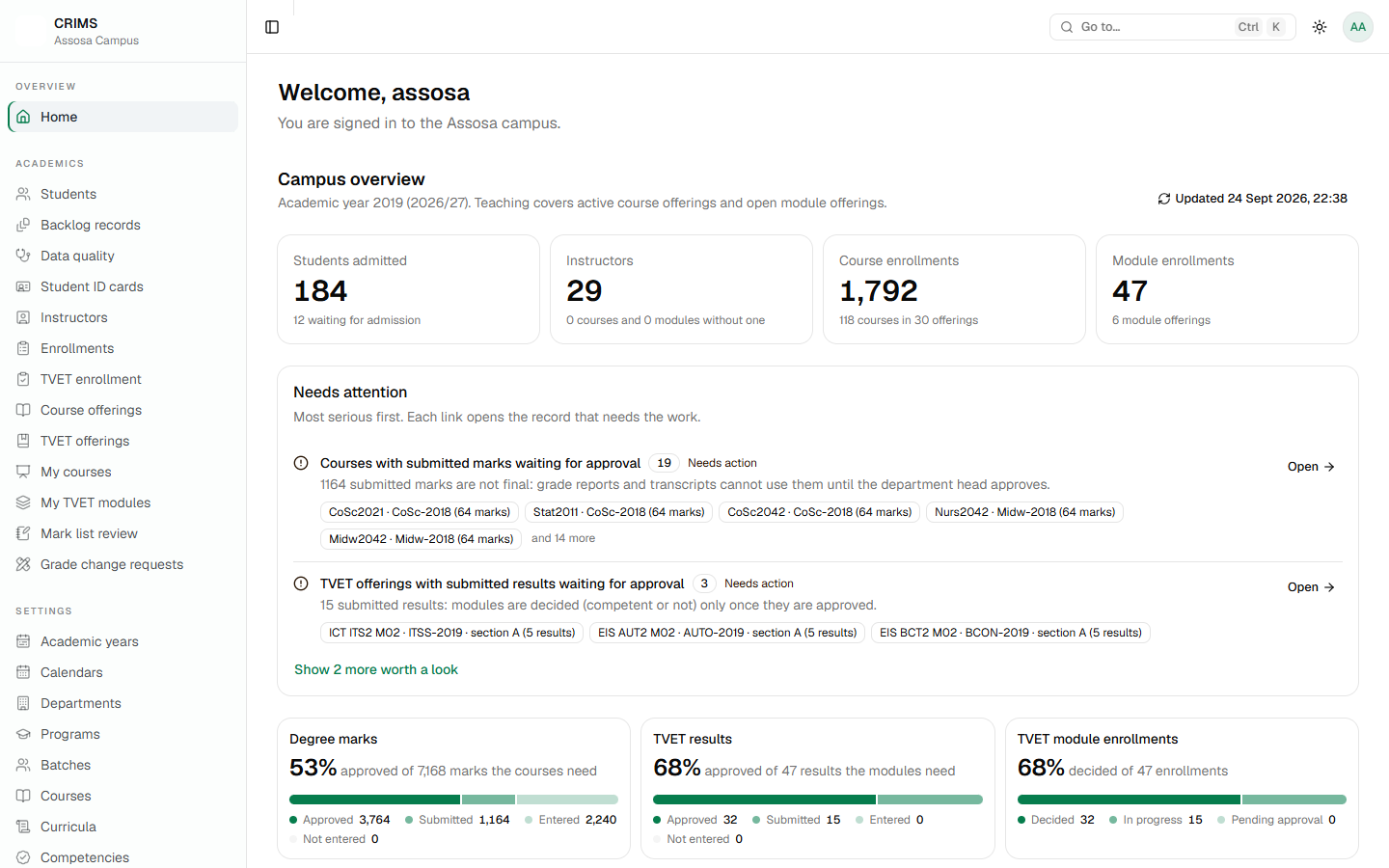
If your account is an instructor's, this page is simpler and your menu is shorter. That is normal: CRIMS shows each person only what their job needs.
1.7 Signing out
Your own menu is the round button at the top right, with your initials in it.
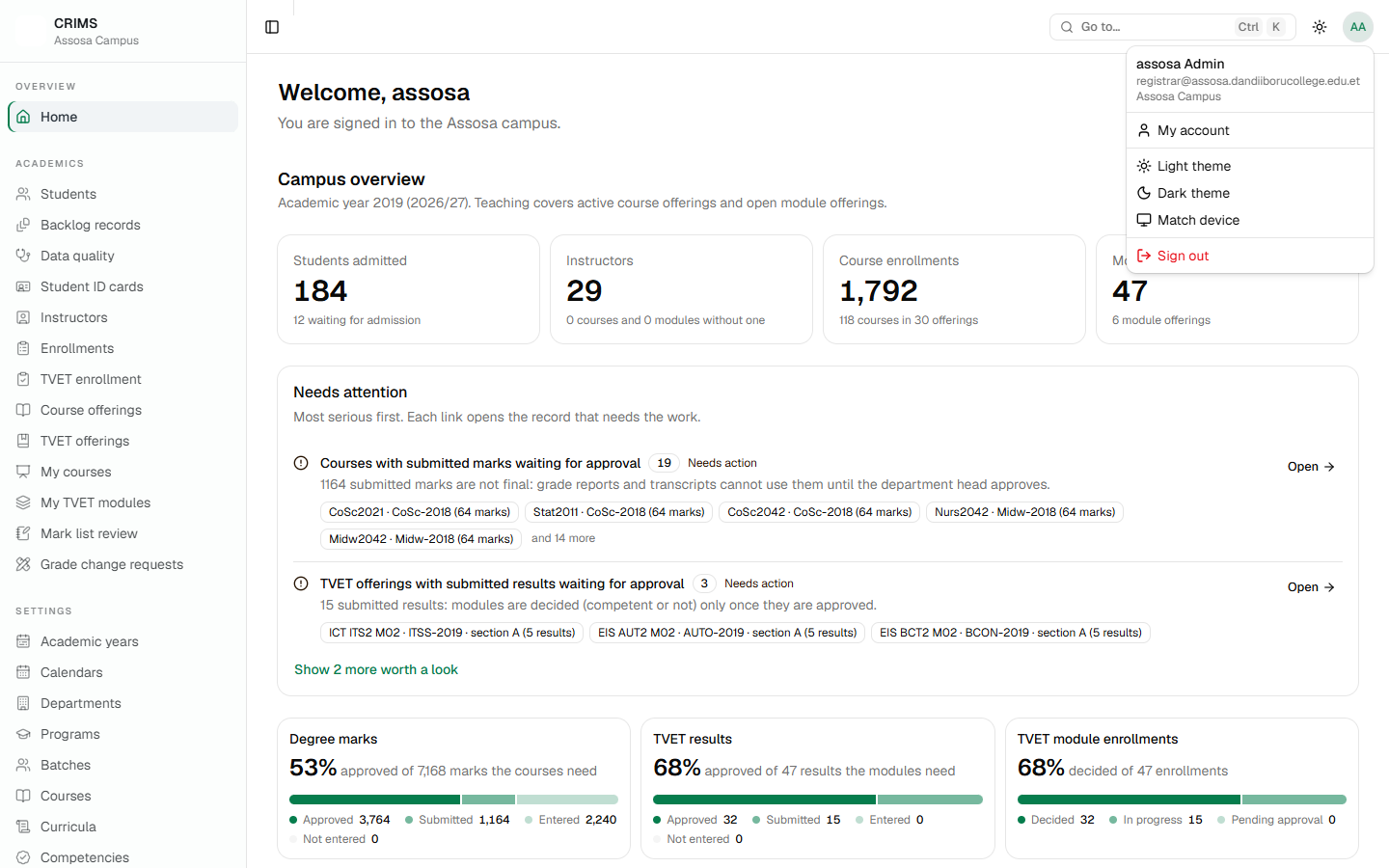
It holds:
- My account — your details, and where you change your password (Chapter 2).
- Light theme / Dark theme / Match device — how the screen looks.
- Sign out — ends the session.
Sign out when you leave a shared computer. If you simply close the window, the session stays open for the next person who opens the browser.
CRIMS also signs you out by itself after a long spell with no typing or clicking, and warns you a few minutes beforehand so you can carry on with a click. How long that is can be set for your college; ask your registrar if it is too short or too long for the way you work.
EveryoneChapter 2
Chapter 2 — Finding your way around
Part 1: for everyone.
Every page in CRIMS is laid out the same way: the menu down the left, a bar across the top, and the page itself in the middle. Learn these once and the whole system is familiar.
2.1 The menu
The menu lists the pages you are allowed to open, grouped under headings — Overview, Academics, Settings, Reports, Administration.
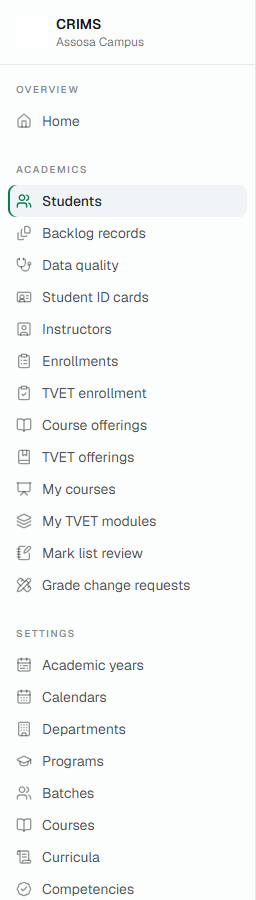
Your menu may be shorter than a colleague's. It lists only what your account may open. An instructor sees four or five items; a registrar sees thirty. Nothing is hidden to be unhelpful — a page you cannot open would only show you a refusal.
The button at the top left of the bar folds the menu away when you need more width, for a wide report or a long mark list.
2.2 Knowing where you are
Every page names itself, and above the name is the trail showing where it sits.
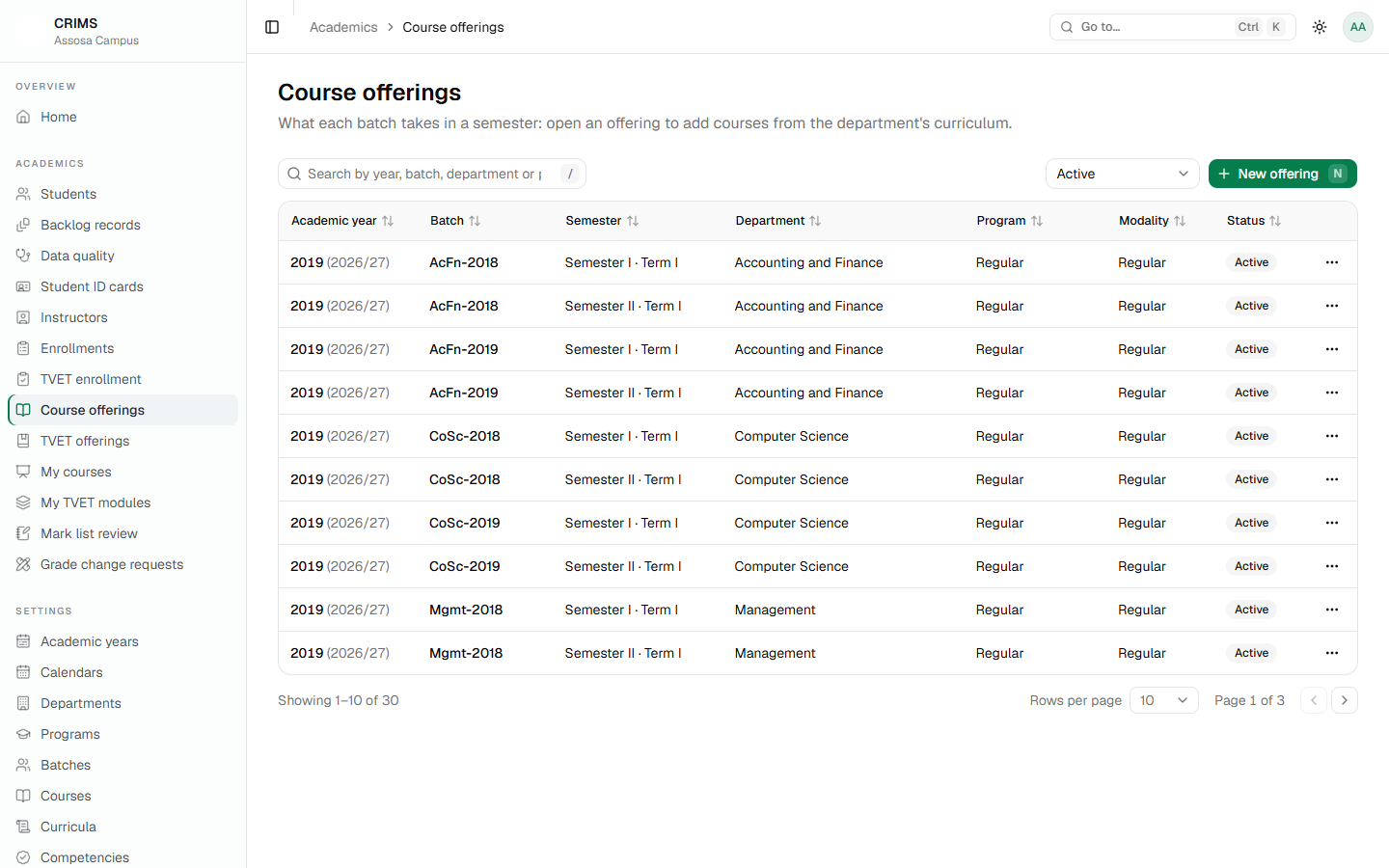
The trail is clickable: each step goes back to the page above.
2.3 Jumping straight to a page — Ctrl+K
The fastest way around is the quick search. Press Ctrl+K (or ⌘K on a Mac) anywhere, start typing, and pick from the list.
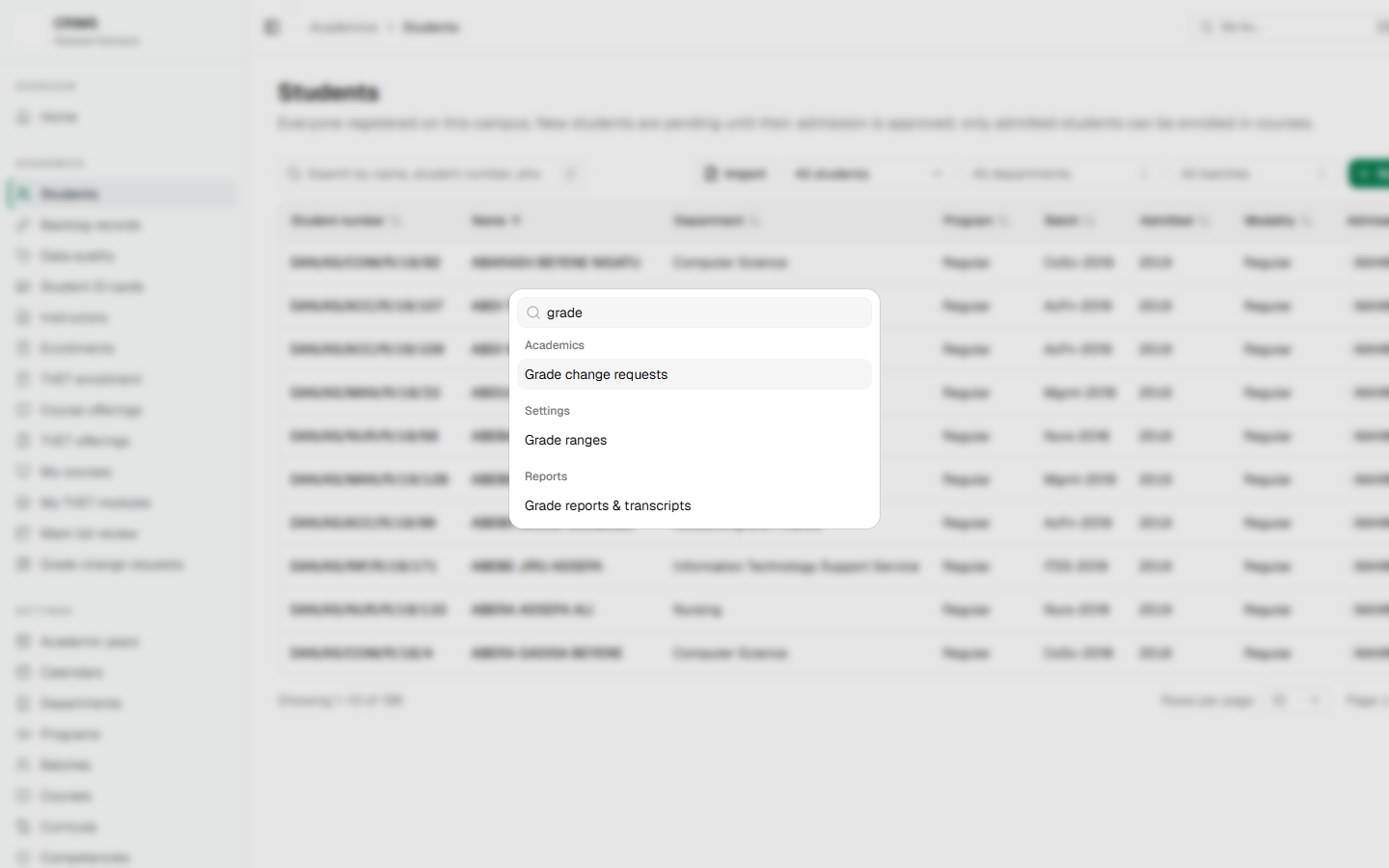
It searches the same pages your menu holds, so it can never take you somewhere you are not allowed. It also holds the light and dark settings and Sign out.
Other keys worth knowing, on any list page:
| Key | What it does |
|---|---|
/ | Jumps to the search box |
n | Starts a new record, where the page has a New button |
Ctrl+K | The quick search |
Ctrl+S | Saves, on pages that hold a lot of typing such as a mark list or a grade scale |
These do nothing while you are typing in a box, so they never interrupt you mid-word.
2.4 Light and dark
The switch in the top bar changes between a light and a dark screen; the account menu also offers Match device, which follows whatever your computer is set to.
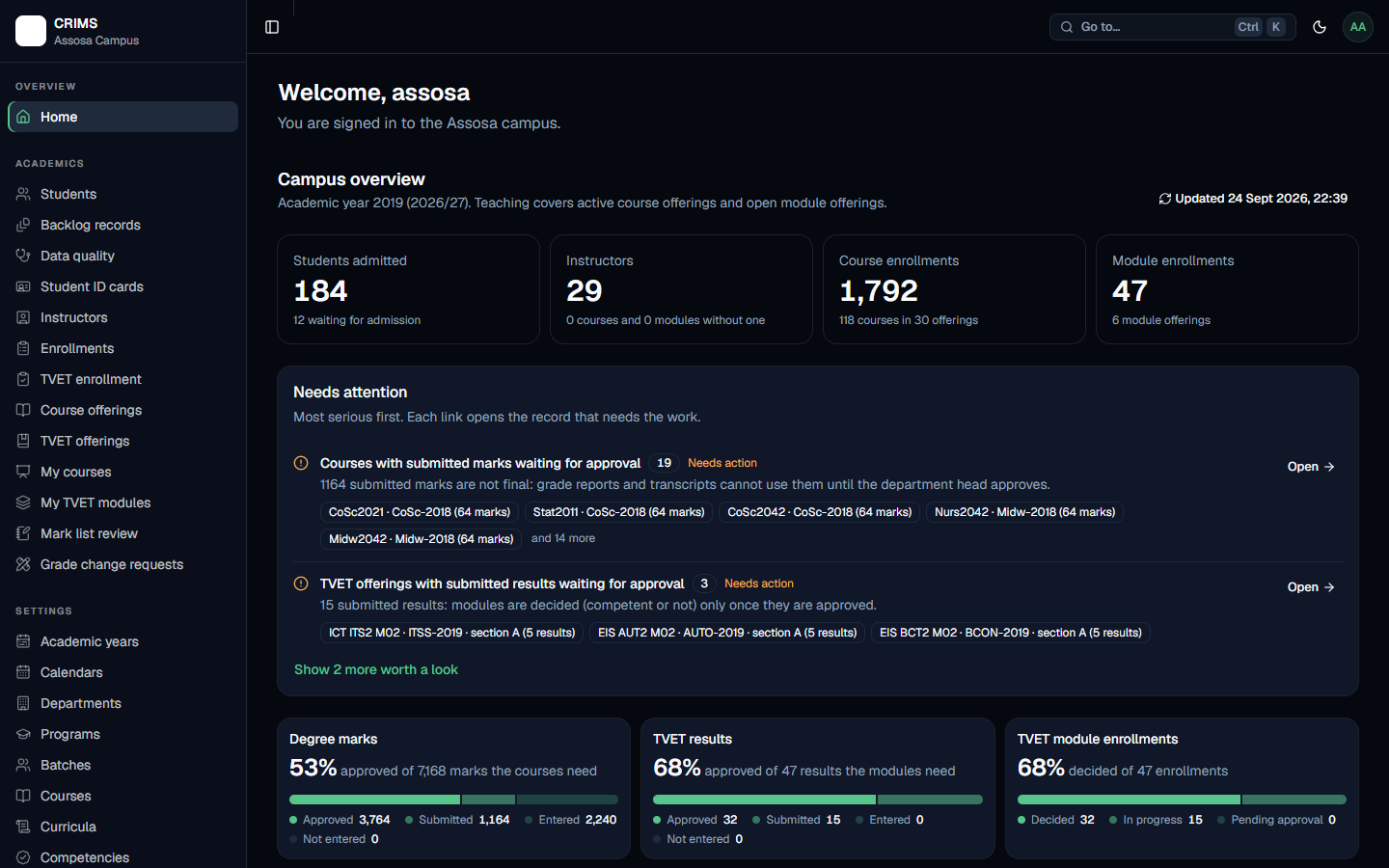
This is a matter of comfort and changes nothing about the records. It is remembered for your account on that computer.
2.5 Your account page
My account, from your menu at the top right, holds three things.
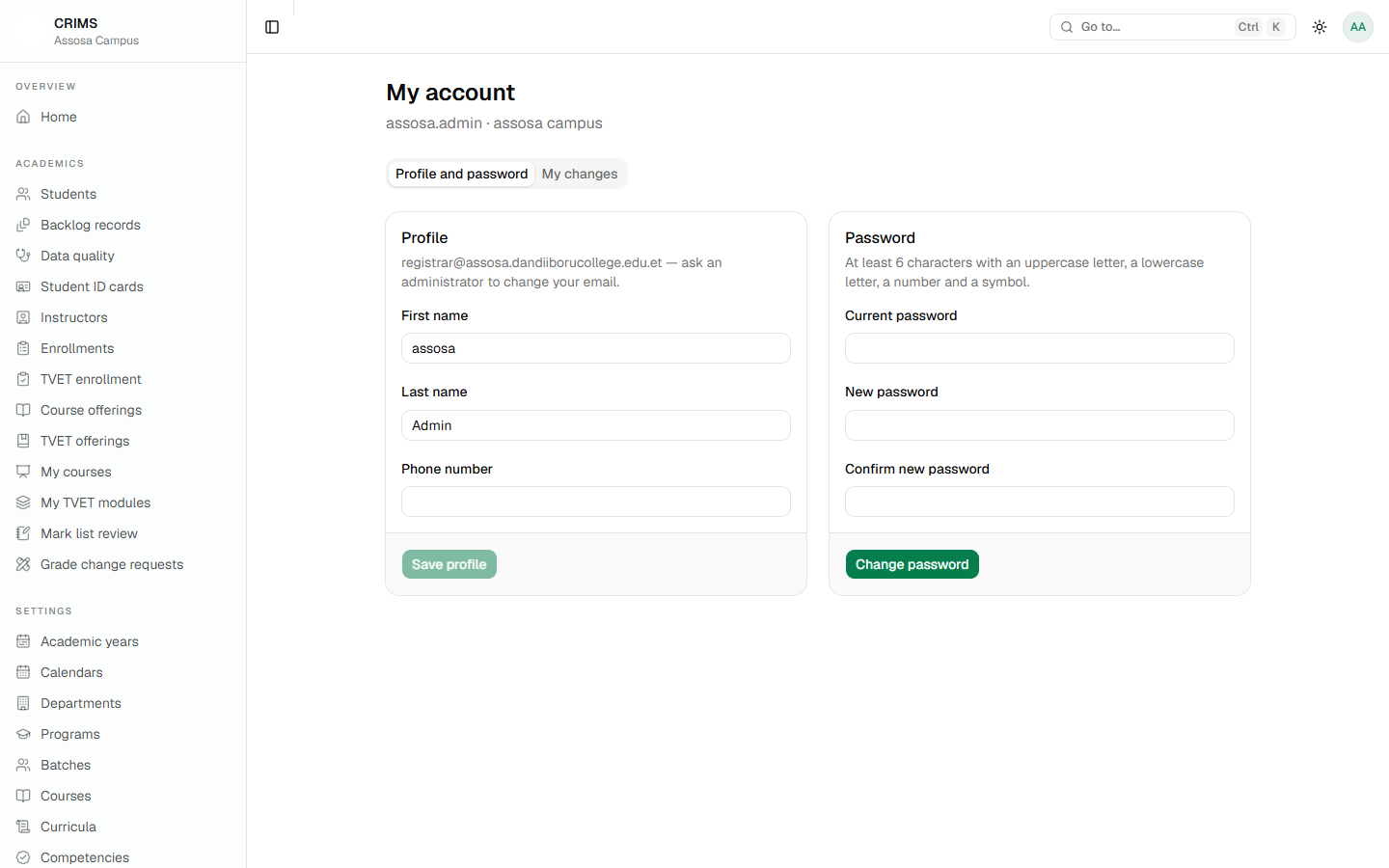
- Your details — your name, email and photograph as CRIMS holds them.
- Your password — where you change it. You need your current password to set a new one.
- Your changes — a record of what you yourself have altered in the system.
Changing your email here does not change how you sign in. Your sign-in address is managed by the registrar. Ask them if it needs to change.
2.6 If a page says you have no access
Occasionally you may reach a page that tells you it is not for you — usually from a link someone sent. That is not a fault. Your account has not been given that page. If you need it, ask your campus registrar, who can add the right role to your account (Chapter 13).
EveryoneChapter 3
Chapter 3 — Working with lists
Part 1: for everyone.
Most of CRIMS is lists: students, courses, instructors, offerings, enrollments, marks. They all behave identically, so this chapter is worth ten minutes even if you only ever open one of them.
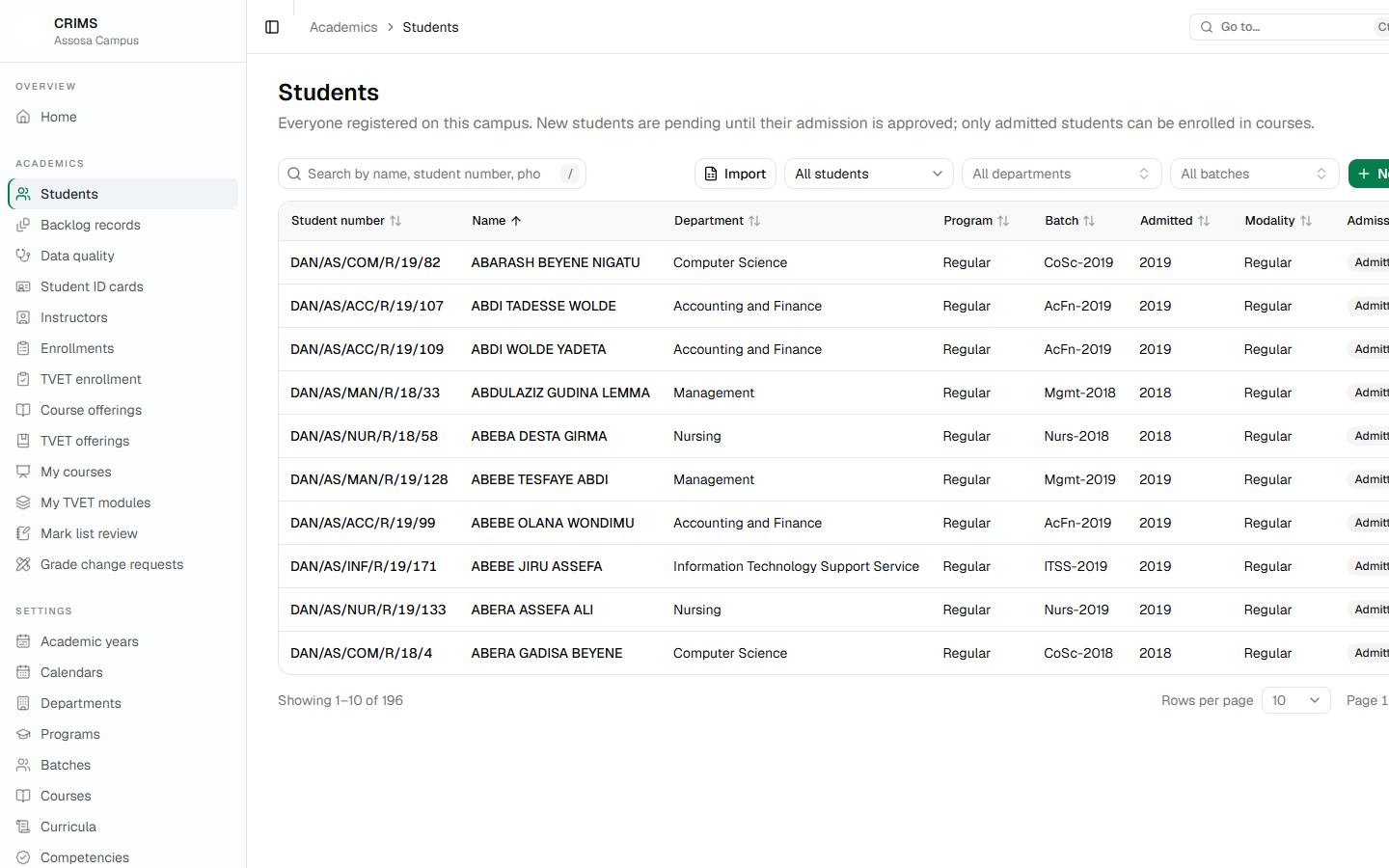
3.1 Searching
The box at the top left searches the list. Type and wait a moment — it searches as you type, without a button.
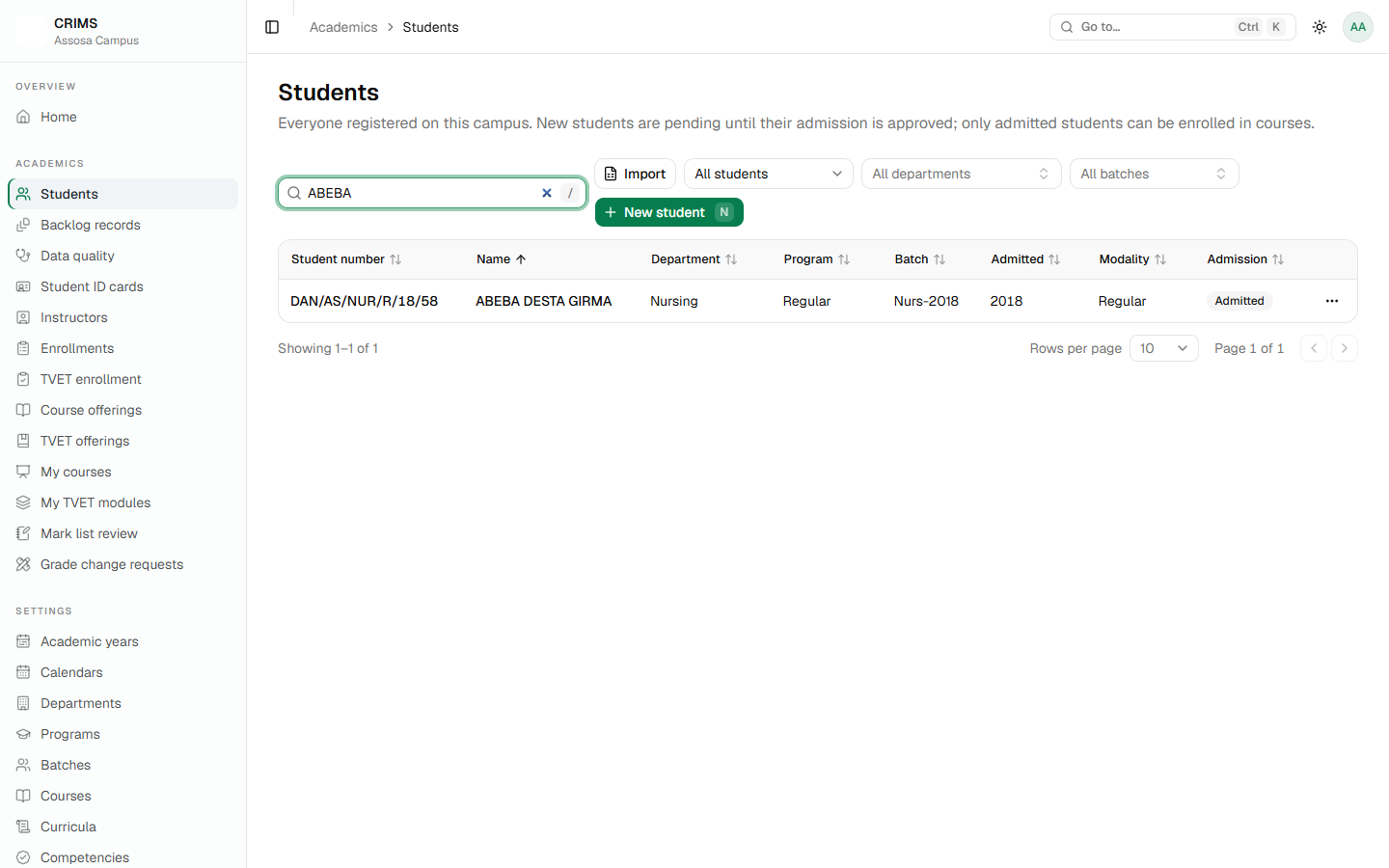
What it searches depends on the list, and the box says so. On students it looks in the full name, the student number, the phone number and the national ID. On courses it looks at codes and titles.
Two habits worth having:
- Press
/to jump into the search box instead of reaching for the mouse. - Clear the box when you are done. An empty list usually means a search is still in place — the message says "No results for …" rather than "nothing here".
3.2 Filters
Filters narrow a list by a value rather than by text — a department, a batch, a status.
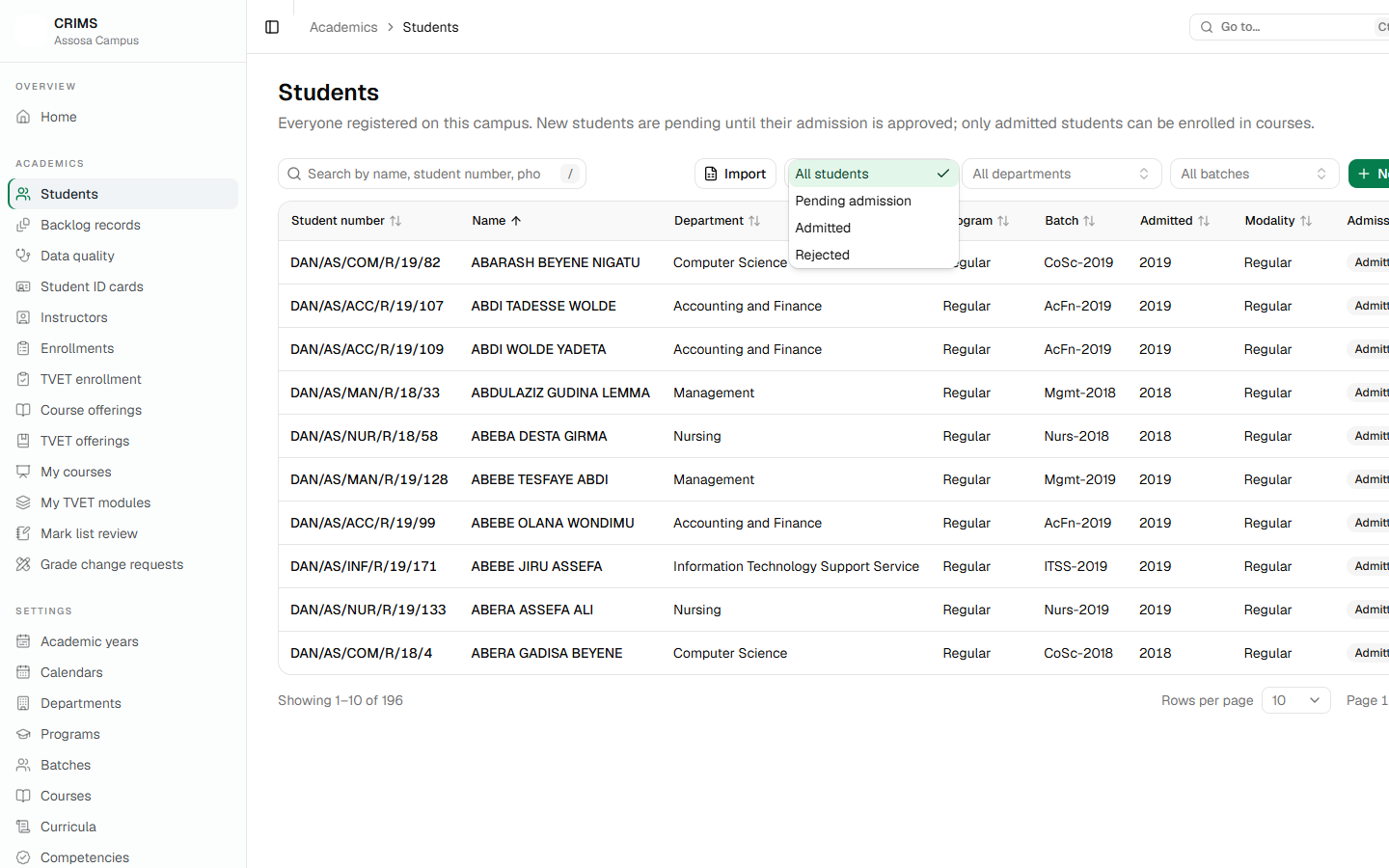
Filters and the search box work together: choosing a department and then typing a name searches within that department.
A filtered list can be shared. The filters are written into the web address, so copying the address from your browser and sending it to a colleague shows them the same filtered list — provided their account may see it.
3.3 Sorting
Click a column heading to sort by it; click again to reverse. The heading shows which way it is sorted. Not every column can be sorted — only those the system can order sensibly.
3.4 Paging
The foot of every list tells you what you are looking at.

- Showing 1–10 of 152 — the count is of everything matching your search and filters, not just this page.
- Rows per page — 10, 25, 50 or 100.
- The arrows move between pages.
When you are looking for one record, searching is almost always faster than paging.
3.5 Opening a record
Click the name — usually the first column — to open a record's own page. Rows also have a ⋯ menu at the right with the actions for that row: edit, delete and whatever else applies.
Actions you are not allowed to perform are not shown, so a shorter menu than a colleague's is expected.
3.6 Adding and editing
A New button sits at the top right of lists you may add to (or press n). Editing opens the same form with the values filled in.
Forms in CRIMS check as you go:
- A field that is required and empty is marked when you try to save.
- A value the system cannot accept is explained on the field itself, not in a general message — so if a save does nothing, look for red text beside a box, and scroll up if the form is long.
- Nothing is saved until you press the save button. Closing a form throws the typing away.
3.7 Why a record sometimes cannot be deleted
CRIMS refuses to delete anything that other records depend on, and tells you what is in the way — a department with students in it, a course that is being taught, an academic year that batches belong to.
This is deliberate. Deleting such a record would leave the ones pointing at it stranded. Remove or move the things that depend on it first, or simply leave it: a record that is no longer used does no harm.
Part 2 — For the registrar
Setting the campus up and keeping its records.
RegistrarChapter 4
Chapter 4 — The academic year and the calendar
Part 2: for the registrar.
Everything in CRIMS hangs off an academic year: batches, offerings, students, marks. Get this right before anything else in a new year.
4.1 The academic years
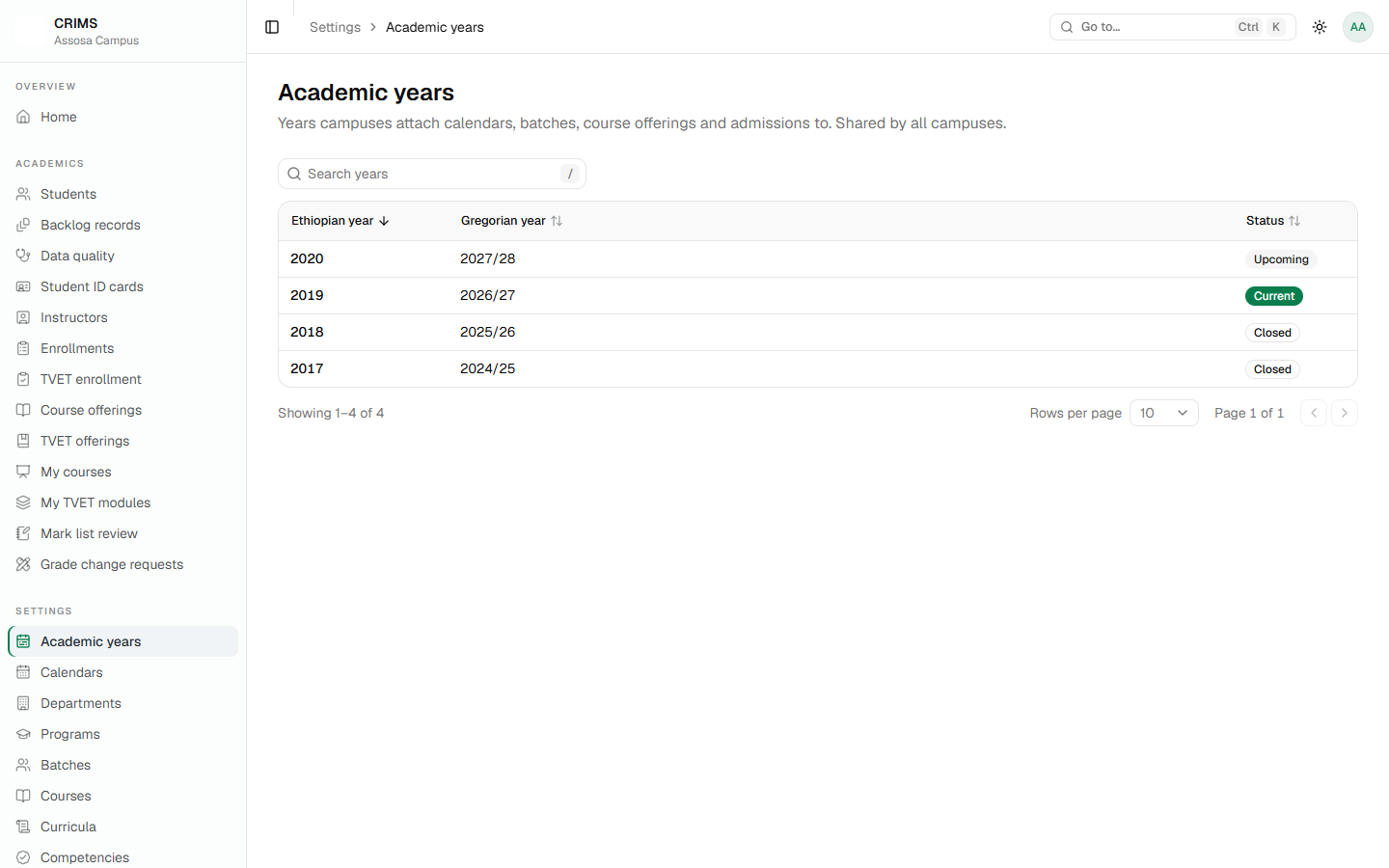
A year is in one of three states:
| Status | What it means |
|---|---|
| Current | The year the college is teaching. There is exactly one. |
| Upcoming | The next year, being prepared. Calendars, batches and offerings can already use it. |
| Closed | A finished year. Its records stay and can be read, but it takes no new batches. |
Academic years are shared by the whole college, not created per campus. They are managed by the head office account. A campus registrar sees them and uses them but cannot add or change them.
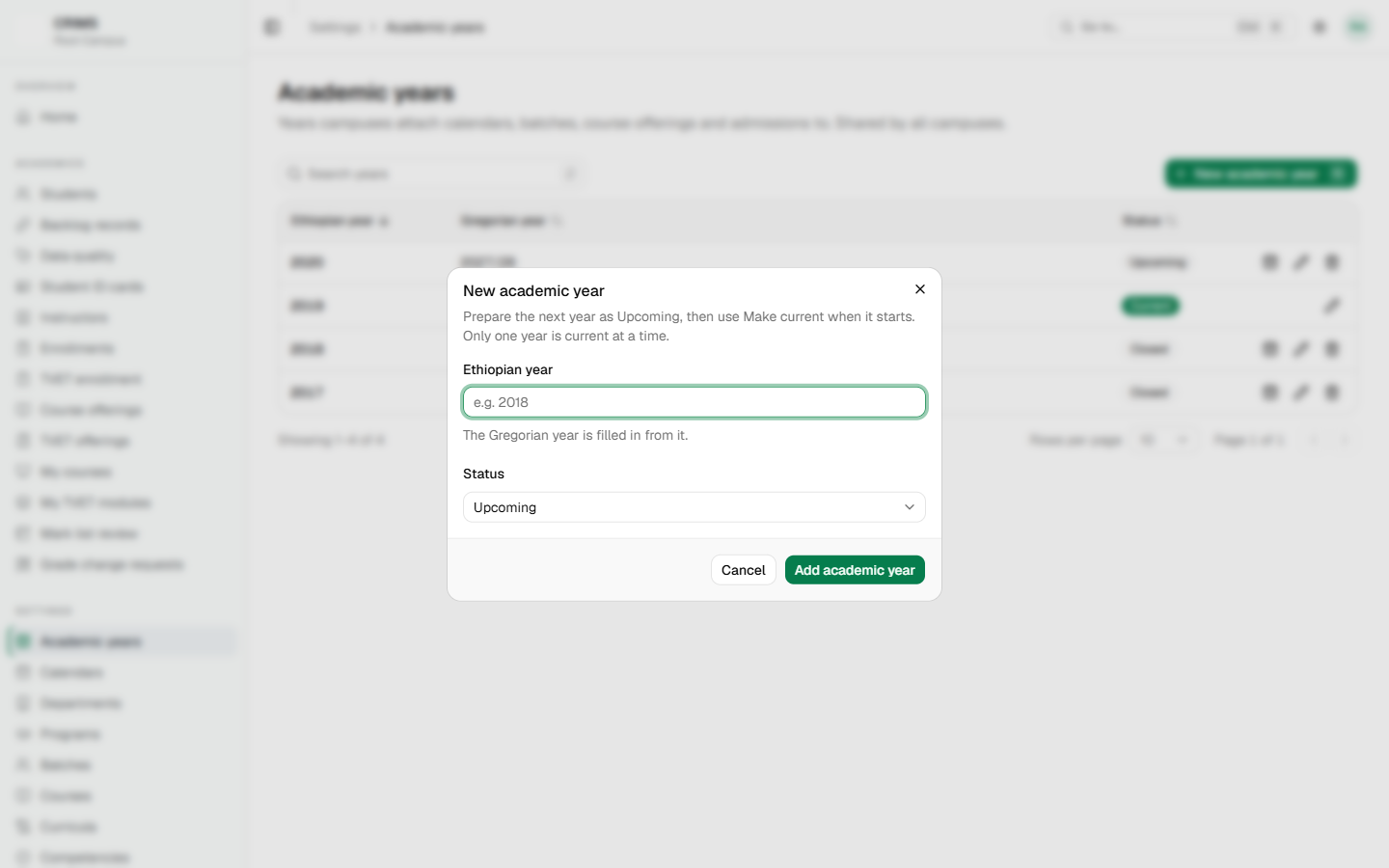
The Ethiopian year is typed and the Gregorian span follows from it — 2019 is 2026/27. They must agree, so CRIMS works it out rather than letting the two drift apart.
4.2 Moving to a new year
Preparing the next year does not disturb the one being taught:
- Create the next year as Upcoming. Calendars, batches and offerings can be built against it straight away while teaching carries on in the current year.
- When the time comes, use Make current on the new year.
- CRIMS shows a preview before it switches: how many marks are still unapproved, how many TVET results are undecided, how many grade change requests are still open in the year about to close.
The preview warns, it does not block. You can go ahead with unfinished grading — but read it first. Marks left unapproved in a closed year still need the department head to approve them before they count towards a transcript.
The current year cannot be closed or deleted directly. Making another year current is what closes it.
4.3 Academic calendars
A calendar says when things happen: when registration is open, when students may add or drop a course, when they may withdraw.
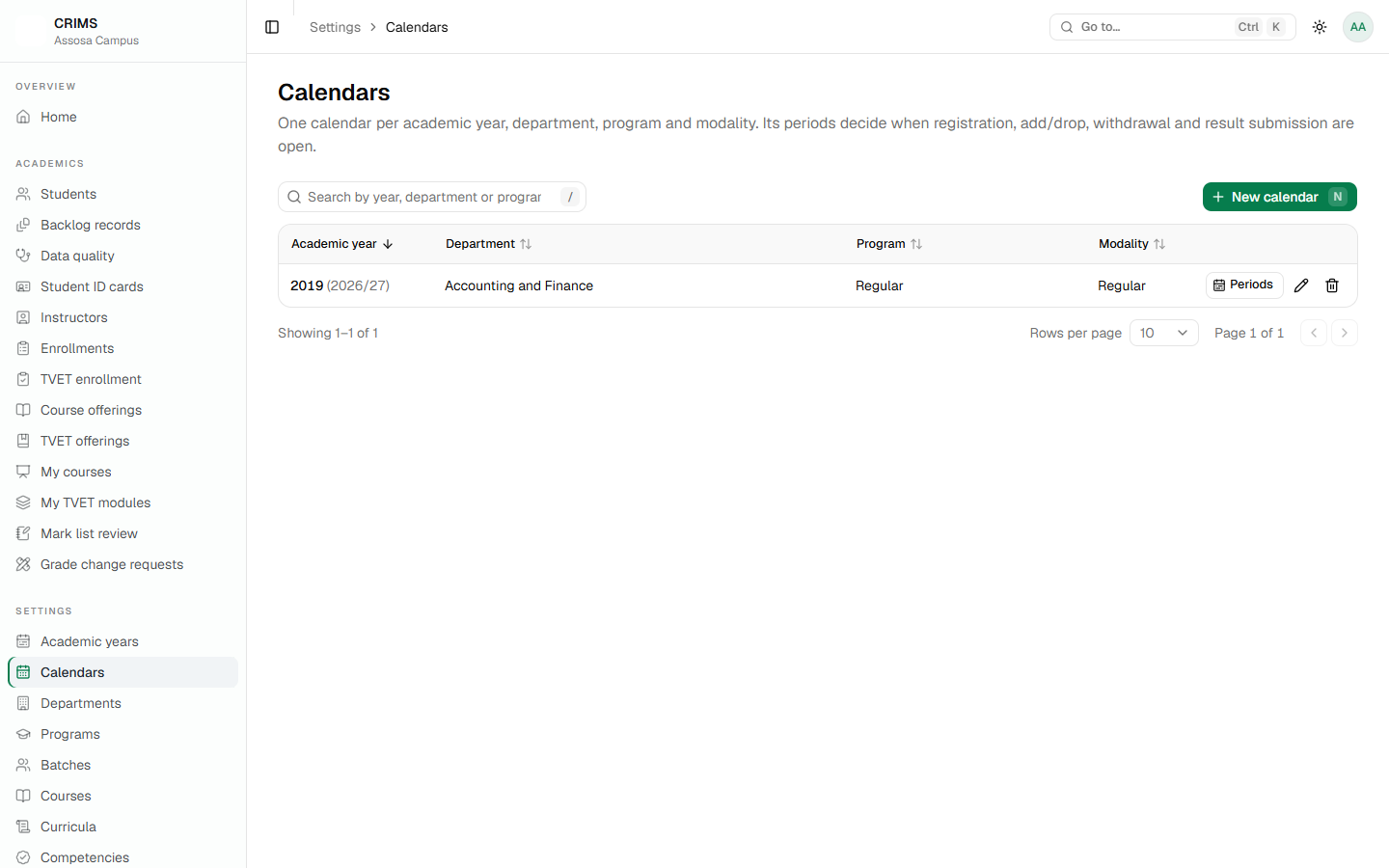
Open one to see its periods.
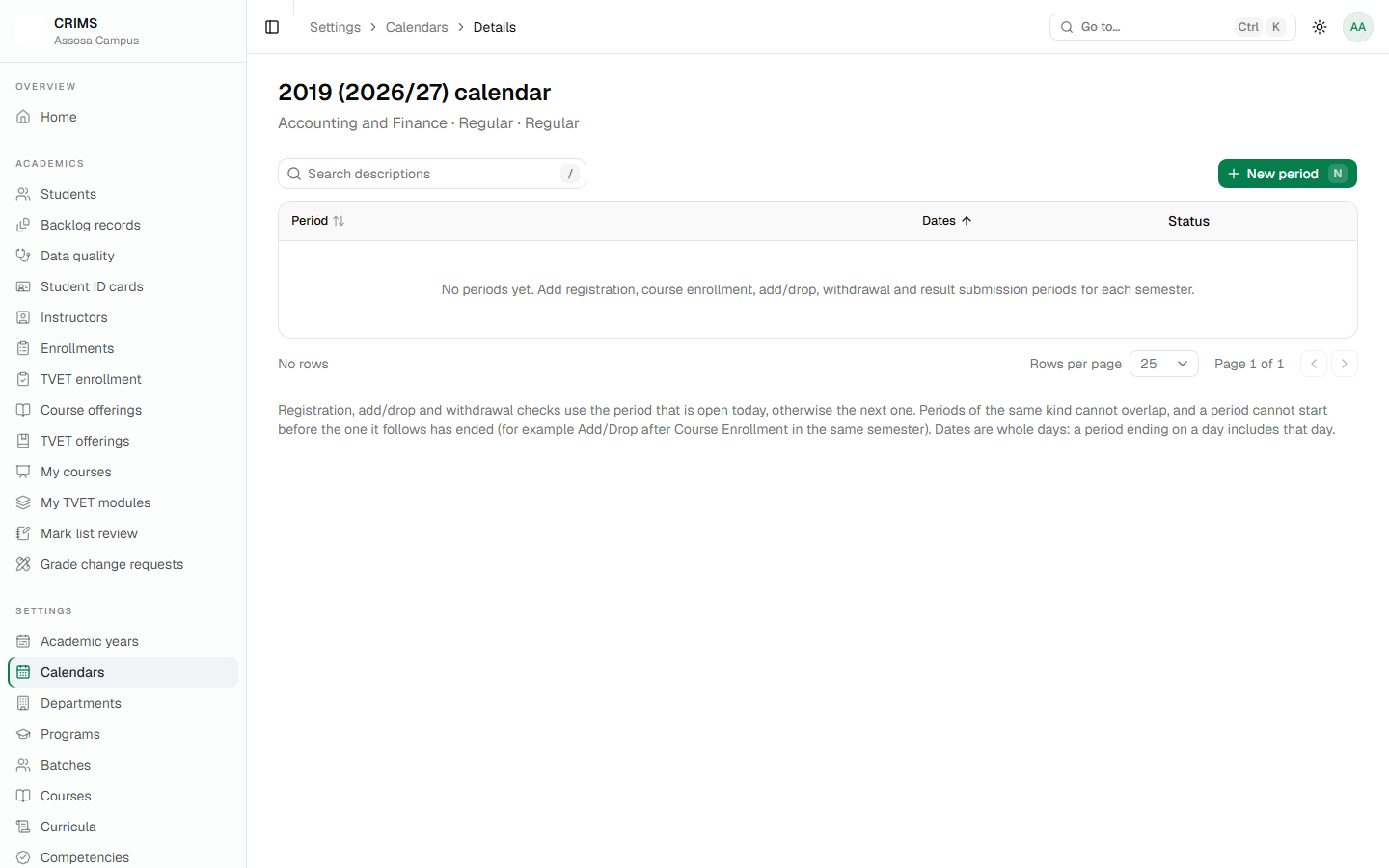
4.4 What the calendar actually controls
This is the part worth understanding, because it decides whether ordinary work succeeds or is refused:
- Course enrollment. Enrolling a student in a course honours the Course Enrollment period, and then the Late Course Enrollment period if one is defined.
- Add and drop. Refused outside the Add/Drop period.
- Withdrawal. Refused outside its own period.
Two rules that save confusion:
- A department with no such period defined is left alone. If you have not set up a calendar, the enrollment pages keep working. Calendars restrict; they do not enable.
- If the calendar cannot be read at all, the operation is refused with a "try again" message rather than allowed. CRIMS would rather stop than let something through a window that may be closed.
So if a registrar reports that they cannot enrol a student and the reason mentions a period, look at that department's calendar for the current year first.
RegistrarChapter 5
Chapter 5 — Departments, programmes and batches
Part 2: for the registrar.
These three describe how your campus is organised. Everything else — courses, students, offerings, marks — is attached to them.
5.1 Departments
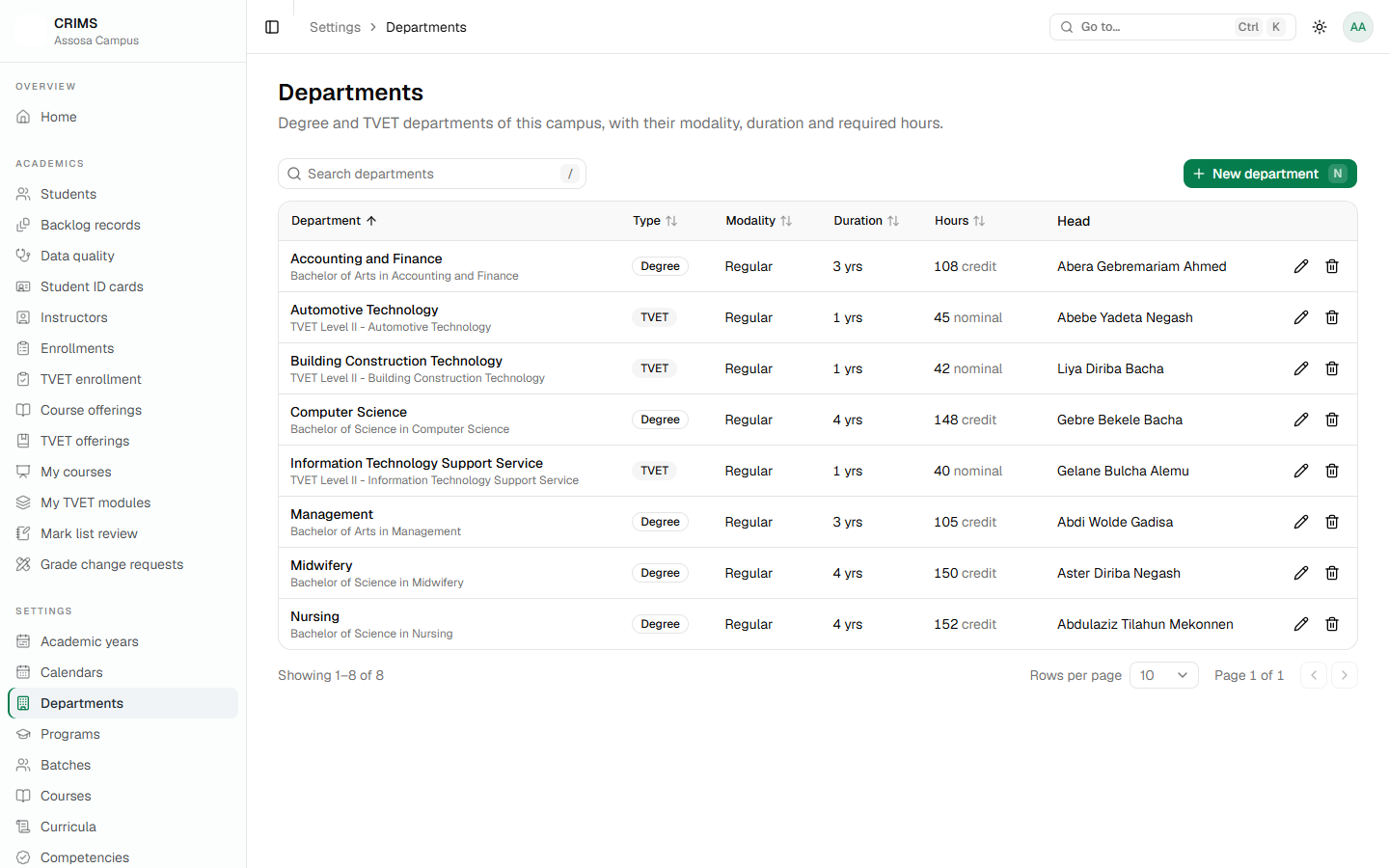
A department is either Degree or TVET, and that choice changes the whole system's behaviour:
| Degree | TVET | |
|---|---|---|
| What is taught | Courses in a curriculum | Modules inside units of competence |
| How students are graded | Marks out of assessment weights, then a letter grade | Assessed against a competency line |
| The result | A grade and grade points | Competent or Not competent |
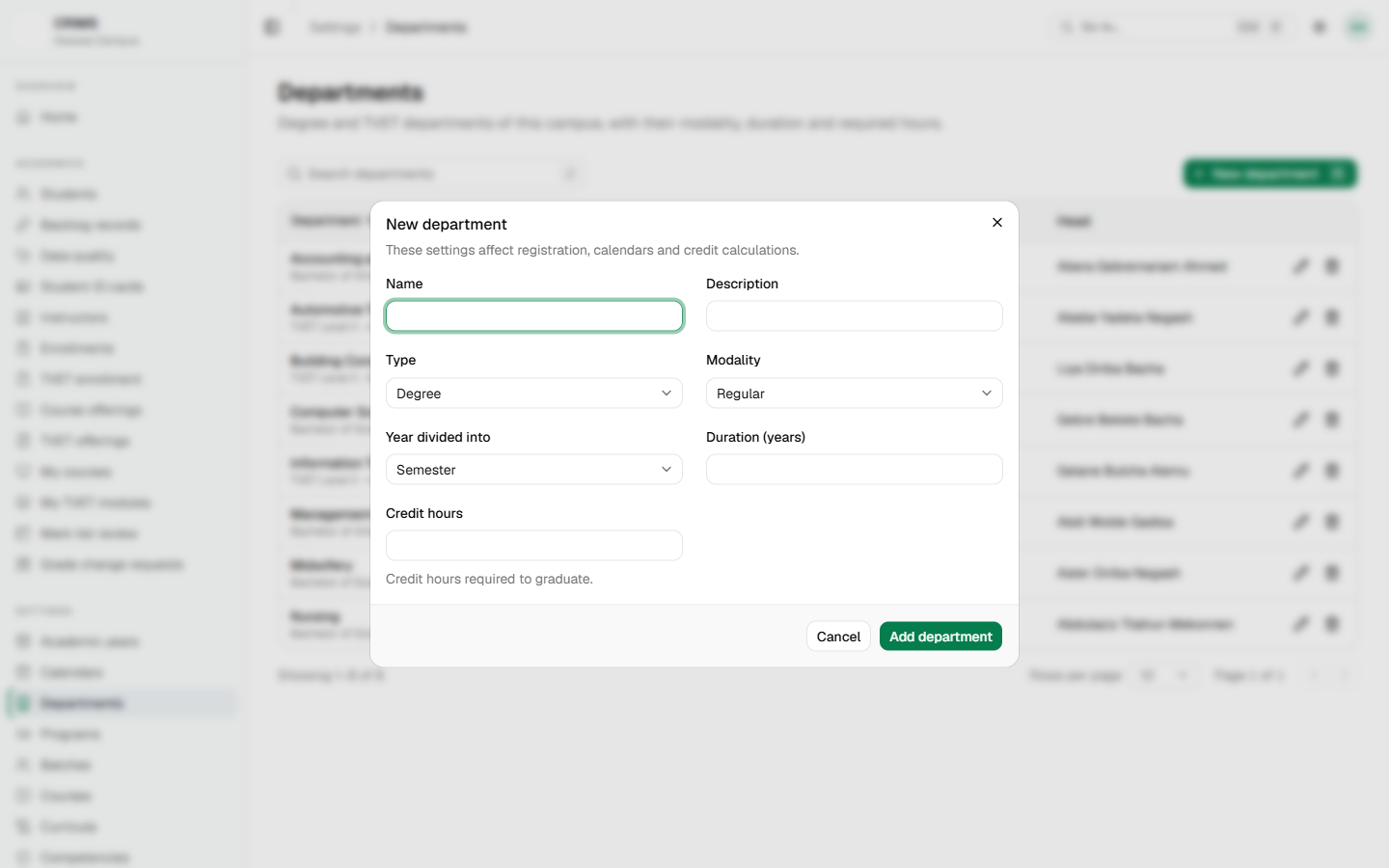
What the form needs:
- Name — unique within the modality.
- Type — Degree or TVET. Choose carefully: it decides everything above.
- Modality — how the department is delivered.
- Duration — in years.
- Credit hours — the hours a student must pass to graduate. Used by the grade report.
- Maximum concurrent modules — TVET only: how many modules a trainee may take at once.
5.2 A department's own page
Clicking a department's name opens its page, which is the hub for everything about it.
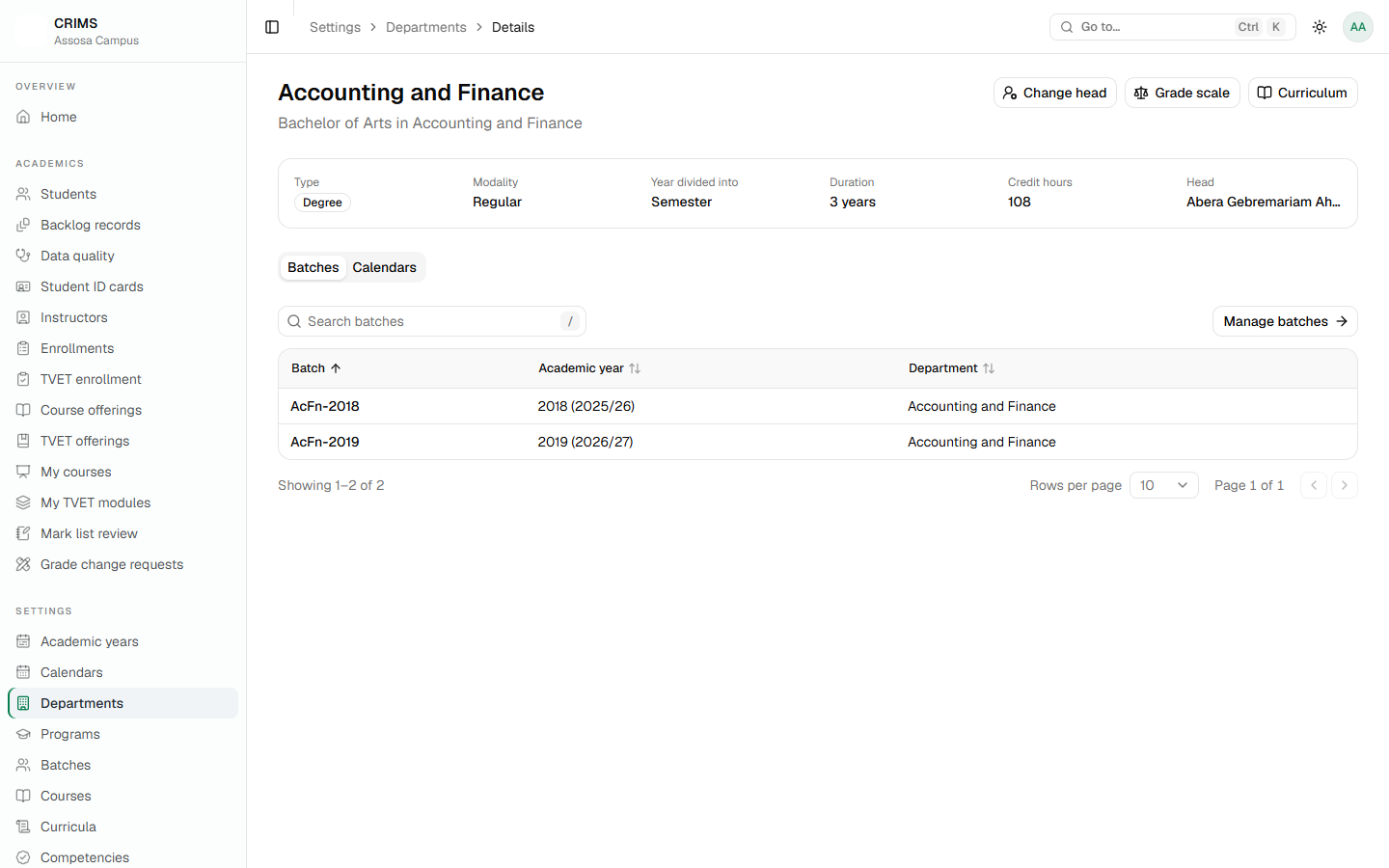
From here you reach:
- The head — assign, change or remove (Chapter 9).
- The grade scale — required before any of its marks can be approved (Chapter 7).
- The curriculum, for a degree department, or Competencies for a TVET one (Chapters 6 and 12).
- Its batches and calendars.
5.3 Programmes
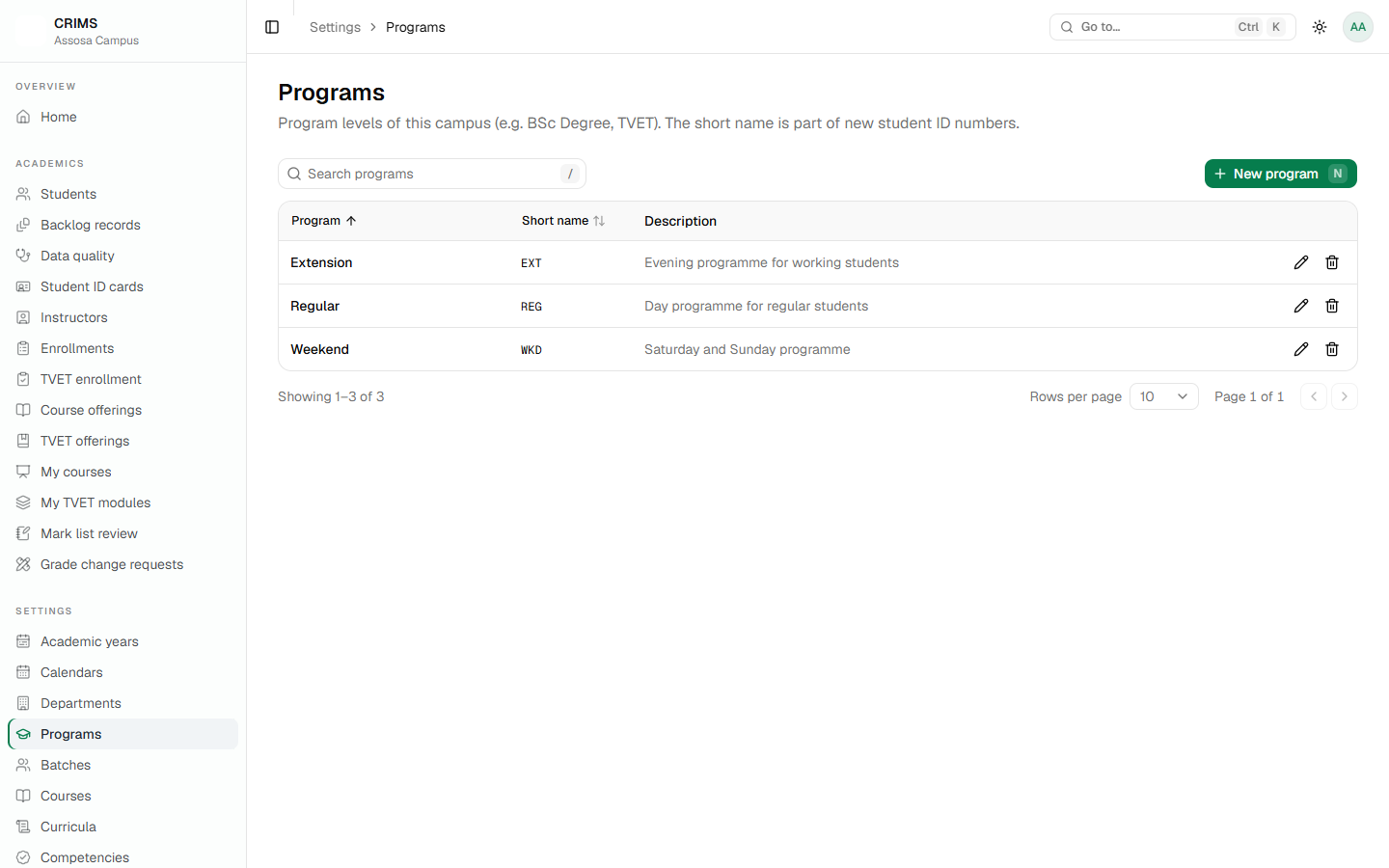
A programme is Regular, Extension or Weekend. A student belongs to one, and so does a course offering.
5.4 Batches
A batch is one intake of one department in one academic year — the group a student moves through the college with.
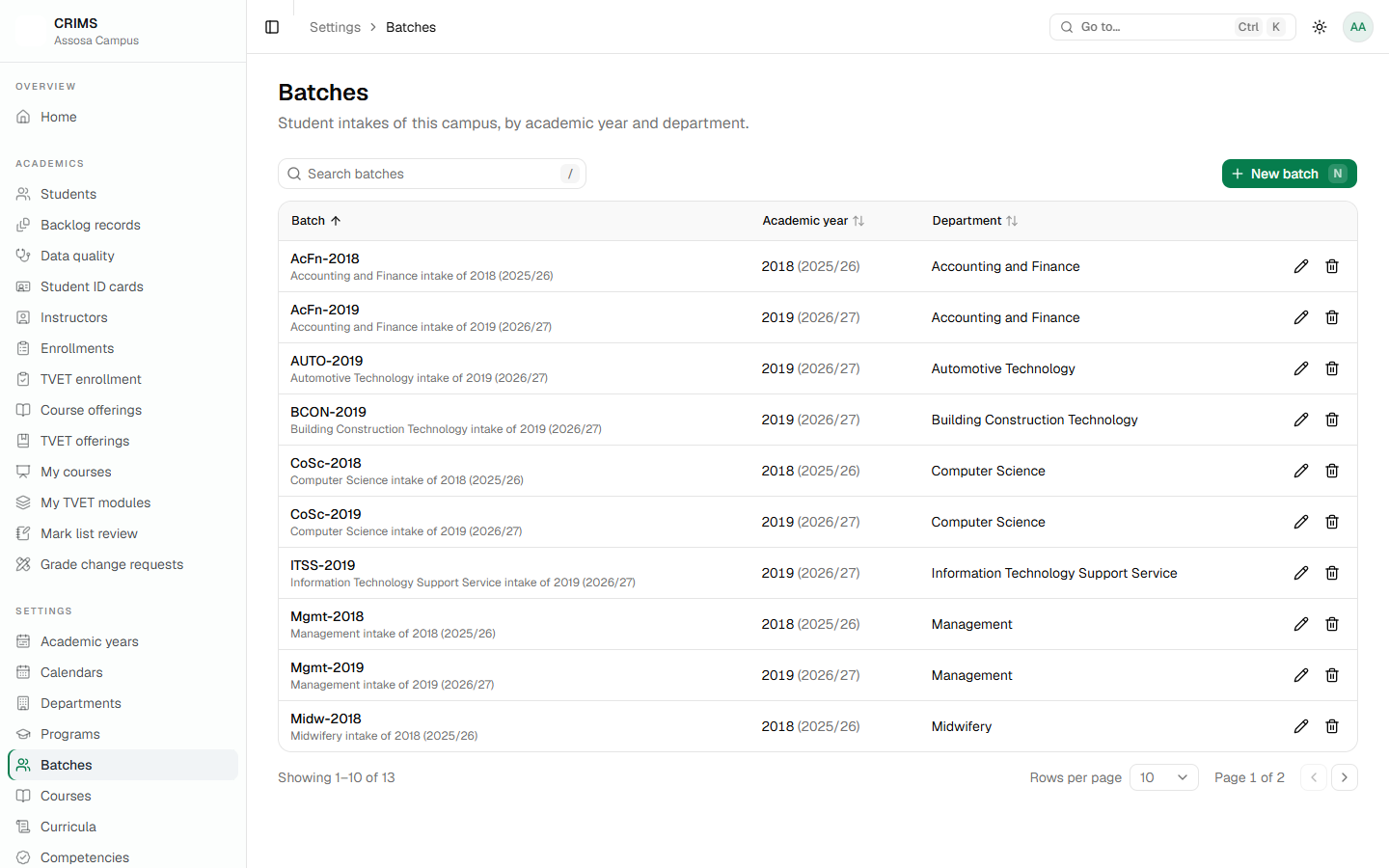
Batches matter more than they look:
- Every student belongs to exactly one.
- A course offering is made for a batch, so a batch is how a group of students gets its teaching.
- A batch cannot be created in a closed academic year.
- A TVET module offering is made for a batch too.
A useful convention is to name a batch after the department and year — CoSc-2019, AcFn-2018 — so it is recognisable everywhere it appears.
5.5 The order to do things in
For a brand new campus, or a new department on an existing campus:
- Department — with its type and duration.
- Programmes — if the campus does not have them yet.
- Grade scale for the department (Chapter 7). Do this early; grading is blocked without it.
- Curriculum for a degree department, or units and modules for a TVET one (Chapters 6 and 12).
- Batch for the intake.
- Calendar for the department and year (Chapter 4).
- Students (Chapter 8) and instructors (Chapter 9).
- Course offering for the batch, then assign instructors (Chapter 10).
- Enrol the students (Chapter 11).
Steps 1–4 are done once. Steps 5–9 repeat every year.
RegistrarChapter 6
Chapter 6 — Courses and the curriculum
Part 2: for the registrar.
There are two separate ideas here, and keeping them apart makes everything simpler:
- A course is an entry in the college catalogue — a code, a title, credit hours.
CoSc2041 Data Structures and Algorithmsexists once. - A curriculum is a department's study plan: which of those courses its students take, in which year and semester, and what must be passed first.
6.1 The course catalogue
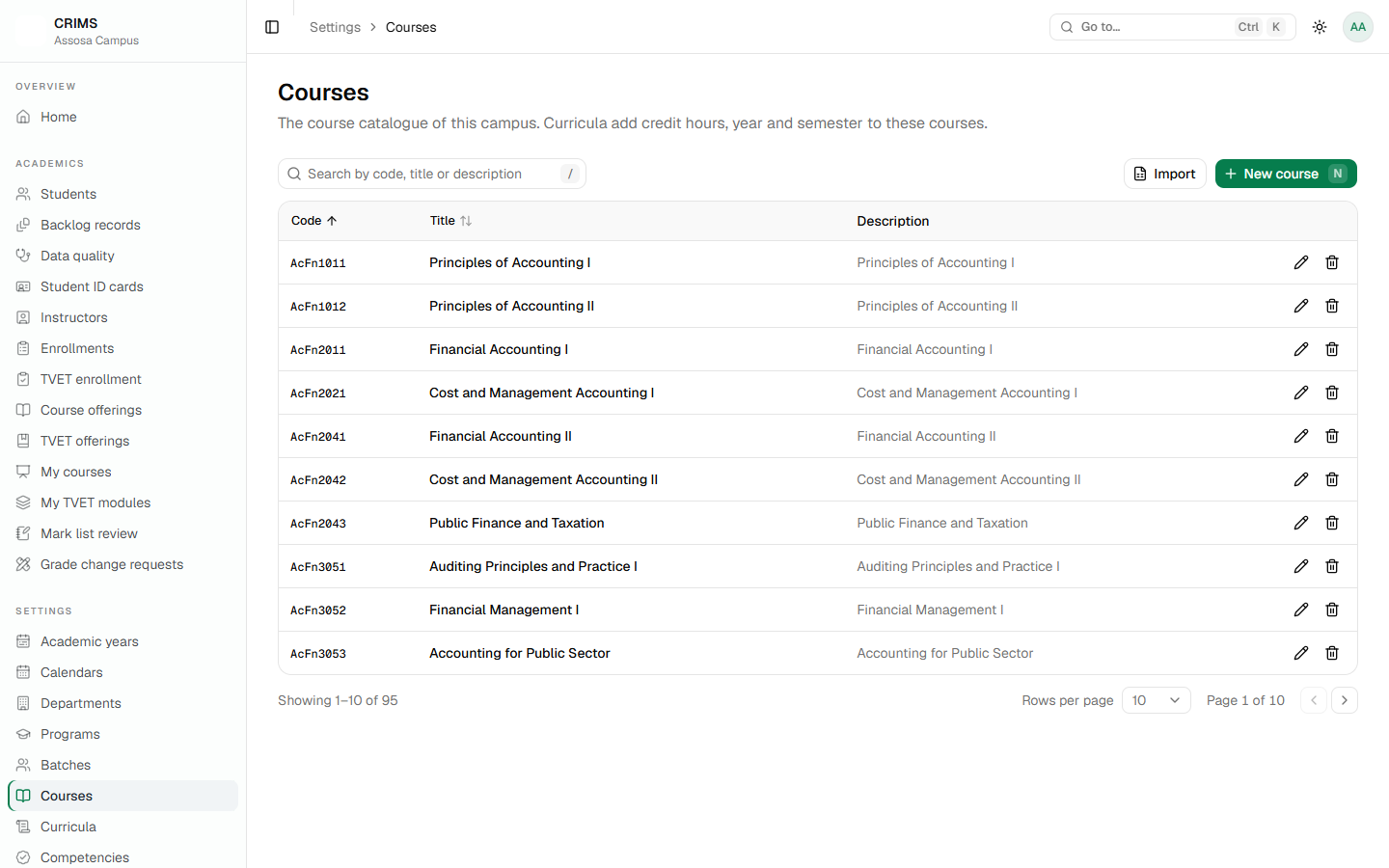
General education courses are the clearest case: one Engl1011 Communicative English Language Skills I is used by every department, rather than each keeping its own copy.
Codes and titles are trimmed of stray spaces before they are stored, so a padded code cannot slip past as a second copy of a course you already have.
6.2 Bringing courses in from a spreadsheet
Typing a catalogue in one course at a time is slow. Use Import.
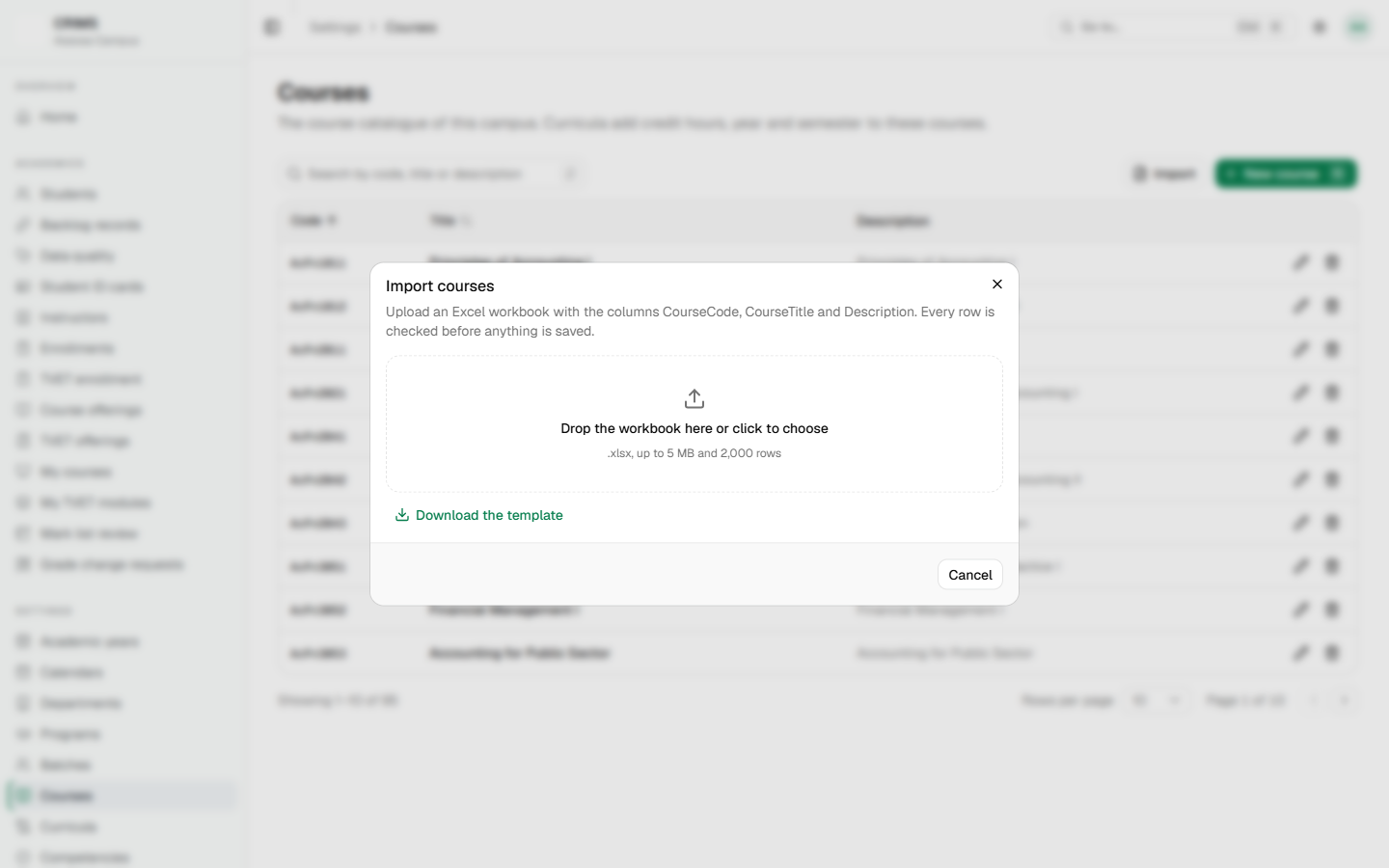
How every import in CRIMS works — courses, students, instructors, competencies, marks:
- Download the template from the dialog. It has the right column headings.
- Fill it in, one row per record.
- Upload it. CRIMS checks every row and reports the problems by row number — "row 14: credit hours must be a number".
- Only when you press the second button — Import N courses — is anything saved.
Checking and saving are separate steps. You can upload a file as often as you like to find its problems without changing a single record.
6.3 The curriculum
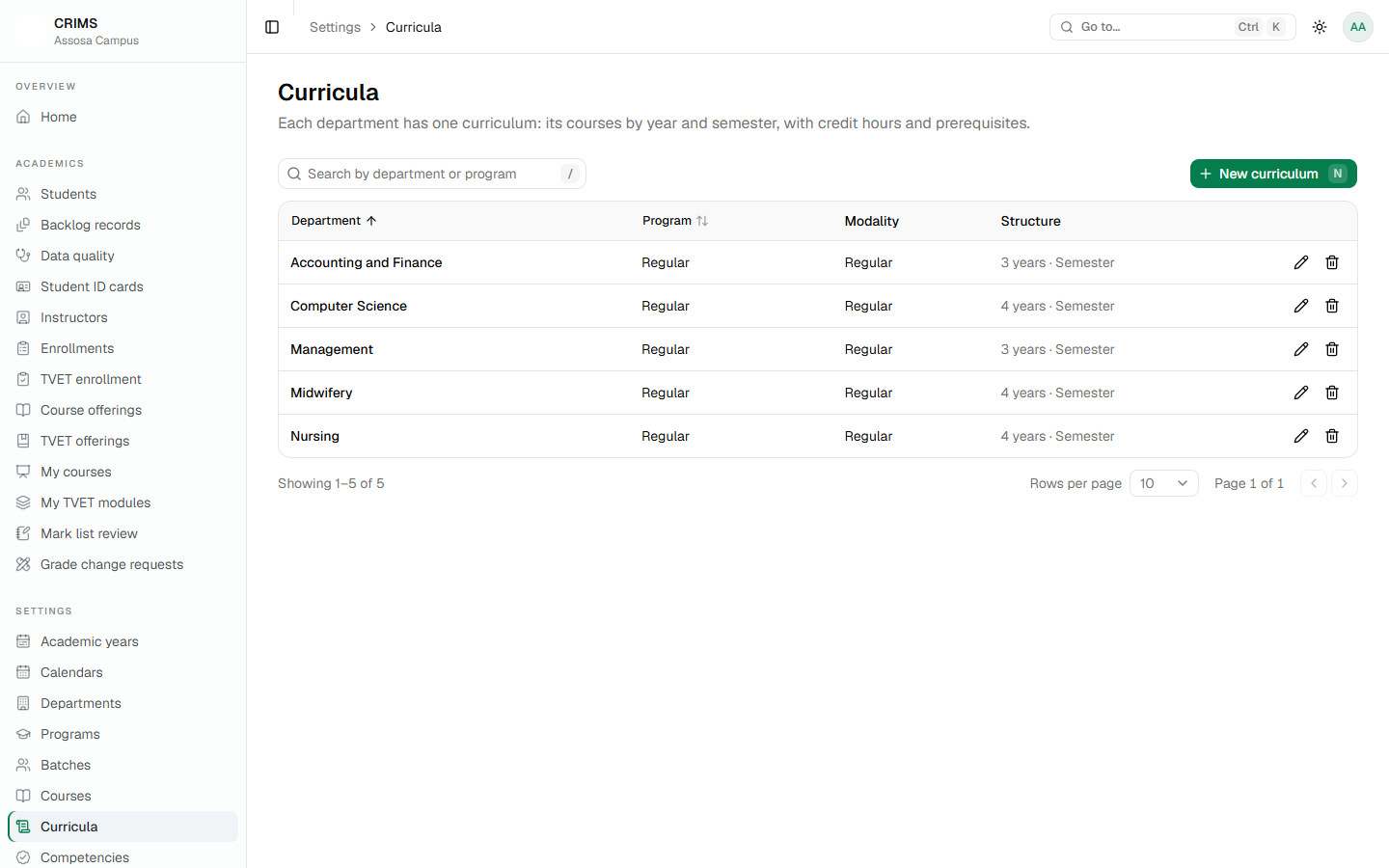
Open one and you get the study plan.
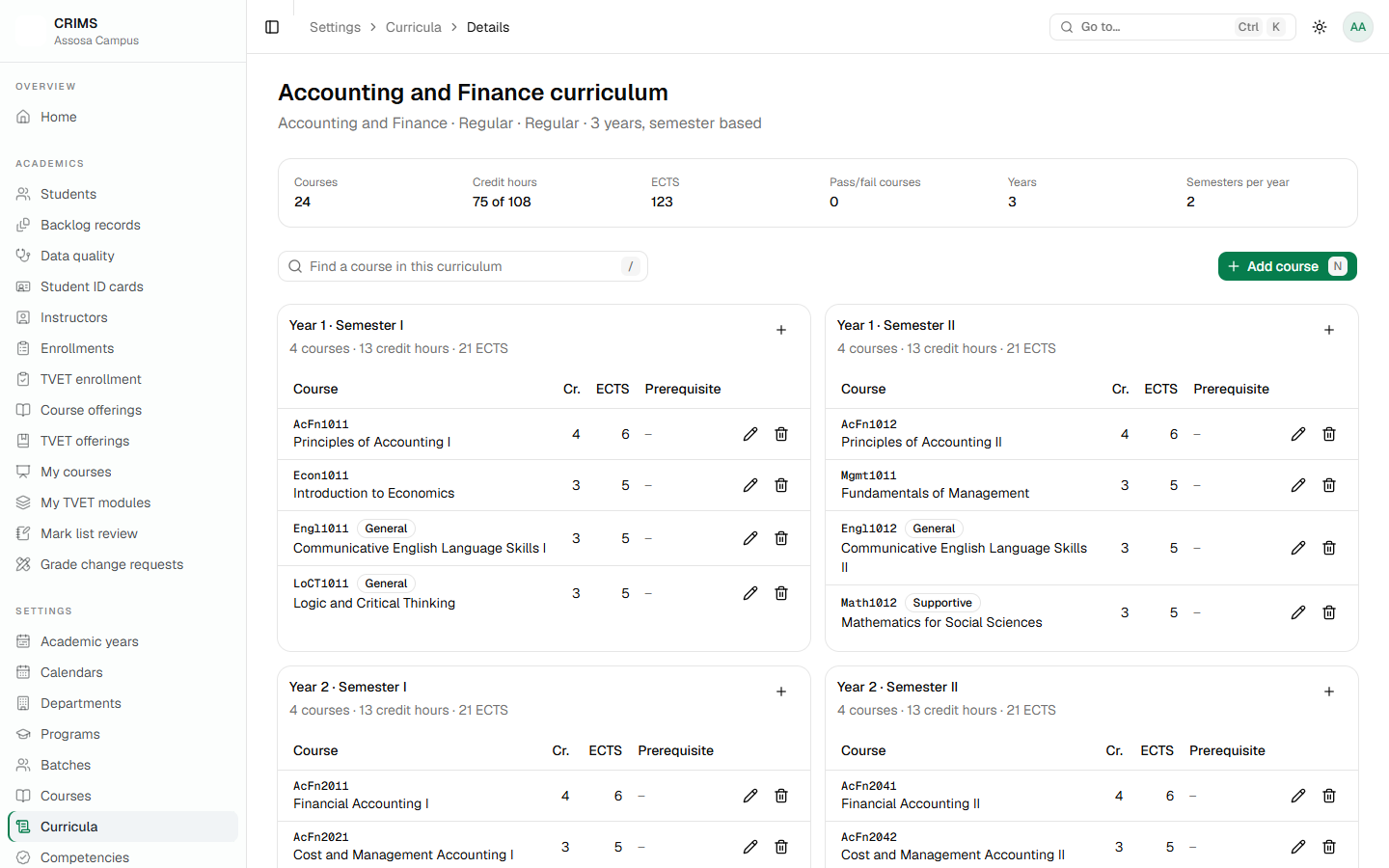
For each course in the plan you set:
- The year and semester it is taken in.
- The credit hours for this department. Zero is allowed, for a pass/fail course.
- Whether it is core — which affects what counts as a pass in the grading analysis.
- A prerequisite, if any.
A prerequisite can only be a course from an earlier period of the same curriculum. CRIMS offers only those, so a plan cannot be built that a student could never satisfy.
6.4 Why the curriculum matters later
It is not paperwork. Three things depend on it:
- Course offerings are built from it. When you add courses to an offering, CRIMS offers the curriculum's courses for that department, with the offering's own semester first.
- The prerequisite check on enrollment uses it.
- The grade report and transcript use its credit hours to work out GPA and CGPA.
A course cannot be removed from a curriculum once it is being offered or is another course's prerequisite — the same protection described in Chapter 3.
RegistrarChapter 7
Chapter 7 — Grade scales
Part 2: for the registrar.
Read this chapter before the teaching year starts. A department without a complete grade scale shows no letter grades anywhere, and its marks cannot be approved. Instructors can enter and submit marks, and then everything stops. It is the single most common reason grading gets stuck.
7.1 What a grade scale is
A grade scale says which mark earns which letter, and what each letter is worth in grade points. It is set per department, because departments may mark differently.
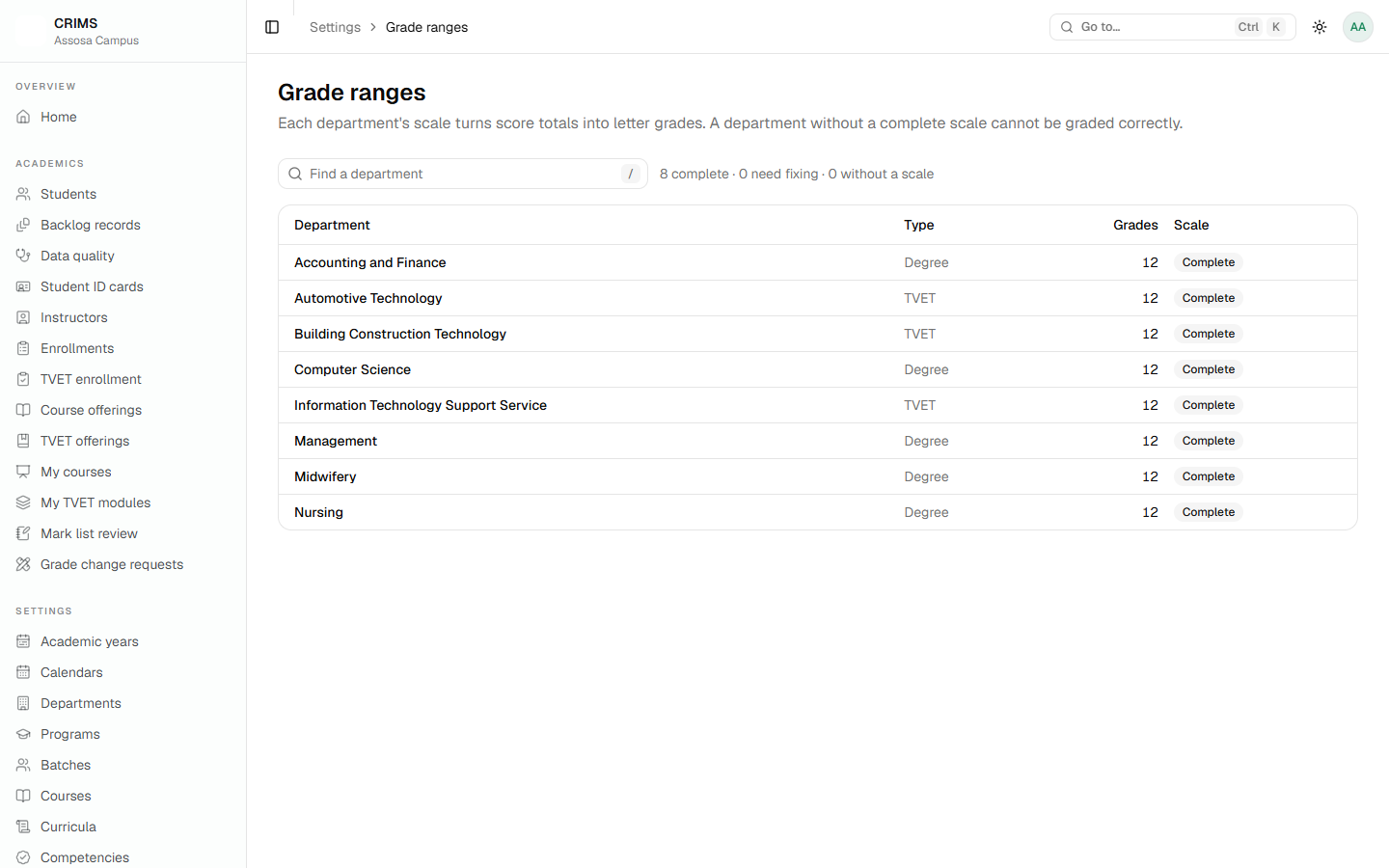
Each department is in one of three states:
| State | Meaning |
|---|---|
| Complete | Usable. Letters appear, marks can be approved. |
| Needs fixing | A scale exists but has a problem — the problems are listed. Treated as unusable. |
| Missing | No scale at all. |
Missing and Needs fixing behave the same way: no letters, and approval is refused with a clear message. Aim for every department to read Complete before teaching starts.
7.2 The editor
Click a department to open its scale.
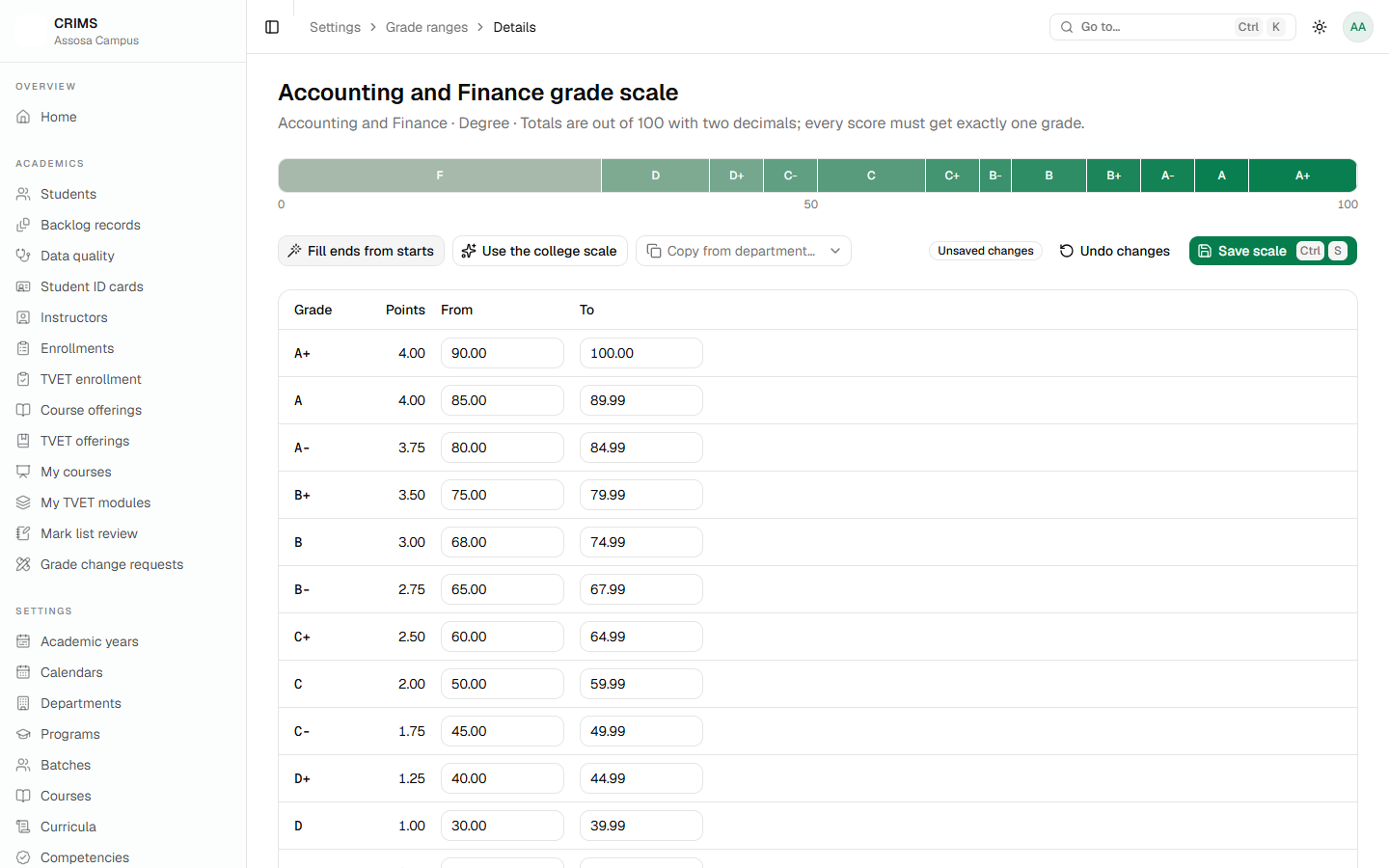
Each band has a grade, a range of marks, and grade points. The bar along the top shows the whole range from 0 to 100 and where the bands sit, so a gap or an overlap is visible rather than arithmetic.
Problems are listed as you type, before you save:
- The bands must cover 0 to 100 completely — no marks unaccounted for.
- They must not overlap. The next band starts one hundredth above where the last ended: if B ends at 84.99, B+ starts at 85.
- A higher band may not be worth fewer points than a lower one.
- Each grade may appear once.
- Marks are held to two decimal places.
Ctrl+S saves. If you try to leave with unsaved changes, CRIMS asks first.
Two shortcuts in the editor save real time:
- College scale fills in the standard scale to start from.
- Copy from department takes another department's scale, for when several mark alike.
7.3 The rule behind all of this
The grade scale in the database is the only source of letter grades. There is no built-in scale and no fallback. If a department has no usable scale, CRIMS does not guess — it shows no letter and refuses to approve.
That is deliberate. A fallback scale would quietly grade students against a rule nobody chose, and nobody would notice until a transcript was wrong.
The practical consequences:
- Mark lists, rosters and grade reports for that department show a banner explaining why letters are missing.
- Approve is refused for its courses, with the reason.
- The campus overview lists the department as needing attention.
Fixing the scale makes everything work immediately — the letters appear on the marks already entered. Nothing has to be re-entered.
7.4 Grade points
Letters come from the department's scale; what each letter is worth also comes from it. The college's GPA is on the 4.0 scale, so grade points run from 0.01 to 4.
The grade report uses the department's own points, so two departments may value a B differently if the college intends them to.
RegistrarChapter 8
Chapter 8 — Students
Part 2: for the registrar.
8.1 The student list
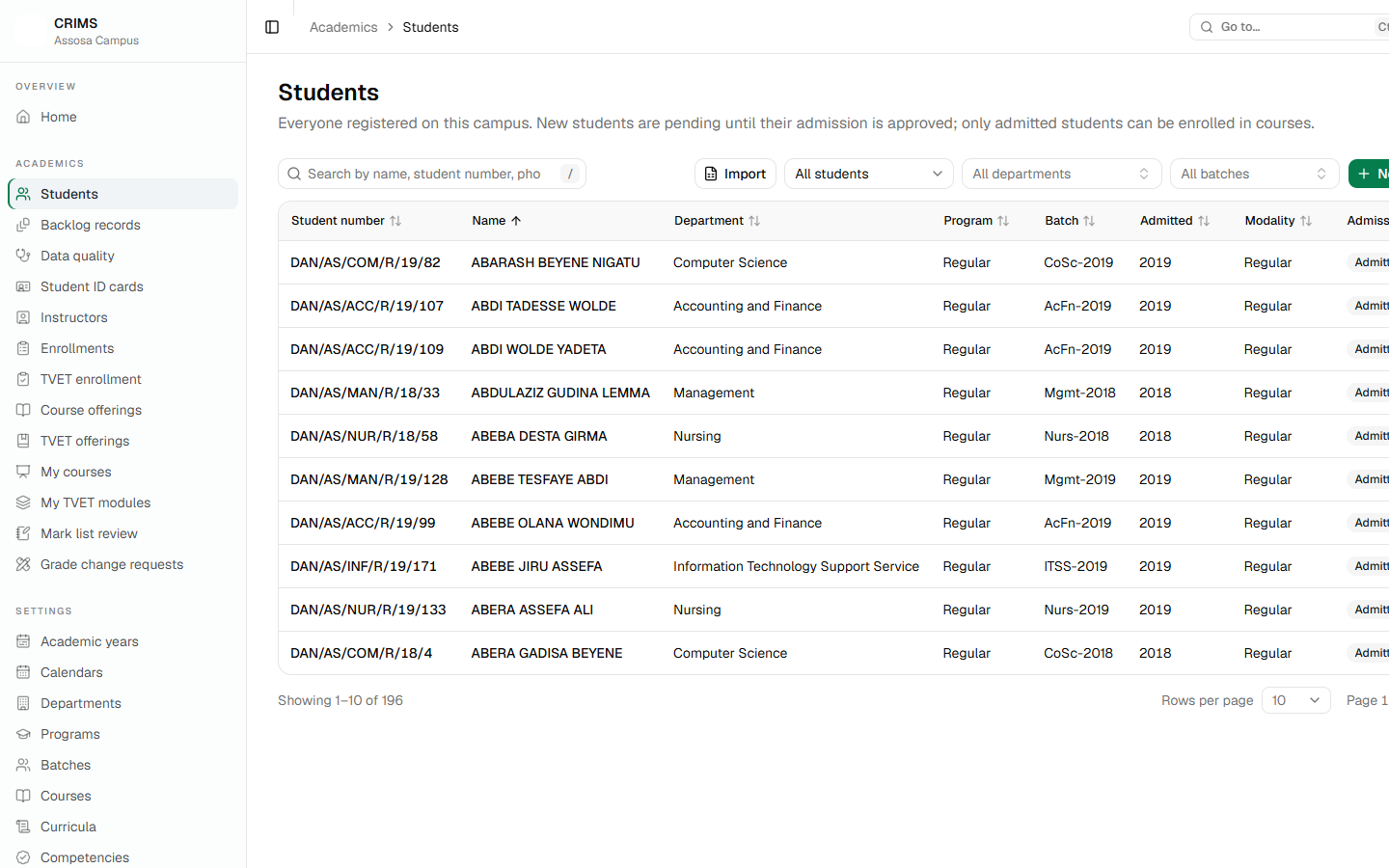
Filters for admission status, department and batch sit beside the search box, which looks in the full name, student number, phone and national ID.
Student names are stored in capitals, so search for ABEBA rather than Abeba if an exact match matters.
8.2 Registering one student
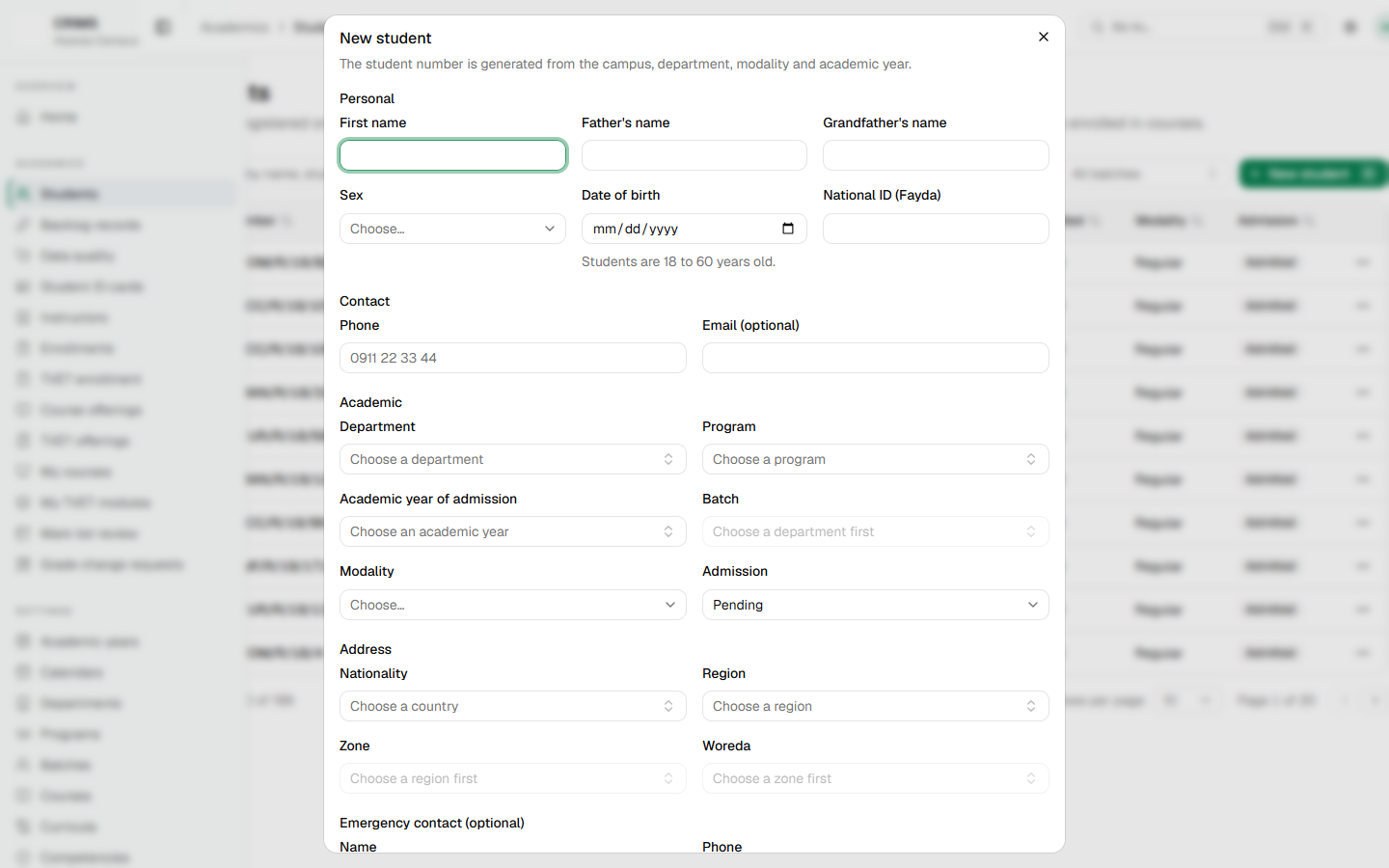
What the form needs, and what to watch:
- Names — given name, father's name, grandfather's name, each up to 50 characters.
- Department, programme and batch. These must agree: the batch must belong to the department you chose and to an open academic year.
- The student number is generated for you and cannot be changed afterwards. It is unique across every campus.
- Fayda (national) number — twelve digits, and unique across the whole college, not just your campus.
- Phone is normalised to
+251…, so type it however is natural. - Date of birth is checked against the college's age limits.
- Emergency contact — kept for the student's own page.
Admission status is not yours to set here unless you hold the admission permission. A new student is Pending. See 8.5.
8.3 A student's page
Click a name to open the student.
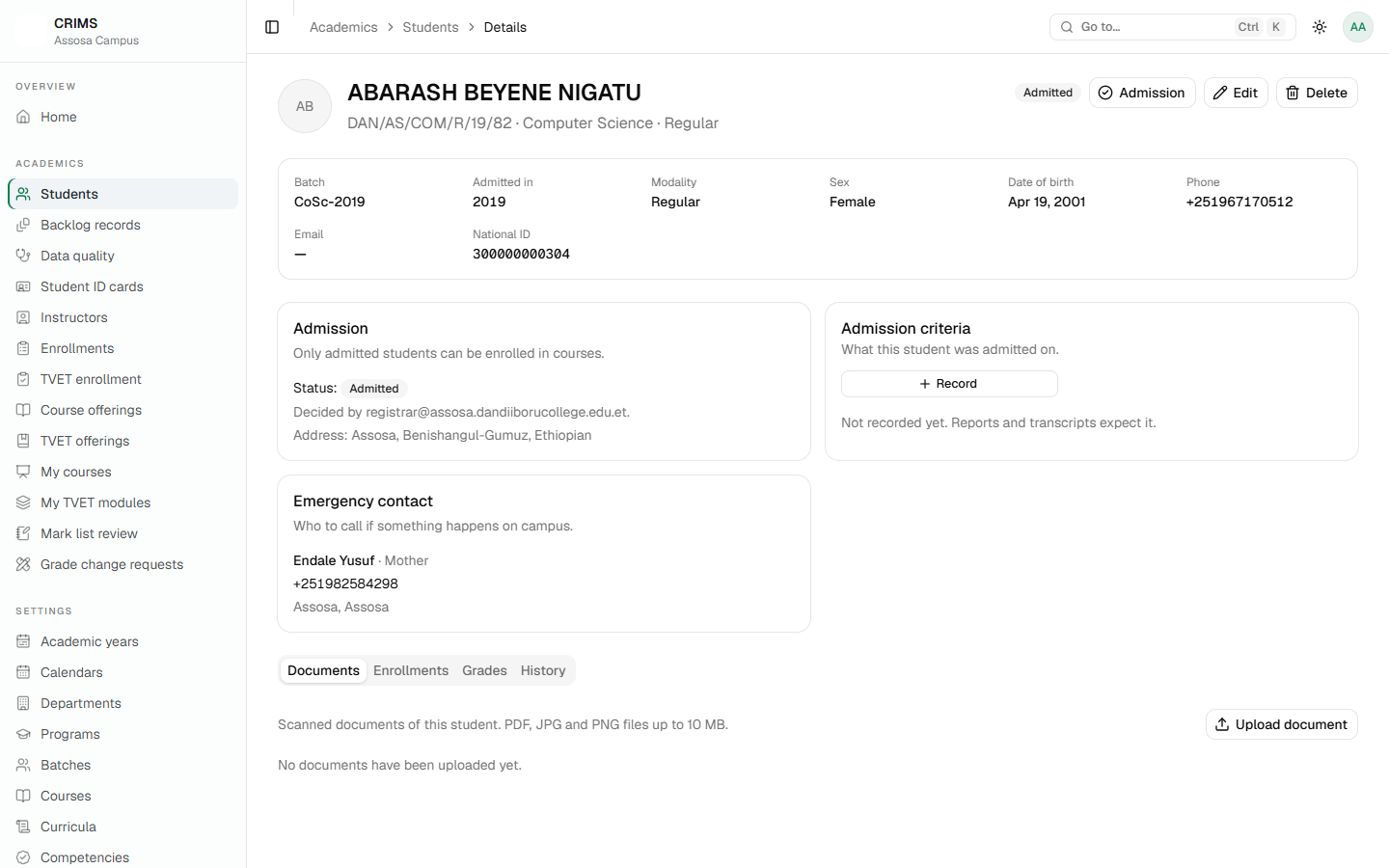
The tabs are:
| Tab | What it holds |
|---|---|
| Documents | Uploaded files, and whether each has been verified |
| Enrollments | The courses the student is taking |
| Grades or Competency | The grade report for a degree student, module progress for a TVET one |
| History | Every change made to the record, and by whom |
Documents accept PDF, JPG and PNG up to 10 MB. CRIMS checks that the file really is what its name claims, so a renamed file is rejected rather than stored and served wrongly. Each document can be marked verified, with a note.
8.4 Registering a whole intake
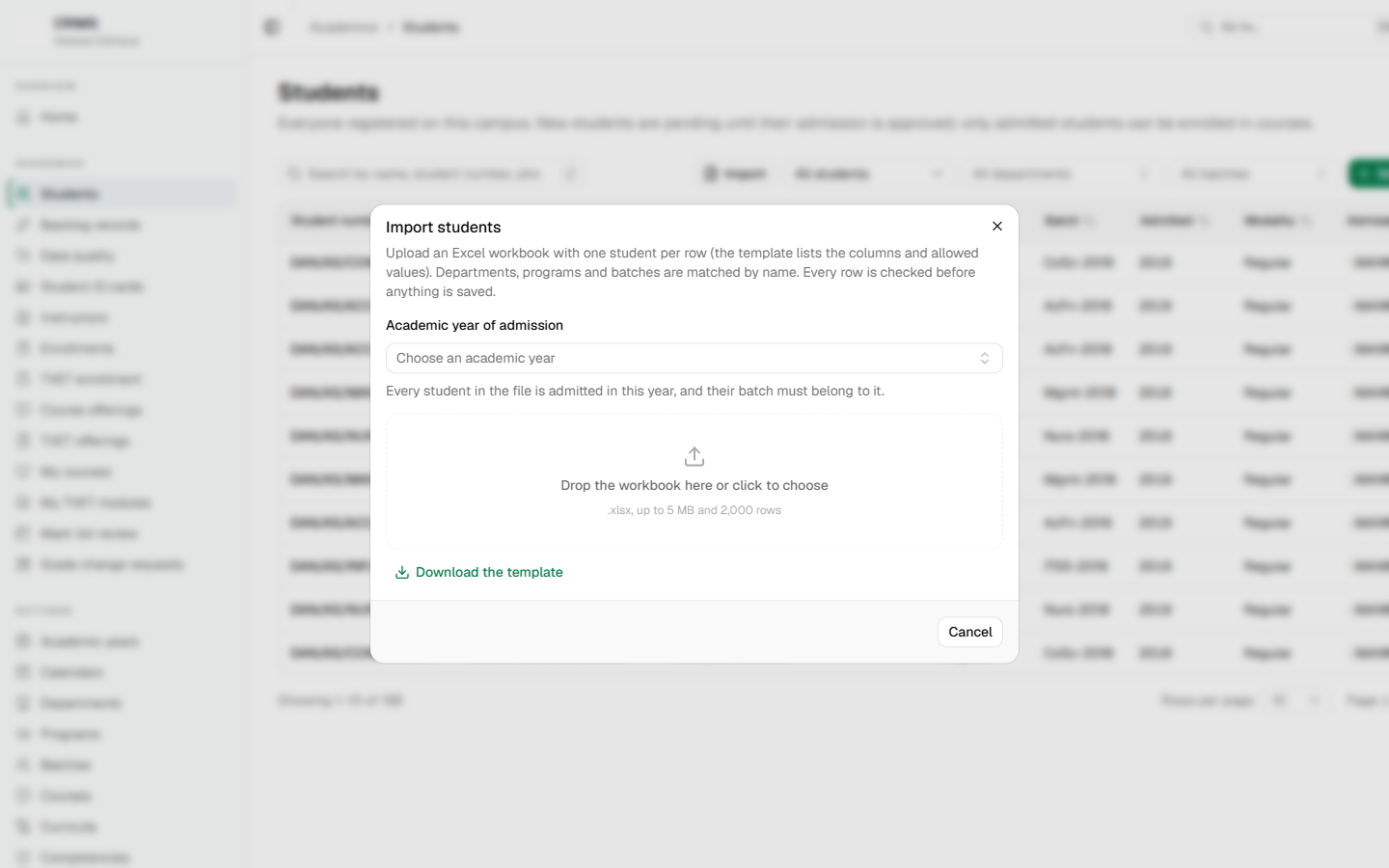
The same three steps as every import: download the template, fill it, upload and check before saving. Every row goes through exactly the same rules as the form in 8.2 — a row with a bad phone number or a batch from the wrong department fails on its own row and the rest still import.
A row asking for Approved or Rejected fails unless you hold the admission permission. Registering students and admitting them are separate jobs on purpose.
8.5 Admission
A student who is Pending cannot be enrolled in anything. Admitting them is a separate decision, recorded with who made it and when, and needs the Approve admission permission.
Use the row menu on the student list, or the admission card on the student's page. The campus overview counts students waiting for admission, so they do not sit unnoticed.
8.6 ID cards
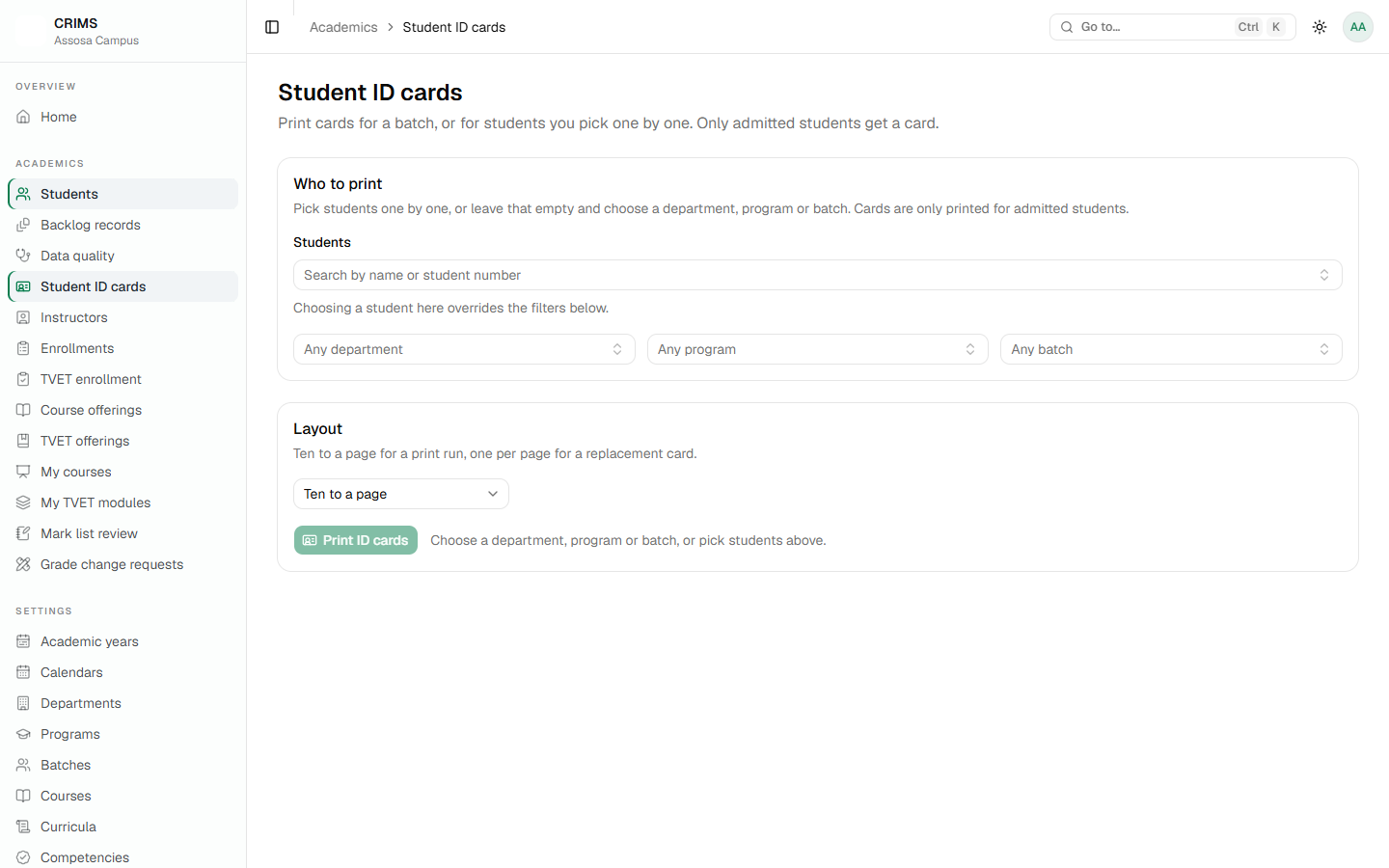
Pick students one at a time, or choose a whole department, programme or batch. The count is shown before anything is generated, and at most 200 cards go in one run — each card is rendered individually, so an unlimited run would hold up every other document on the server.
Cards print ten to a page, or one per page for a card printer.
8.7 The data quality list
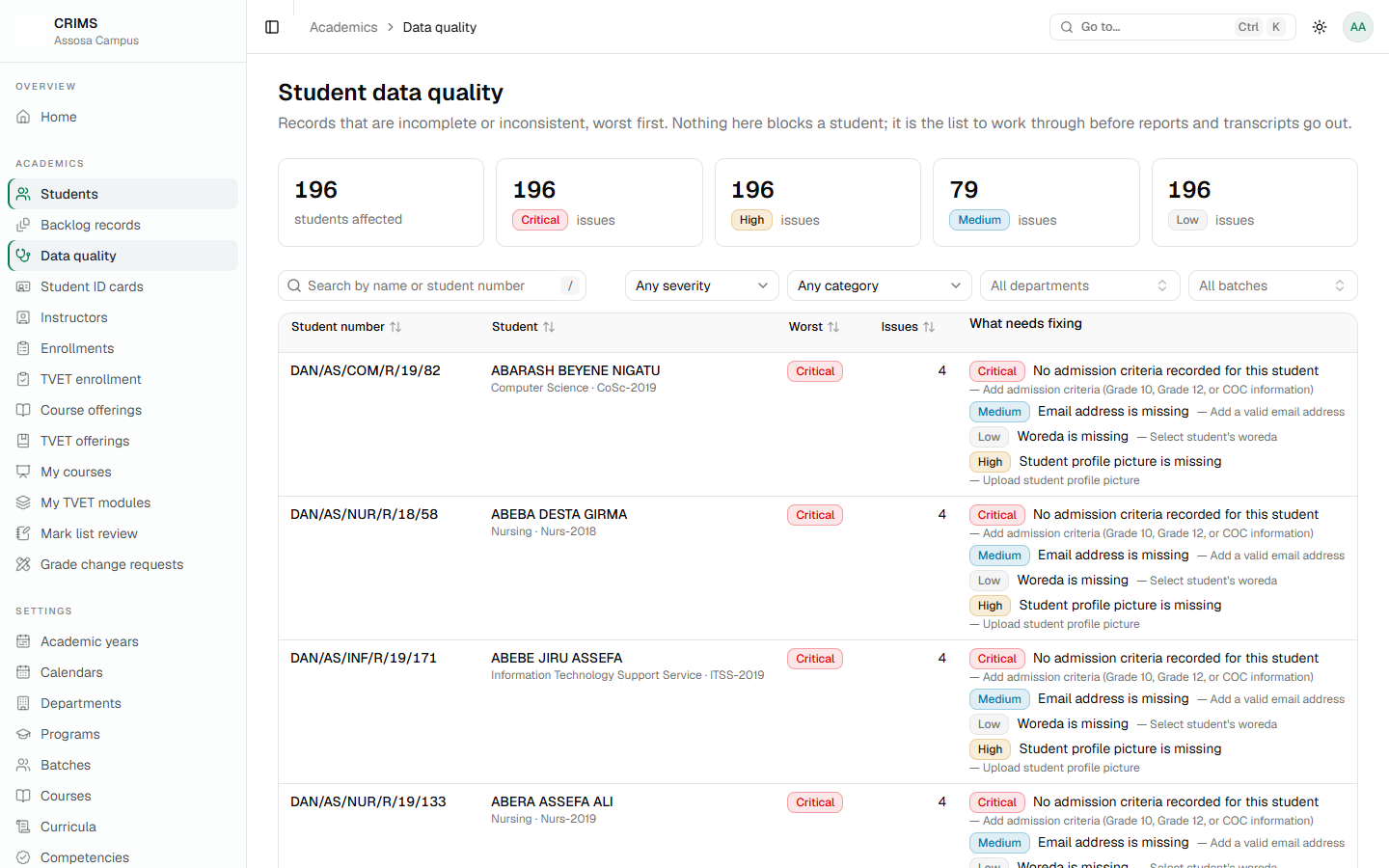
This is the clean-up list. It reads every student on the campus and reports what is missing or inconsistent, grouped by severity, with a recommended action per issue and a link to the record.
It is worth a look at the start of each year, and it is the fastest way to prepare for an audit. Filters for severity, category, department and batch let you take one problem at a time.
RegistrarChapter 9
Chapter 9 — Instructors and department heads
Part 2: for the registrar.
9.1 The instructor list
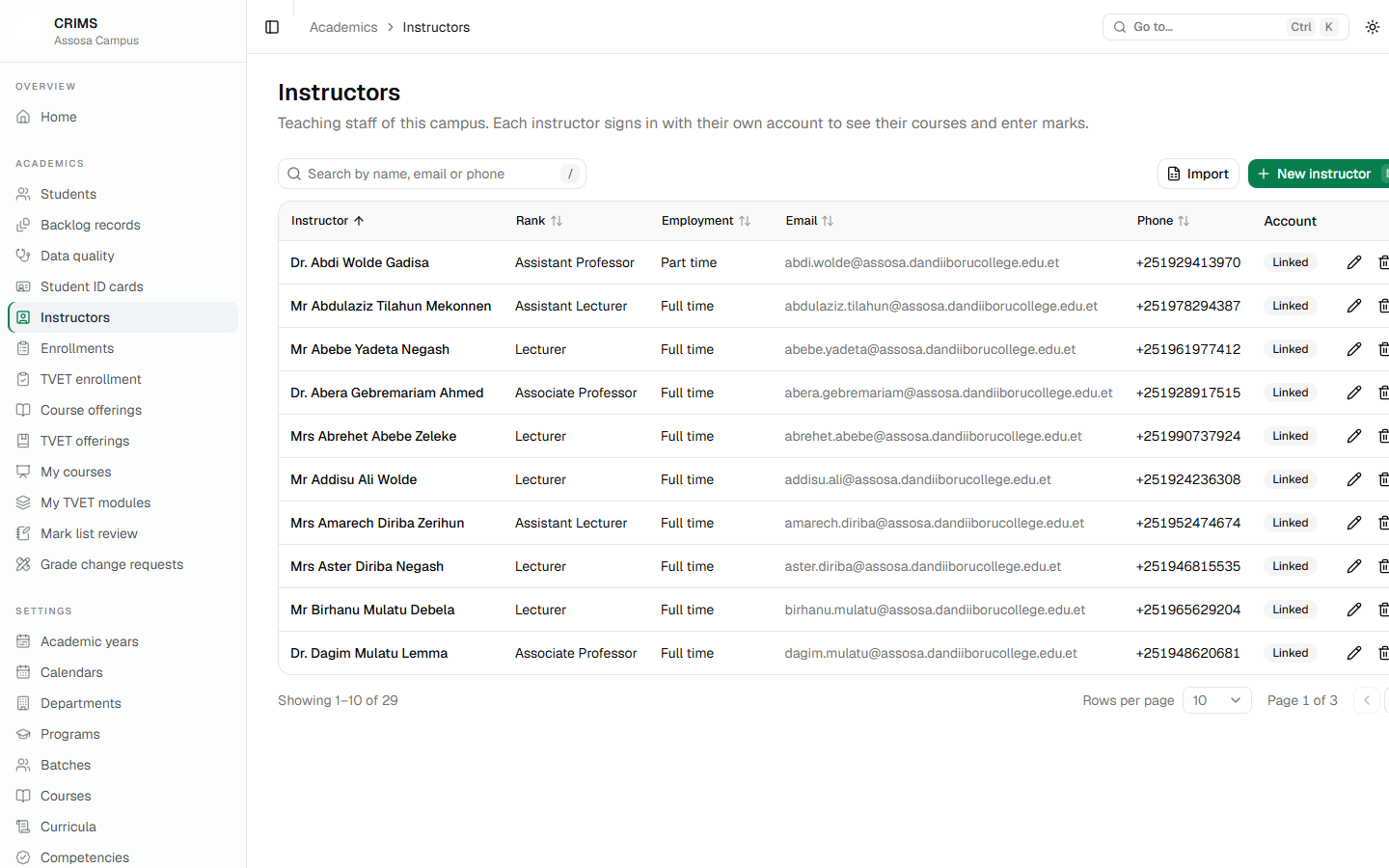
An instructor record and a sign-in account are two different things:
- The record holds the person's details and is what a course is assigned to.
- The account is what they sign in with.
A record without an account is perfectly valid — for someone whose courses you record but who does not use CRIMS. The list shows which is which.
9.2 Adding an instructor
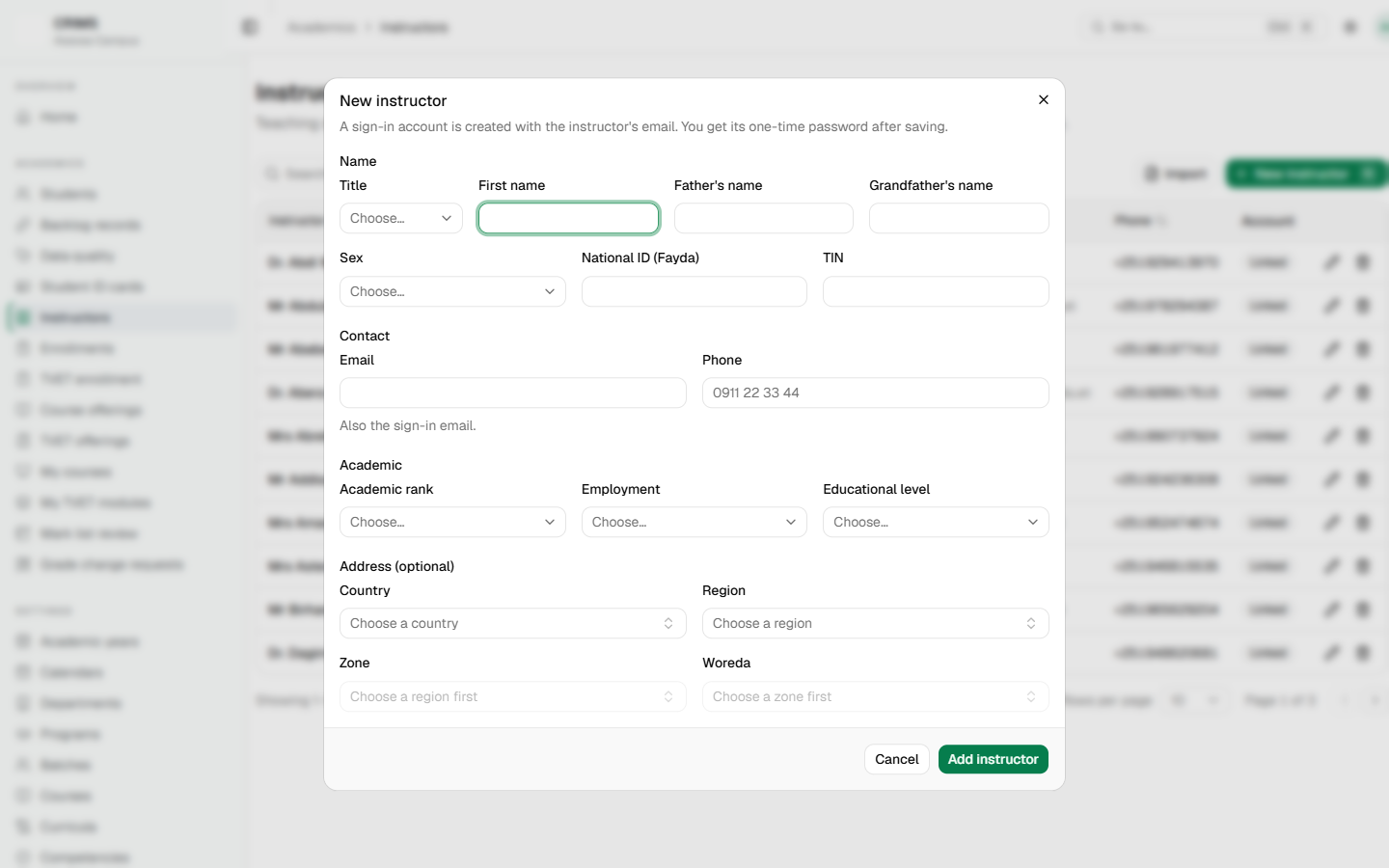
Points to watch:
- Email must be unique. If an account already uses it, you are told on the field.
- Phone is normalised to
+251…. - National ID is 5–20 letters and digits; TIN is 10 digits and unique.
- Region, zone and woreda must belong to each other — the pickers narrow as you choose.
Creating the account gives a one-time password, shown once. Copy it before closing the dialog. If it is lost, issue a new one from the user's page (Chapter 13) — there is no way to read it back.
Importing instructors from a spreadsheet works exactly as in Chapter 6, and shows the new accounts' one-time passwords at the end of the run.
9.3 An instructor's page
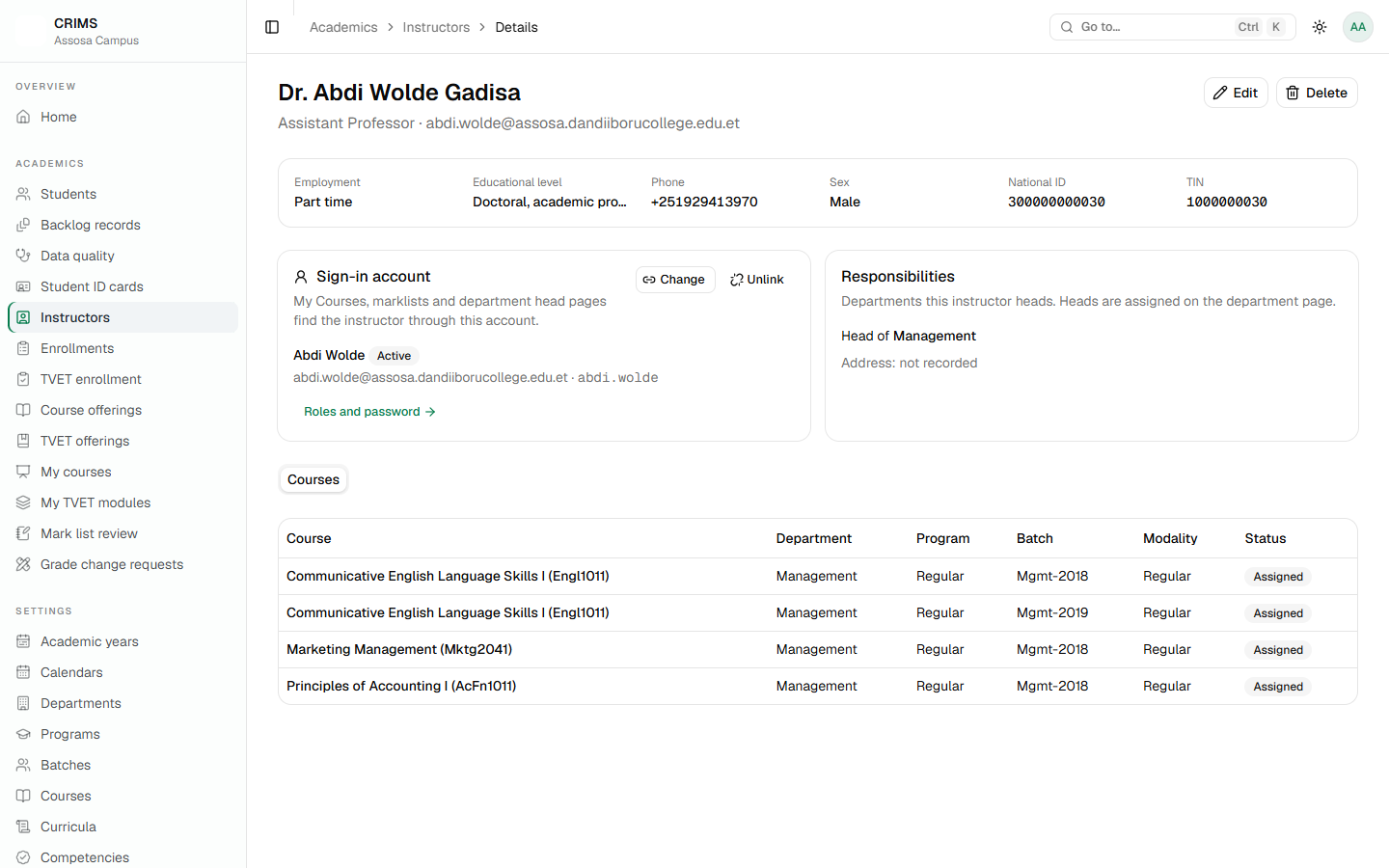
From here you can link, change or unlink the sign-in account, and open the account's own page to manage roles and passwords.
Changing the email on the instructor record does not change the sign-in address. The form says so. To change how someone signs in, use the account page.
9.4 An instructor needs a role before they can teach
This catches people out, so it is worth being explicit.
A new account is given only the Basic role, which can open almost nothing. An instructor whose account has just been created will sign in and find an empty application — no My courses, no mark lists.
Give the account the Instructor role on the Users page (Chapter 13). Only then does teaching work.
Assigning them a course does not grant anything: the assignment says whose marks they may touch, the role says they may touch marks at all. Both are needed.
9.5 Department heads
A head is assigned on the department's page, not the instructor's (Chapter 5).
Being a head is not a permission; it is an assignment. It gives that person, for the department they head:
- The department's courses on their Mark list review page.
- The right to approve or return those mark lists.
- The right to decide grade change requests for courses the department owns.
It does not let them change marks. Approving writes the marks the instructor submitted; correcting a mark stays with the instructor who entered it.
Assigning a new head revokes the old one's access at the same time, so a department always has exactly one.
A department with no head has no one who can approve its marks. Its instructors can submit, and the marks will sit there. The campus overview lists departments without a head for this reason.
RegistrarChapter 10
Chapter 10 — Course offerings
Part 2: for the registrar.
An offering is one department, one programme and one batch being taught in one semester of one academic year. It is the centre of the teaching year: courses, sections, instructors, enrollments and marks all hang off it.
10.1 The offerings list
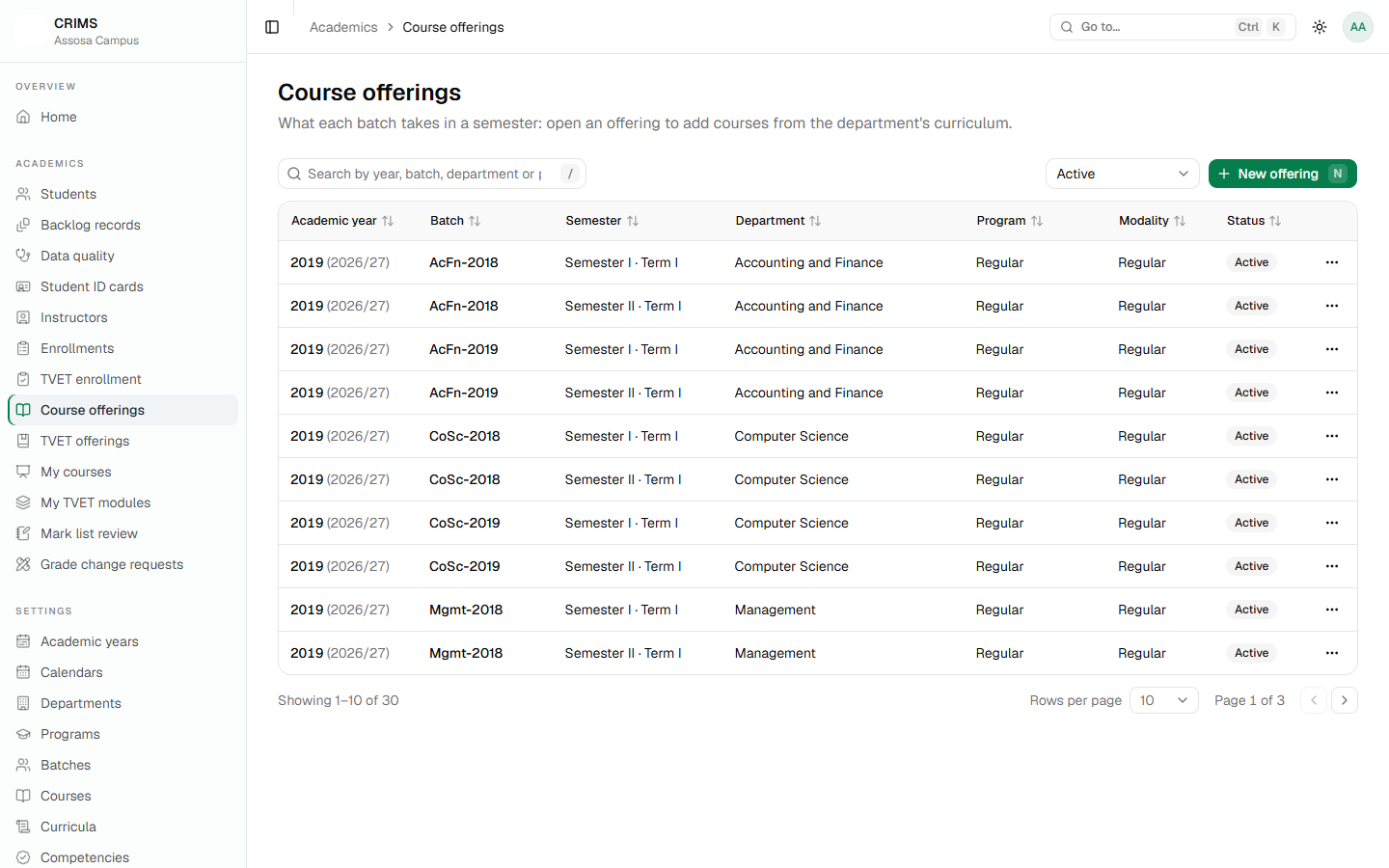
An offering is Active or Archived. Archiving one makes it read-only: no new enrollments, no mark changes. Archive last year's offerings rather than deleting them — the marks in them are students' records.
10.2 Creating one
New offering asks for the academic year, department, programme, batch and semester.
Rules that will stop you, and why:
- The batch must belong to the department you chose.
- TVET departments are not offered here. They use module offerings (Chapter 12).
- A closed academic year is refused.
- Only one offering per department, programme, batch and semester. A second is refused on the semester field.
Once it has courses, the department and programme are locked. Once students are enrolled, the year, batch and semester lock too. This is to stop an offering being moved out from under the marks already in it.
A new offering opens its own page straight away, because it is not useful until it has courses.
10.3 Inside an offering
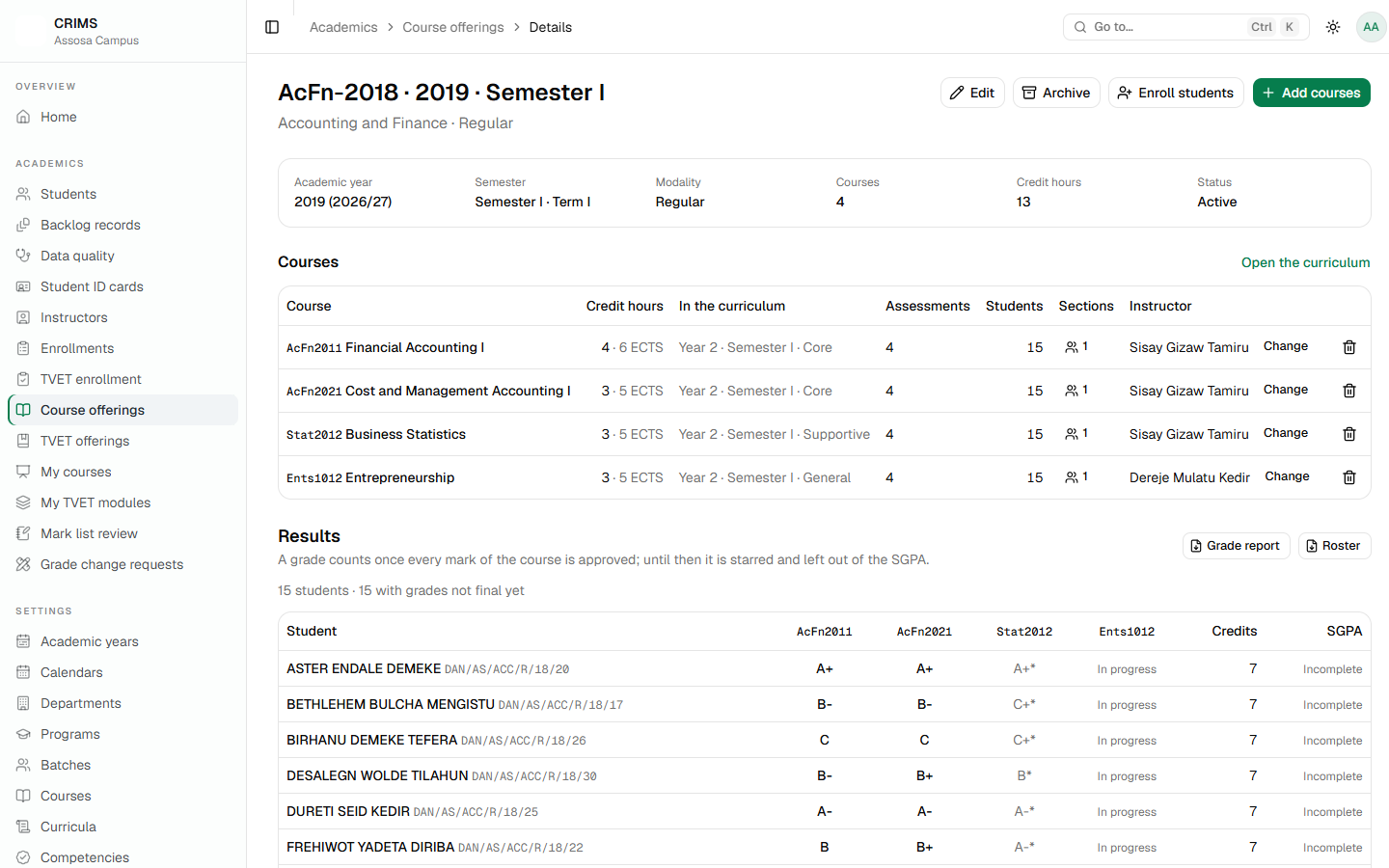
The table gives you, per course: credit hours, which curriculum period it belongs to, how many assessments it has and whether their weights total 100, how many students are enrolled, its sections, and its instructor.
Adding courses
Add courses offers the department's curriculum, with the offering's own semester first. Tick the ones being taught this semester.
Sections
A course with more than one class group needs sections. A section name must be unique within the course. A section cannot be deleted while students are in it.
Assigning an instructor
Assign from the course's row. One instructor per course; assigning over an existing one replaces it, and CRIMS says who is being replaced.
This is what makes grading work. An instructor may only open and edit the mark lists of the courses assigned to them. Without an assignment there is no My courses entry and no mark list. If an instructor says they cannot see their course, check this first.
Revoking an assignment takes the access away immediately.
10.4 Assessment weights
Each course needs assessments — Assignment, Quiz, Mid Exam, Final Exam — and their weights must total 100.
The offering page warns where they do not. It matters because a mark is entered out of its assessment's weight and the course total is their sum: if the weights total 90, every student's total is out of 90 and every letter grade is wrong.
Instructors can manage their own course's assessments (Chapter 14). A weight cannot be changed once marks have been submitted or approved against it, nor lowered below a mark already given.
10.5 The checklist before teaching starts
For each offering:
- The courses being taught this semester are added
- Sections exist where a course has more than one group
- Every course has an instructor
- Every course has assessments totalling 100
- The department's grade scale reads Complete (Chapter 7)
- Students are enrolled (Chapter 11)
The campus overview reports the first four across the whole campus, so it is quicker to check there than offering by offering.
RegistrarChapter 11
Chapter 11 — Enrolling students
Part 2: for the registrar.
Enrollment connects a student to a course in an offering. Until it exists, the student does not appear on the mark list and cannot be graded.
11.1 The enrollment list
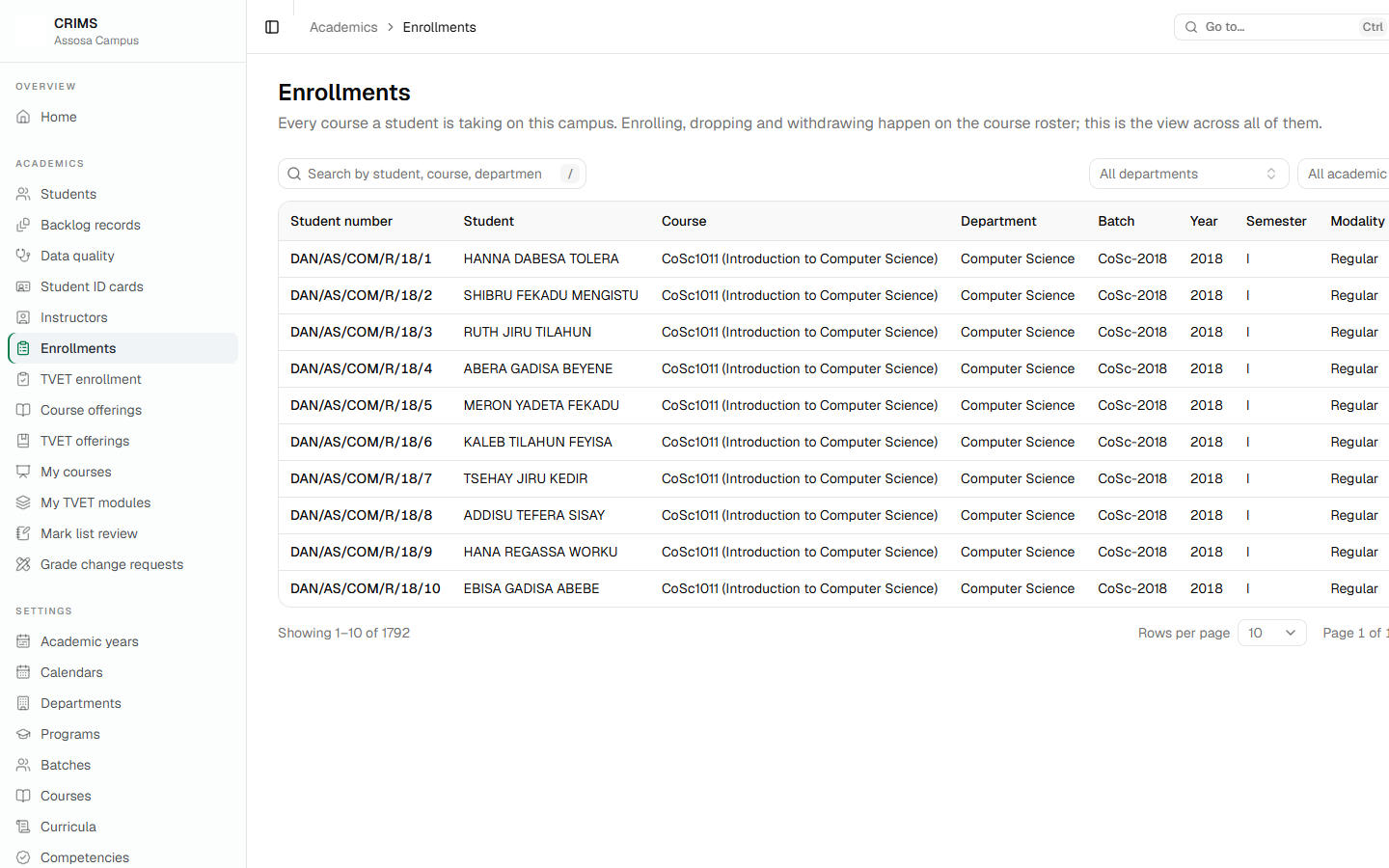
Search by student, course, department, batch or status, and filter by department and academic year.
11.2 What an enrollment can be
| Status | Meaning |
|---|---|
| Pending | Recorded, not yet approved |
| Approved / Enrolled | The student is taking the course and appears on the mark list |
| Dropped | Removed during the add/drop period. Marks are archived and not graded |
| Withdrawn | Withdrawn later. Shows W on the mark list and counts for no credit |
Dropped and Withdrawn are different. A dropped course leaves the record entirely. A withdrawn one stays visible as W on the mark list, the roster and the grade report, with no credits and no grade points.
11.3 Enrolling students
The quickest way is from the course roster: open an offering, then a course, and use Enroll students. You can also enrol from the offering page.
What CRIMS insists on:
- The student must be admitted. A Pending student is refused (Chapter 8).
- The offering must be active and its academic year open.
- The section must belong to the course.
- The Course Enrollment period must be open, where the department has a calendar with one; otherwise the Late Course Enrollment period (Chapter 4).
Bulk enrollment takes a set of students and a set of courses and enrols every pair, skipping any that already exist and reporting the outcome for each.
11.4 Add, drop and withdraw
From the course roster's row menu. Both ask for a reason, which is kept in the record.
Both honour the Add/Drop and Withdrawal periods of the department's calendar. Outside the window, CRIMS refuses and says so.
Re-adding a dropped course works: the student's old marks come back out of the archive and can be graded again.
11.5 Deleting an enrollment
An enrollment can be deleted only while the student has no marks in the course. Once marks exist, delete is refused — drop or withdraw instead, which keeps the record of what happened.
This is the right behaviour: deleting would erase evidence that the student was ever in the course.
11.6 Who did what
Every enrollment change — created, edited, dropped, withdrawn, deleted — is recorded with the student's name, the course, the values before and after, the reason given, and who made the change. It is on Audit › Enrollment changes, and on the student's own History tab.
RegistrarChapter 12
Chapter 12 — TVET
Part 2: for the registrar.
TVET departments work differently from degree departments, and the words are different too:
| Degree | TVET |
|---|---|
| Curriculum | Unit of competence |
| Course | Learning module |
| Course offering | Module offering |
| Grade (A, B, C…) | Competent / Not competent |
12.1 Units and modules
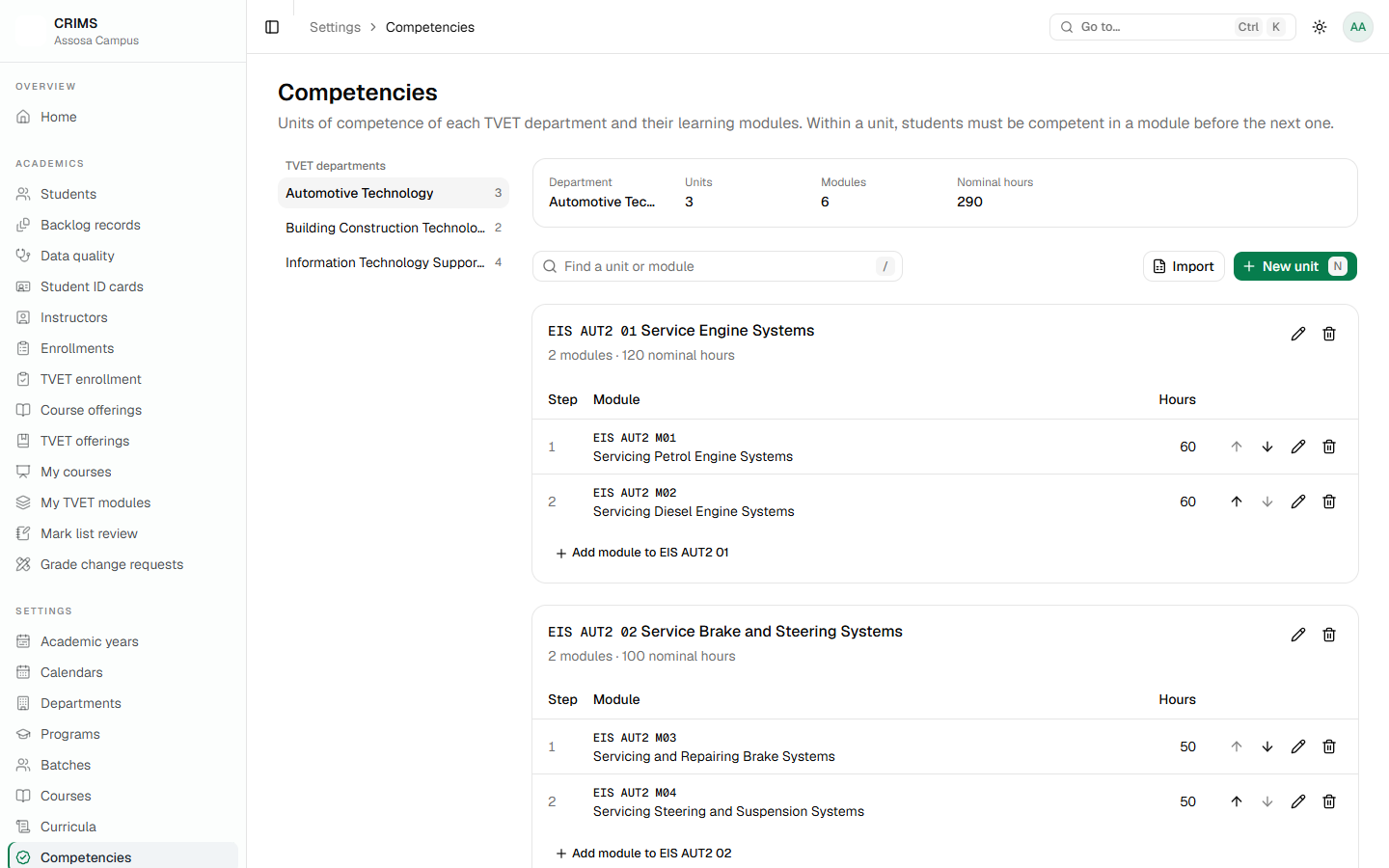
A unit of competence contains modules, and the order matters: a trainee must be competent in the earlier modules of a unit before taking a later one. The arrows move a module up or down, which is refused once trainees are enrolled in it.
Codes are unique within a department, across both units and modules. Deleting a unit also deletes its unused modules. Units and modules can be imported from a spreadsheet like everything else.
12.2 Module offerings
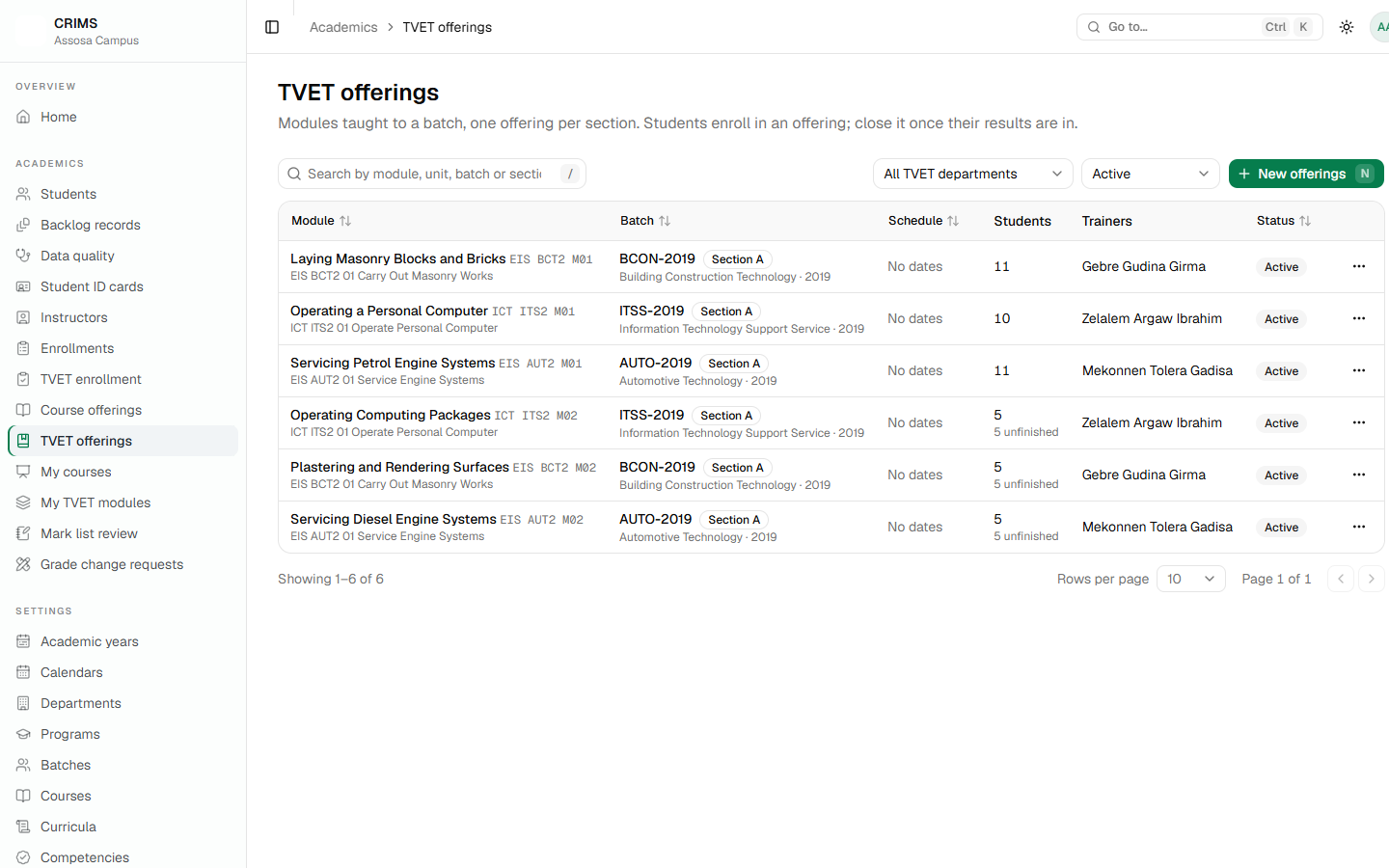
New offerings creates one offering per module ticked, for a batch, section and set of dates — so a whole unit can be opened for a batch in one action.
An offering moves through Planned → Active → Completed, or is Cancelled.
Closing an offering with unfinished trainees
If you close or cancel an offering while trainees are still Pending or In progress, CRIMS warns but does not block. The unfinished trainees are moved to a holding offering for that module and batch.
A holding offering is a waiting room: always open, no section, takes no new enrollments, cannot be edited. While anyone is in one, the offerings page shows a banner, and Move students puts them into a real open offering of the same module. An emptied holding offering removes itself.
This exists so that closing a section never strands a trainee where nobody is teaching them.
12.3 Inside an offering
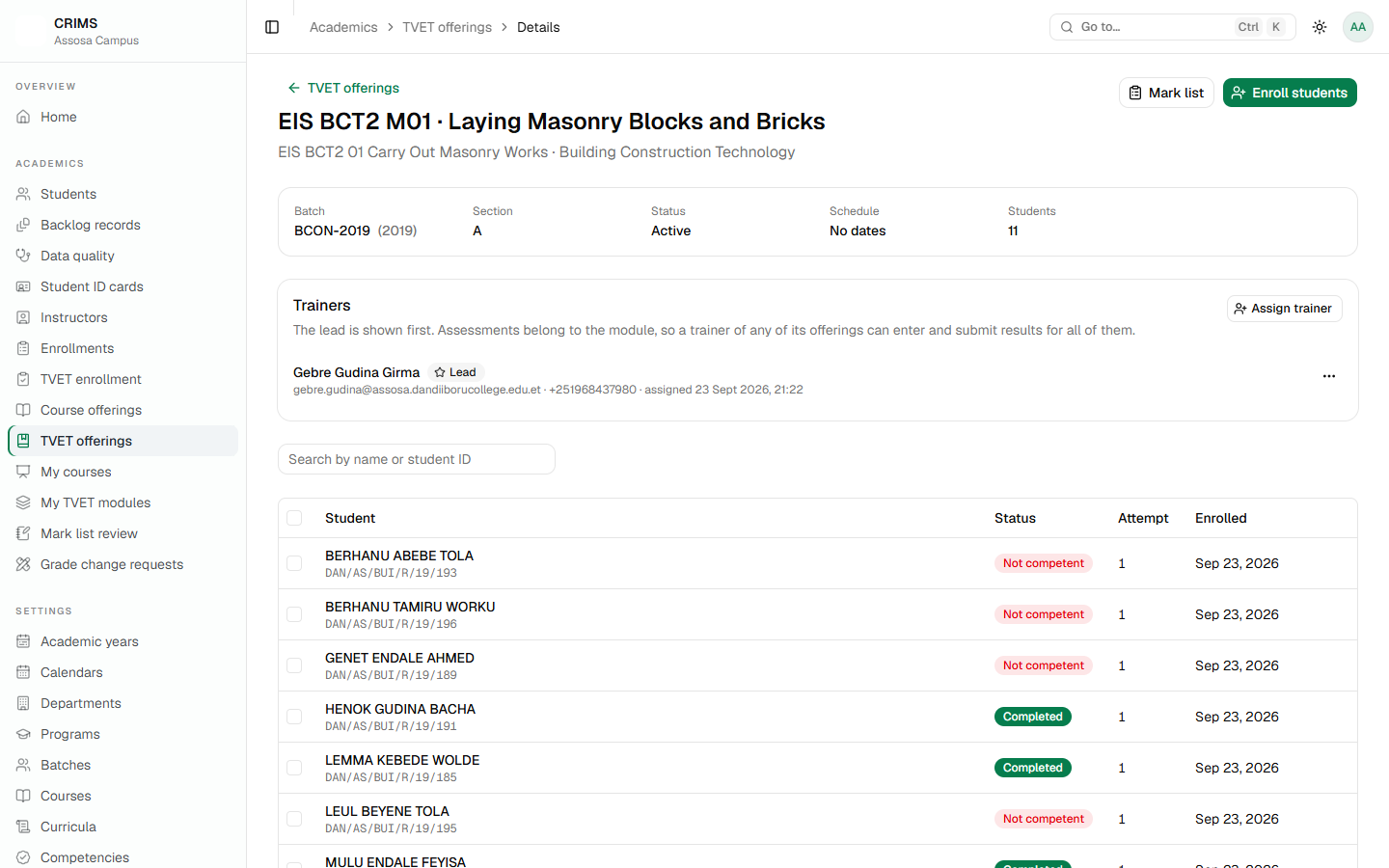
Trainers
Assign one or more trainers, with one marked lead. Making another the lead demotes the first.
A trainer assigned to any offering of a module may enter results for every offering of it. TVET assessments belong to the module, not the section, so all sections share one set. Assignments are still recorded per offering for the record.
Enrolling trainees
Enroll students lists every candidate with their state and the reason:
| State | Meaning |
|---|---|
| Eligible | Can be enrolled now |
| Enrolled | Already in this offering |
| Enrolled elsewhere | In another offering of the same module |
| Competent | Has already passed it |
| Blocked | An earlier module of the unit is not yet passed, or the concurrent limit is reached |
Retakes are marked as such. A trainee must be admitted, belong to the module's department, and be in the offering's batch — unless it is a retake.
12.4 Campus-wide enrollment
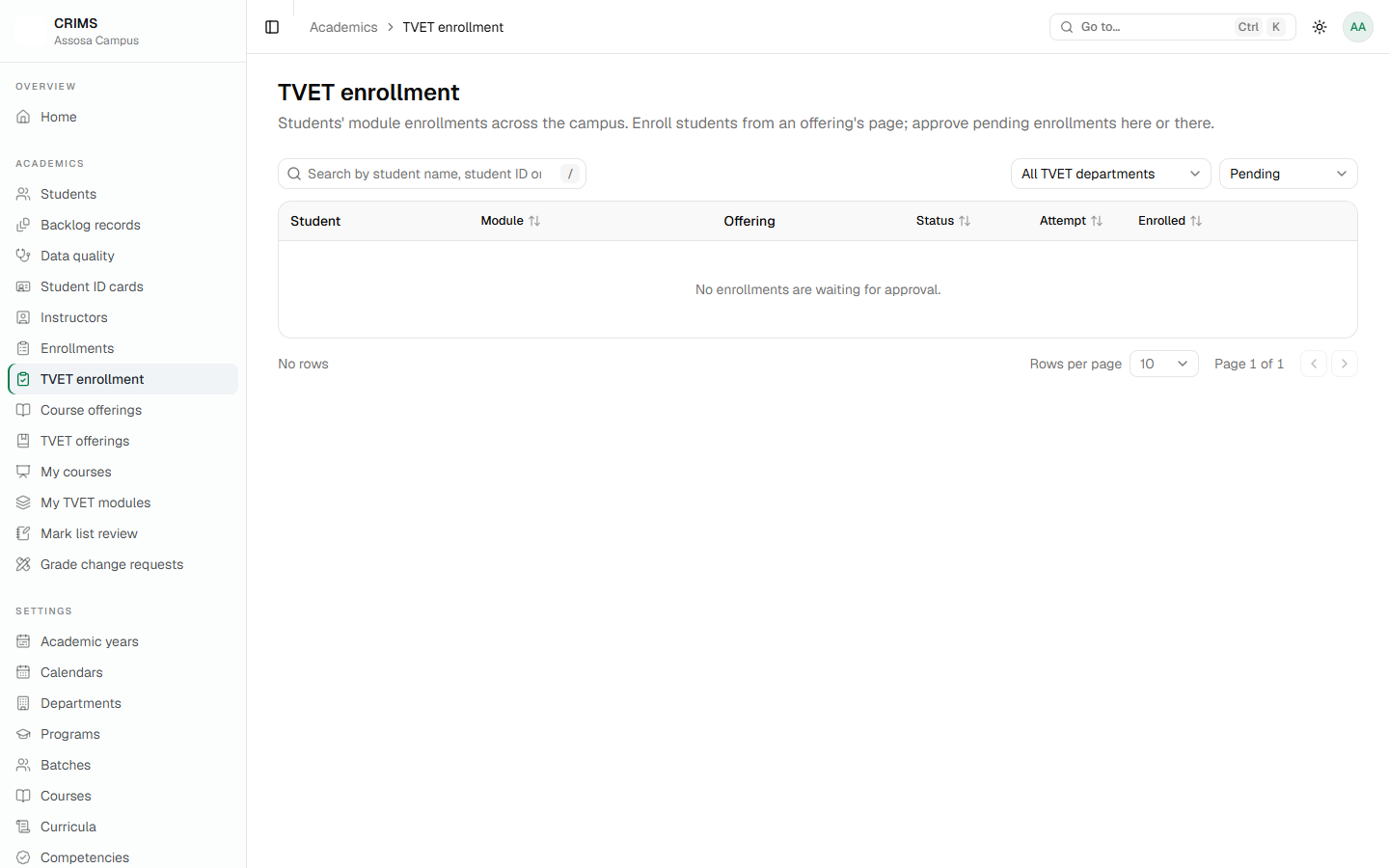
The list opens on Pending, because pending enrollments are work waiting for someone. Approve from the row, or open the offering to approve several at once.
12.5 How a module is decided
This is the part to understand:
- The trainer enters results for each assessment and submits them.
- The department head approves them (Chapter 17).
- Once every assessment of the module has an approved result, CRIMS decides the module: the enrollment becomes Completed, and the module is Competent if the total reaches 75% of the maximum, otherwise Not competent.
- When every module of a unit is competent, the unit is complete.
The 75% total decides it — not a competent/not-competent box on an individual result. An imported file cannot override it.
A module already passed stays passed.
RegistrarChapter 13
Chapter 13 — Accounts and roles
Part 2: for the registrar.
13.1 Accounts
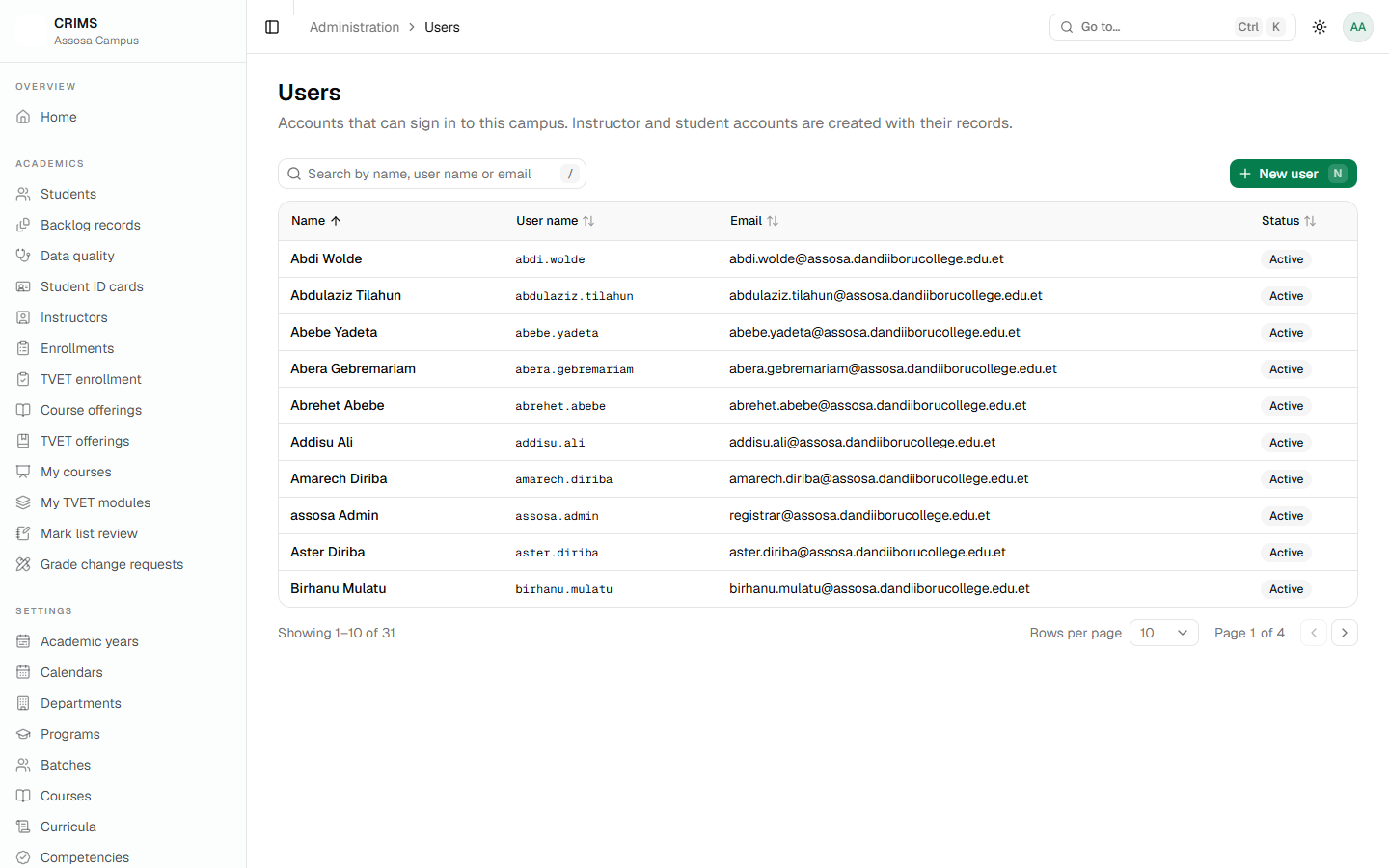
Accounts are created here, or automatically when you create an instructor with an email (Chapter 9). Nobody can register themselves.
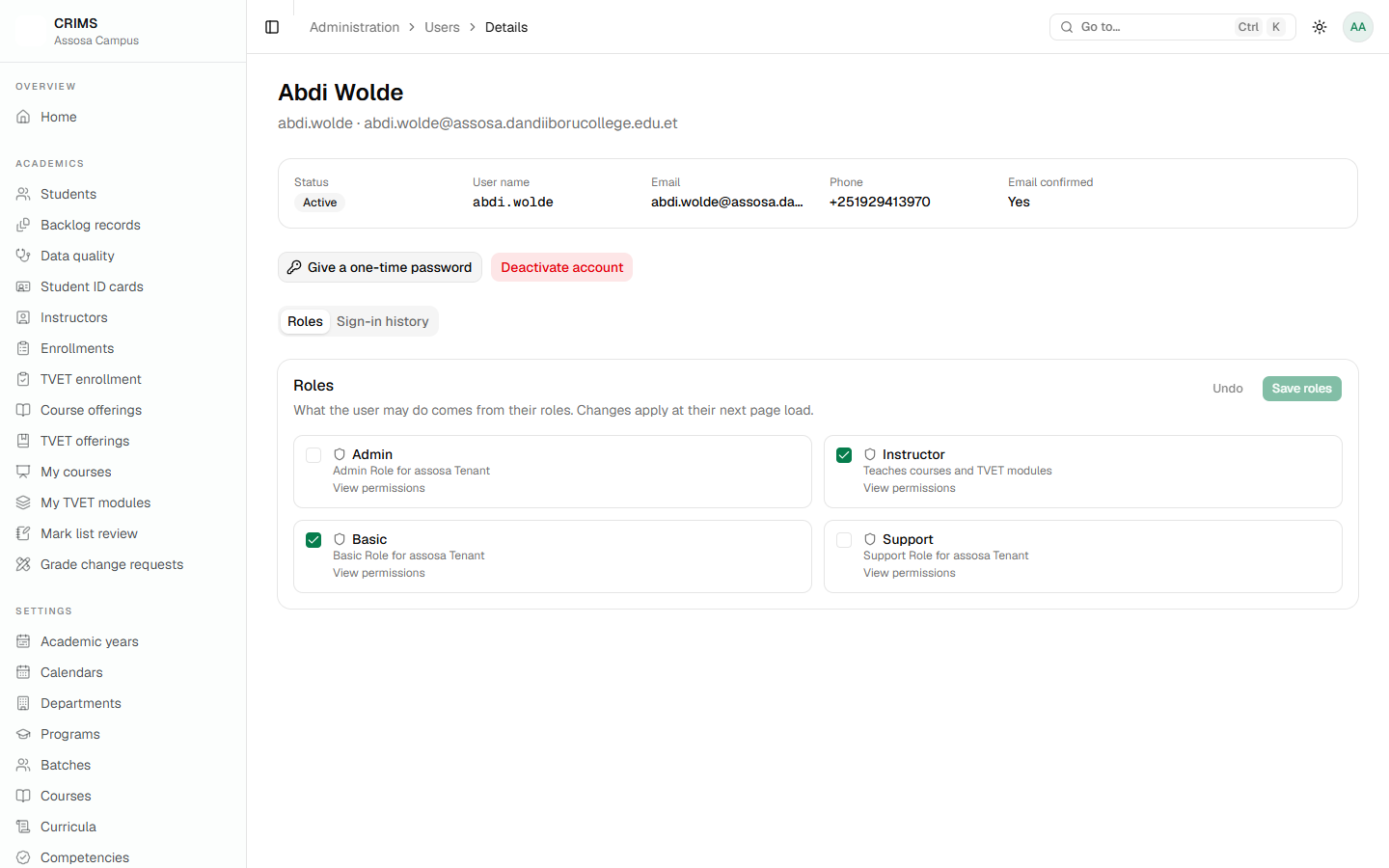
From an account you can:
- Activate or deactivate it. Deactivating takes effect immediately — it ends the session and the person cannot sign in again. Use this the day someone leaves, in preference to deleting anything.
- Give or take away roles.
- Issue a one-time password. The password is shown once. The person must change it at their next sign-in, and any session they had is ended.
- See their sign-in history.
A new account holds only the Basic role, which opens almost nothing. Until you give it a real role, the person signs in to an empty application. This is the most common "it doesn't work" report after creating an account.
13.2 Roles
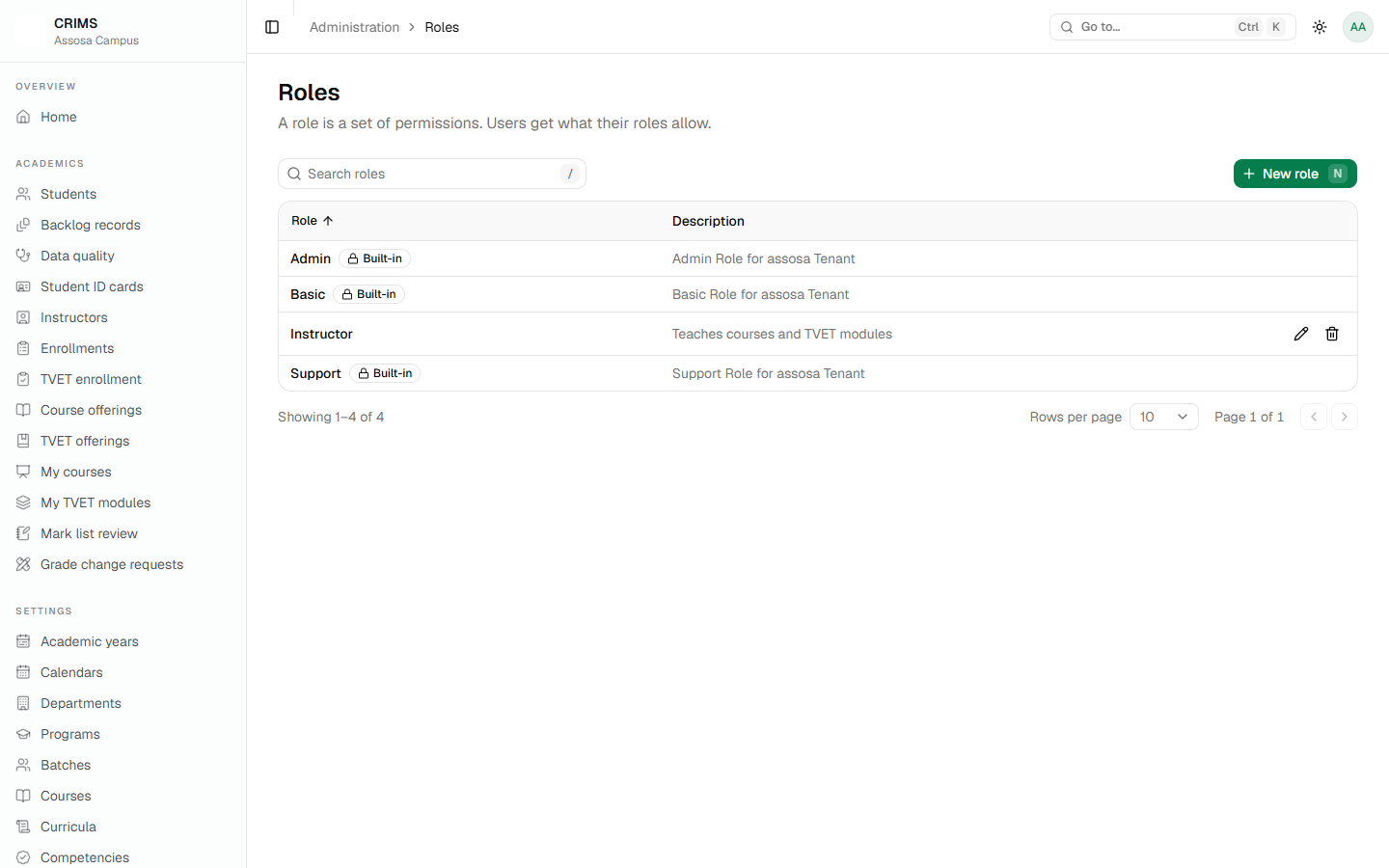
Give a person a role rather than assembling permissions for each individual. A role is a job: Registrar, Instructor, Dean.
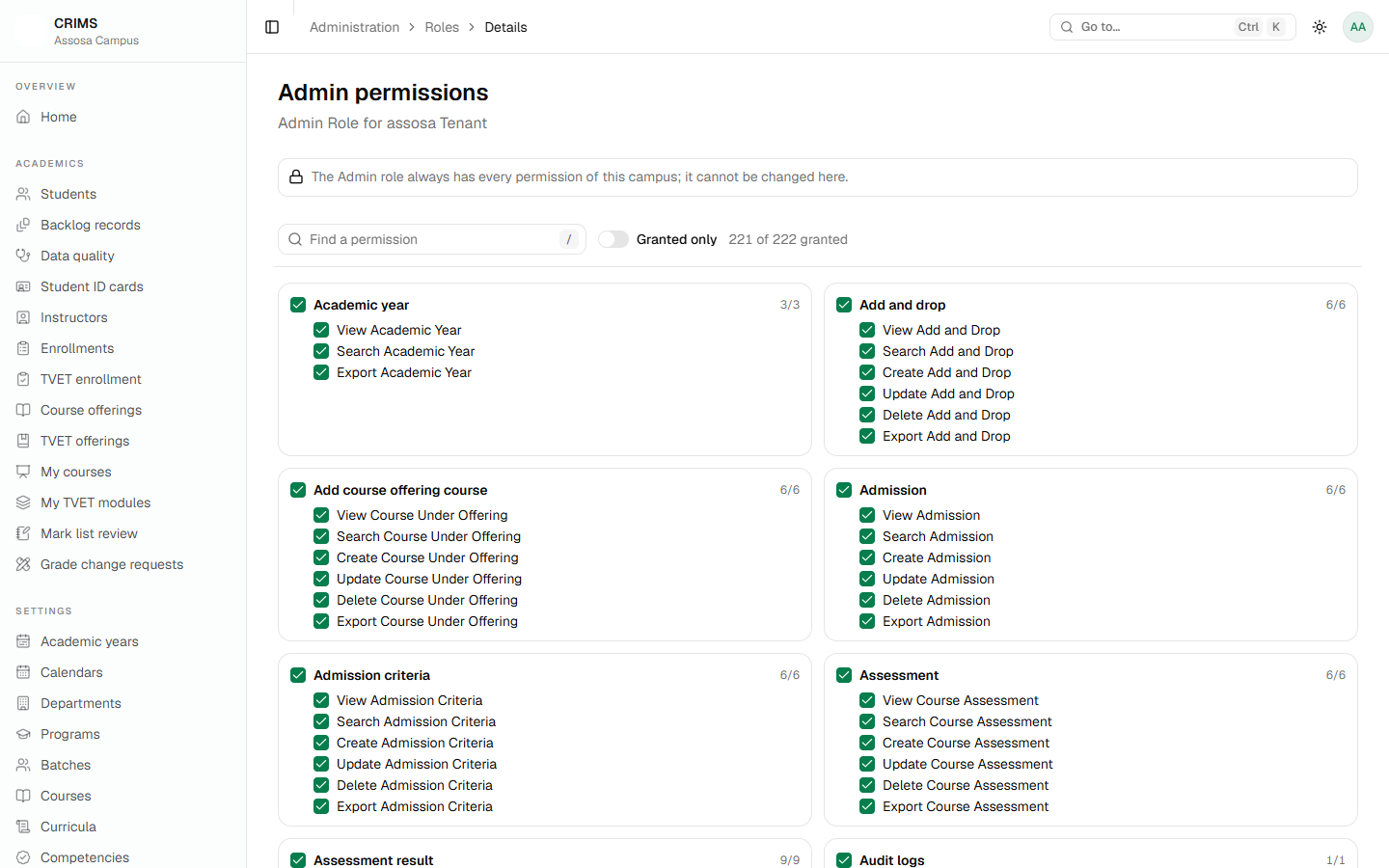
Permissions are grouped by what they act on — Student, Course, AssessmentResult — and within each, what may be done: View, Search, Create, Update, Delete, and a few special ones.
13.3 Permissions worth understanding
Four are worth knowing by name, because they decide who can do the most sensitive things.
| Permission | What it gives |
|---|---|
AssessmentResult.ManageAll | Read and change any course's marks on the campus, not only assigned ones |
TvetAssessmentResult.ManageAll | The same for TVET modules |
GradeChangeRequest.ManageAll | Decide grade change requests for every department — the reach a dean needs |
AuditLogs.View | Read the campus activity log |
The two ManageAll permissions are seeded to the campus Admin role only. If a registrar or dean needs to work on mark lists across the campus, grant them deliberately — they bypass the rule that an instructor may only touch their own courses.
For a Dean who decides grade changes across departments, grant both GradeChangeRequest.ManageAll and GradeChangeRequest.ApproveGradeChangeRequest: the first sets the reach, the second gets past the door.
13.4 Two layers of protection on marks
Worth stating plainly, because it explains most "why can't they…" questions:
- The permission says a person may grade at all.
- The assignment — or heading the department — says whose marks.
An instructor with the right permission but no assignment can open nothing. Someone with an assignment but no role can open nothing either. Both are required, and this is what stops one department's staff reaching another's marks.
13.5 Keeping accounts safe
- Deactivate accounts the day people leave. It is immediate and reversible; deleting is not.
- Issue one-time passwords rather than choosing passwords for people. The person sets their own at first use, so nobody else ever knows it.
- Check the sign-in history on an account that worries you. It is on the account's page, and campus-wide under Audit › Sign-ins.
- Review roles once a year. People change jobs and keep access nobody revoked.
Part 3 — For instructors
Entering and submitting marks.
InstructorChapter 14
Chapter 14 — My courses and the mark list
Part 3: for instructors.
This is the chapter most people in the college will use. It takes a course from an empty mark list to marks submitted for approval.
14.1 My courses
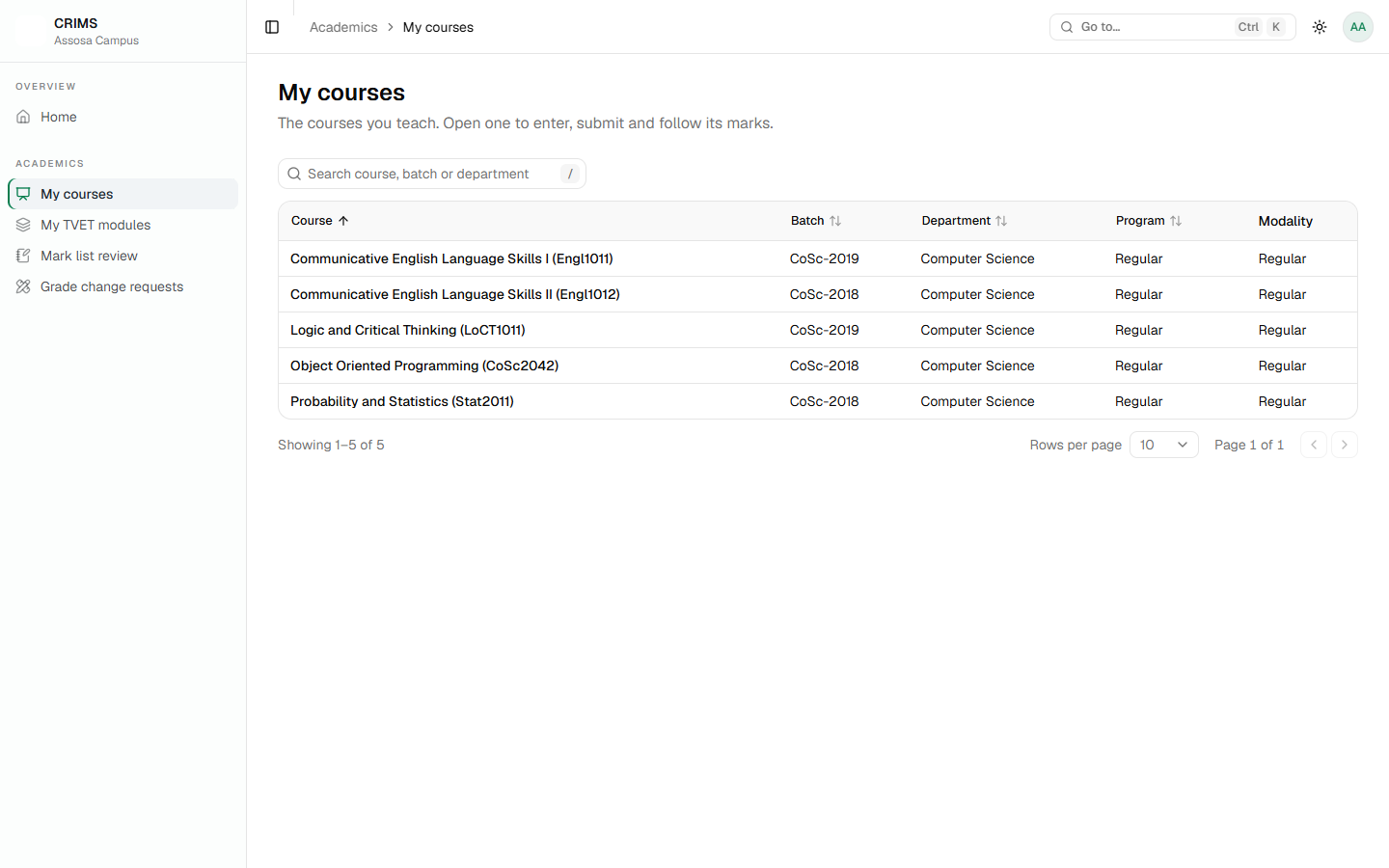
After signing in, an instructor's menu is short: My courses, My TVET modules, Mark list review and Grade change requests.
My courses lists the courses assigned to you. Each opens its mark list.
If a course is missing, you have not been assigned to it. Ask your registrar — it is one action on the course offering page (Chapter 10). Being able to sign in is not the same as being assigned.
14.2 The mark list
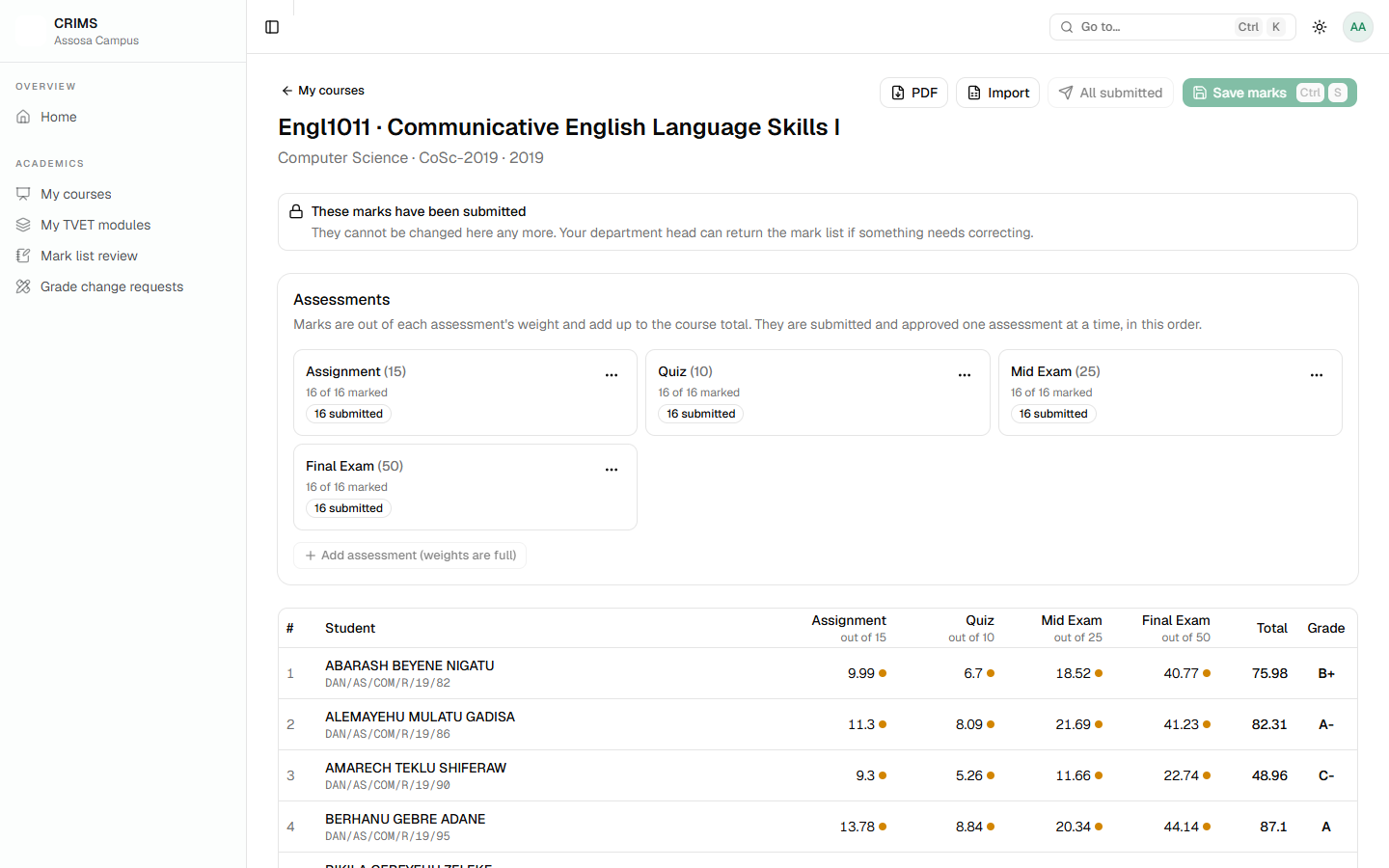
The page has three parts:
- The heading — the course, department, batch and year, and the buttons: PDF, Import, Submit, Save.
- The assessments card — what the course is marked out of.
- The grid — a row per enrolled student, a column per assessment, then Total and Grade.
14.3 The assessments
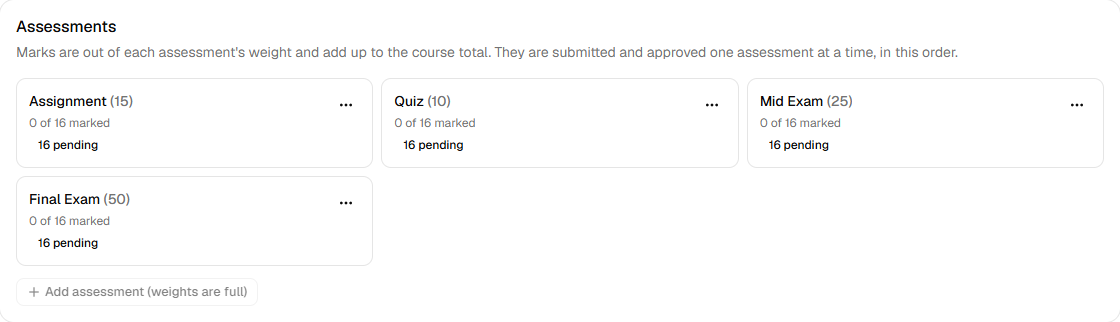
An assessment has a name and a weight. A mark is entered out of that weight, and the course total is the sum. The weights must add up to 100.
You can add, edit and delete assessments for your own course:
- A new assessment goes last unless you give it an order.
- A weight cannot change once marks are submitted or approved against it, nor drop below a mark already given.
- An assessment cannot be deleted once it has submitted or approved marks. Deleting one that has only pending marks takes those marks with it.
Adding an assessment after students are enrolled is fine — the column appears for everyone at once.
14.4 Entering marks
Click a cell and type.
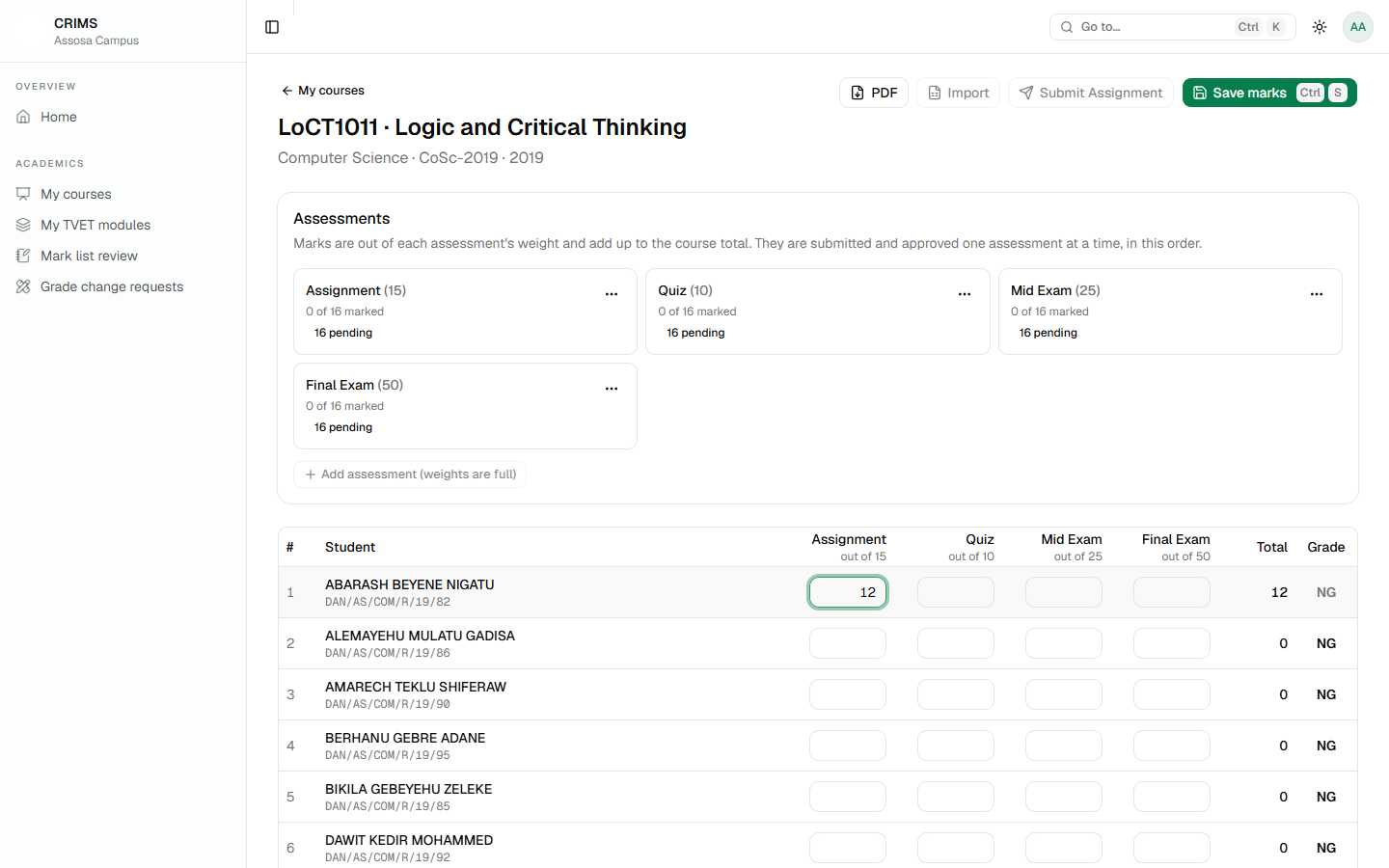
- Only cells still Pending can be typed in. Submitted and approved marks are shown but not editable.
- The Total and Grade columns update immediately, so you see the effect before saving.
- Nothing is stored until you press Save marks (or Ctrl+S). Only the marks you actually changed are sent.
- If you try to leave with unsaved marks, CRIMS asks first.
A mark that is too high is refused at once:
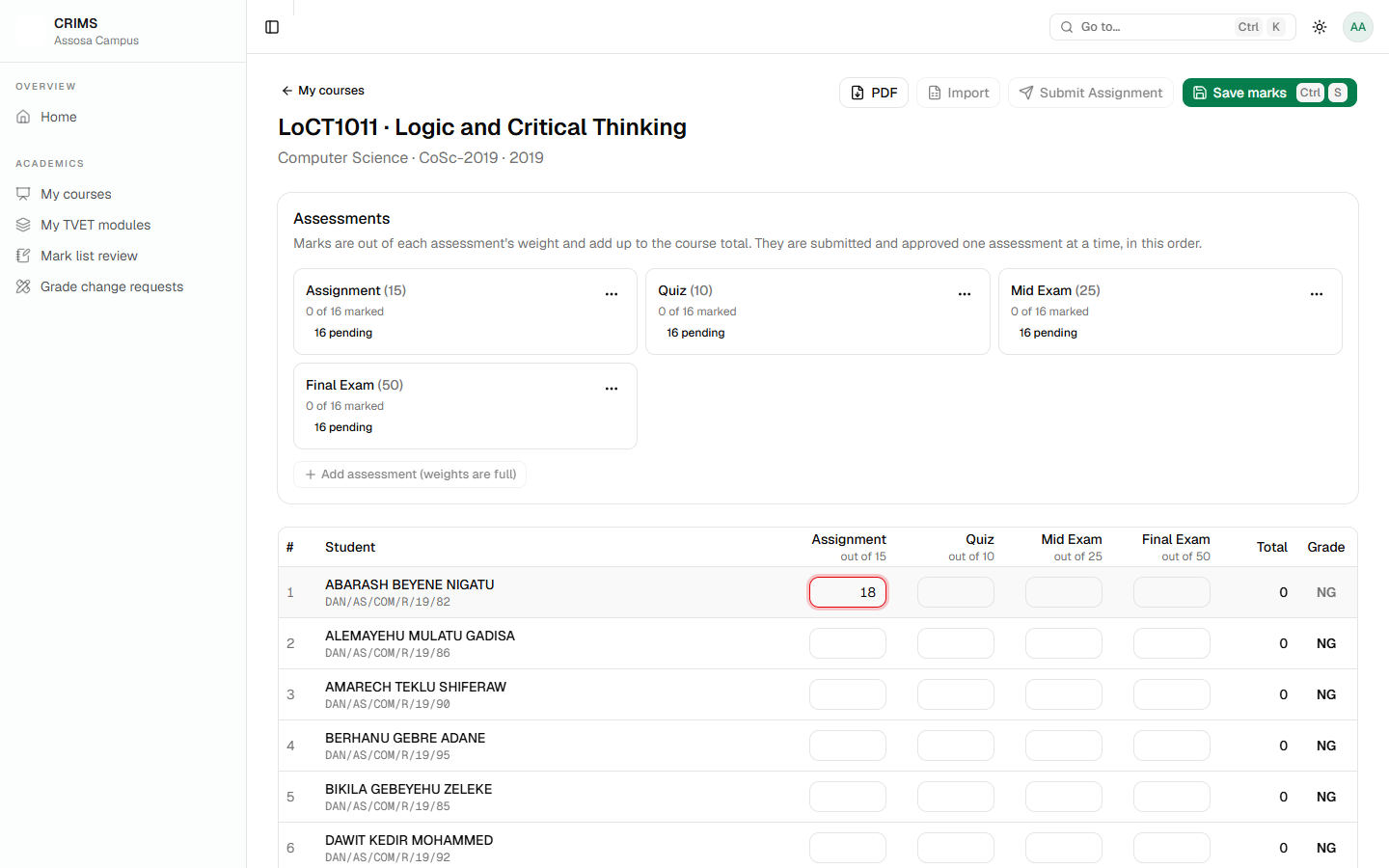
The same happens for more than two decimal places. Fix the cell — it cannot be saved as it stands.
A real zero and an empty cell are different. A blank means no mark yet. If a student genuinely scored nothing, the mark list shows them as not yet graded, so record whatever your college's convention is for an absent student rather than leaving it blank.
14.5 Importing marks from a spreadsheet
For a large class, type into a spreadsheet instead.
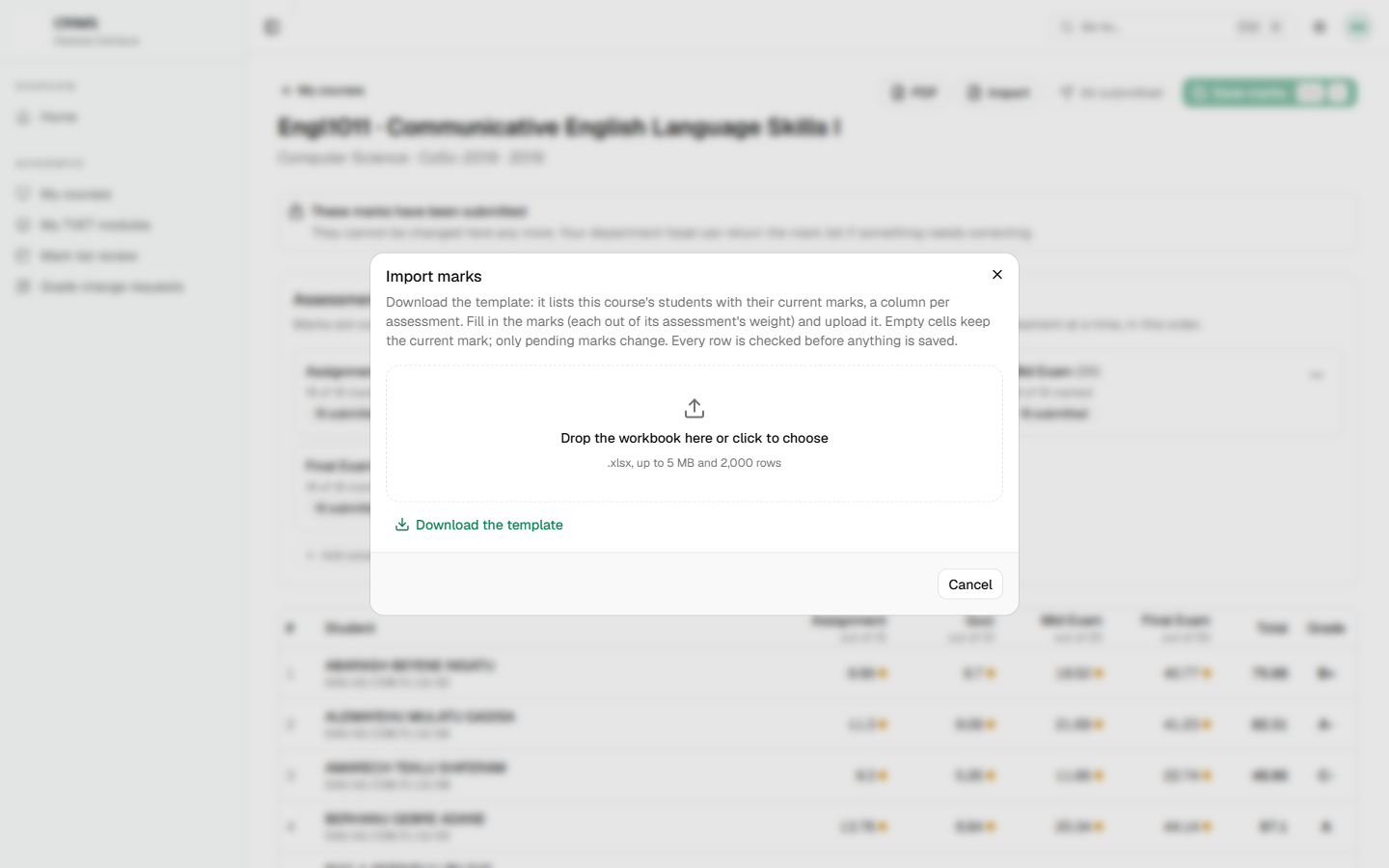
- Download the template. It already contains your students and any marks they have, with a column per assessment named
Assignment (out of 15). - Fill in the marks. An empty cell leaves the existing mark alone.
- Upload it. Rows are matched by student ID and checked one by one; problems are reported per row.
- Valid rows go through exactly the same save as typing by hand.
14.6 Submitting
When an assessment is fully marked, submit it.
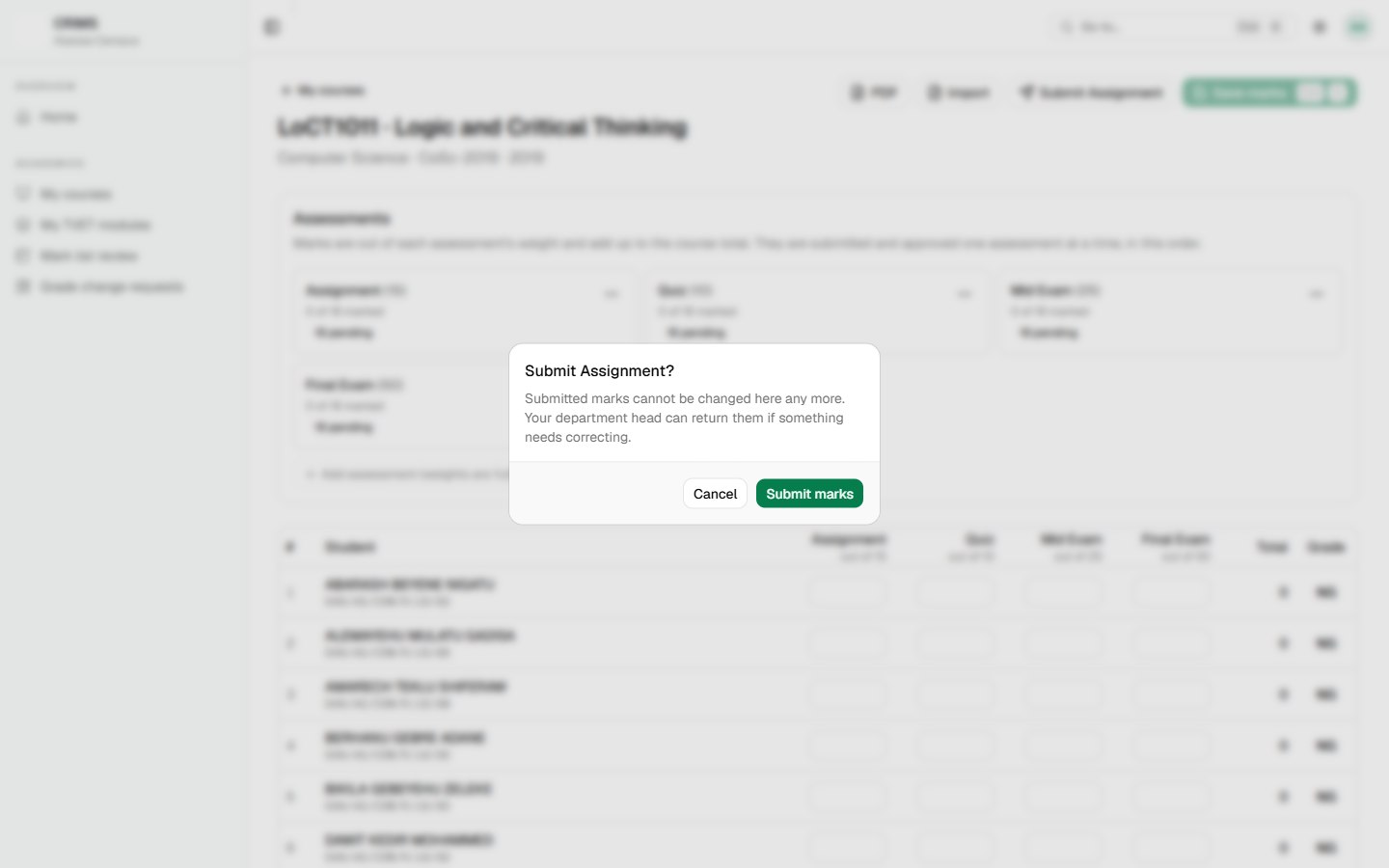
What to know before you press it:
- Assessments are submitted in order — the button names the next one due.
- Save first. The button is disabled while you have unsaved changes.
- Submitting is not reversible by you. Submitted marks can no longer be edited. If something is wrong afterwards, the department head must return the mark list (Chapter 17), and then you can correct and submit again.
- You cannot approve your own marks. There is no Approve button on an instructor's mark list. The department head approves.
Once everything is submitted, the page says so and the buttons are disabled:
These marks have been submitted. They cannot be changed here any more. Your department head can return the mark list if something needs correcting.
14.7 Printing the mark list
PDF produces the mark list as a document for signing and filing.
14.8 If letters are missing
If the Grade column is empty and a banner explains why, the department's grade scale is missing or has a problem. Marks can still be entered and submitted, but nothing can be approved until the registrar fixes it (Chapter 7). Report it rather than waiting.
InstructorChapter 15
Chapter 15 — TVET module results
Part 3: for instructors (trainers).
If you train TVET modules, this is your equivalent of Chapter 14. The shape is the same; the rules are different.
15.1 My TVET modules
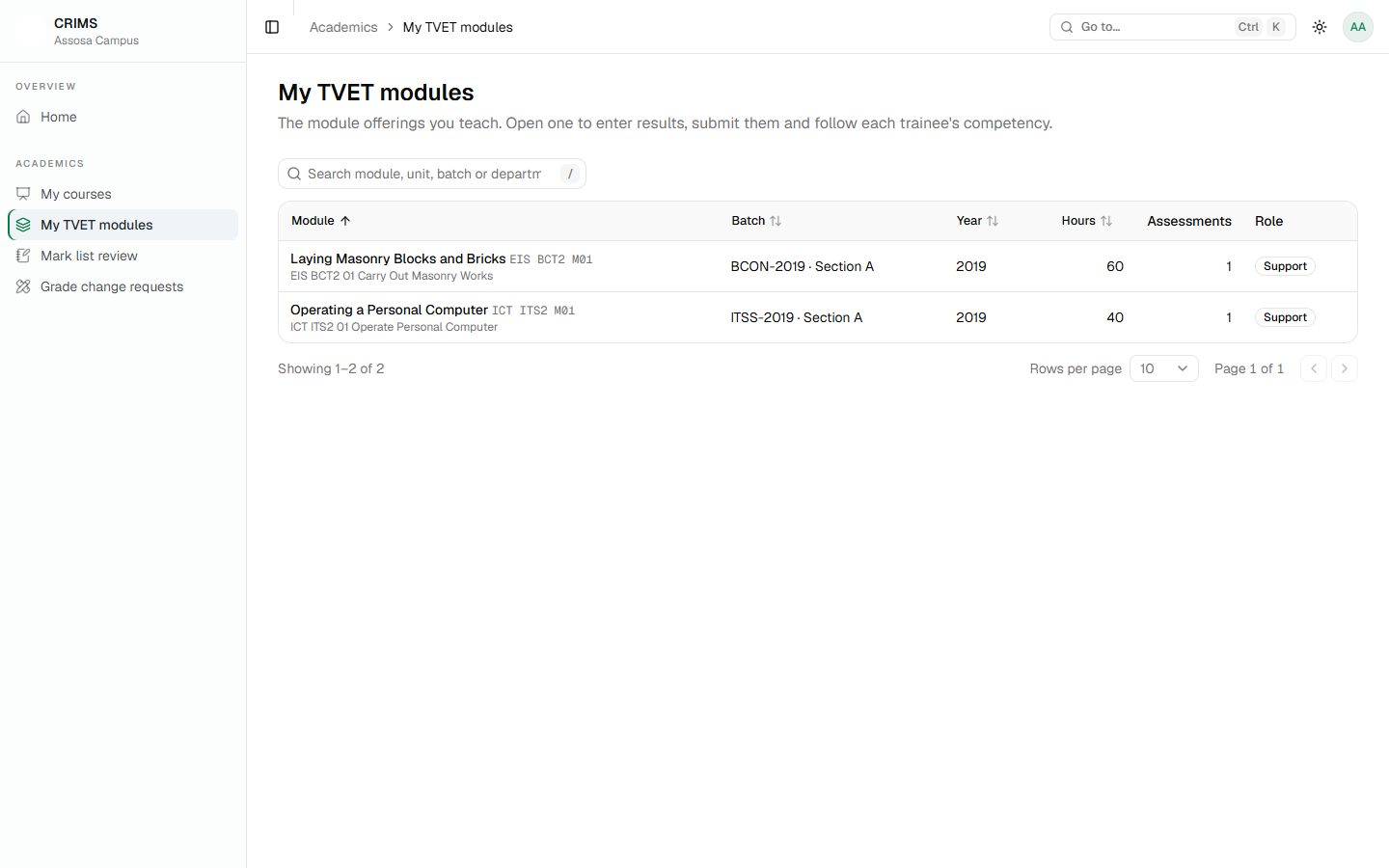
Each opens its mark list. A module you expect to see and do not means you have not been assigned to it — ask your registrar (Chapter 12).
15.2 The TVET mark list
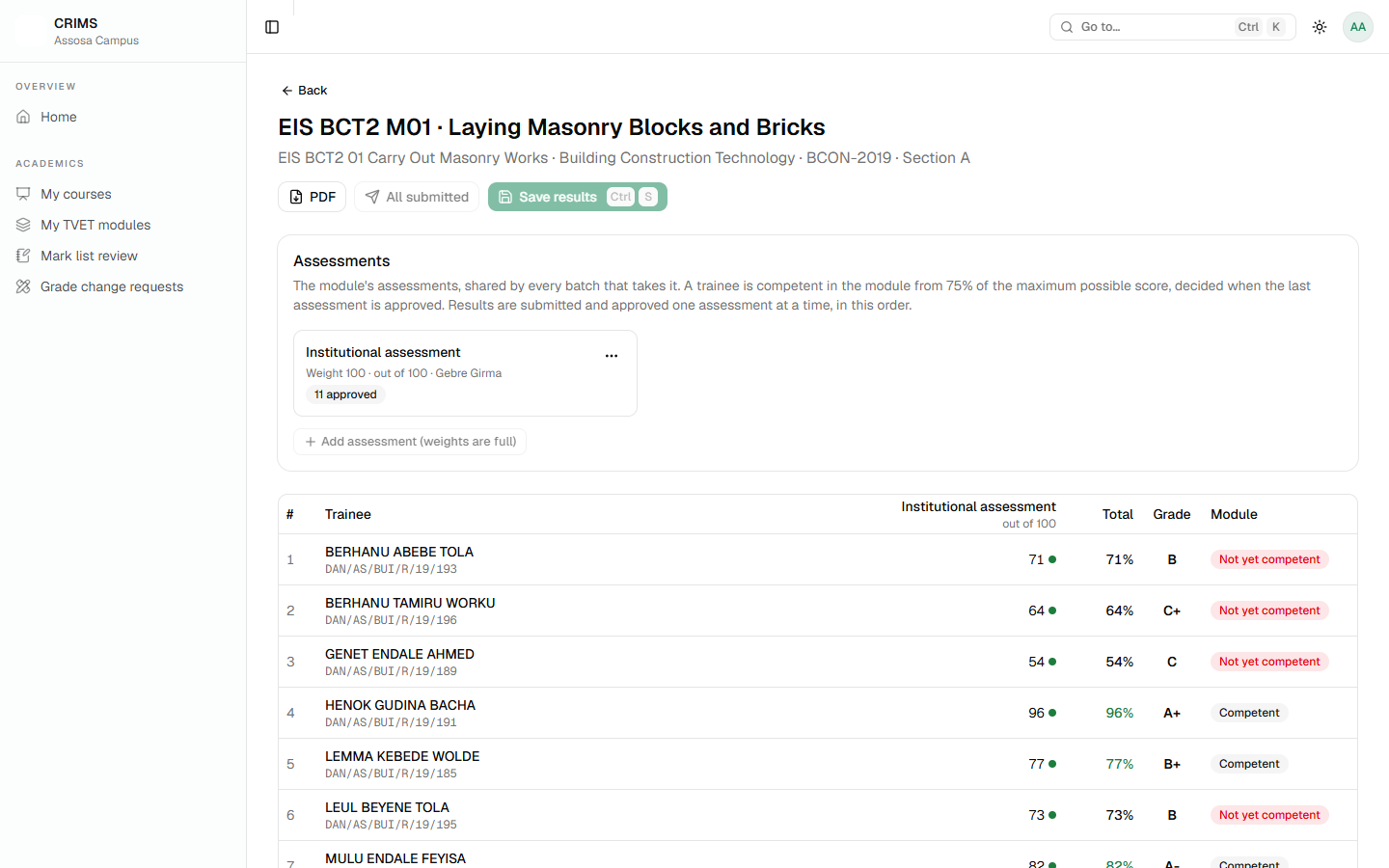
Differences from a degree mark list, all of them important:
| Degree | TVET | |
|---|---|---|
| Marks are out of | the assessment's weight, totalling 100 | each assessment's maximum score |
| The result is | a letter grade | Competent or Not competent |
| Decided by | the grade scale | 75% of the maximum |
| Approved by | the department head | the department head |
Assessments belong to the module, not to your section. All sections of a module share one set, and a trainer assigned to any offering of the module may enter results for every offering of it. Submitting an assessment submits all of its pending results.
15.3 Entering and submitting
As in Chapter 14: type, save, then submit in order.
Two things CRIMS decides for you, whatever a file or a form says:
- A result is always saved as pending. It cannot be entered as already submitted or approved.
- Competency comes from the score, never from a tick box. 75% of the maximum is the line.
A result for a closed enrollment is refused.
15.4 How the module is decided
You enter and submit. The department head approves (Chapter 17). Then:
- Once every assessment of the module has an approved result, the enrollment becomes Completed.
- The module becomes Competent if the total reaches 75% of the maximum, otherwise Not competent.
- A module already passed stays passed.
- When every module of a unit is competent, the unit is complete and the trainee can move on.
Nothing is decided until the head approves. A trainee whose results are all entered but not yet approved is still In progress and cannot start the next module. If trainees are stuck, unapproved results are the first thing to check.
15.5 The holding notice
If the mark list shows a notice that the offering is a holding offering, the trainees in it were moved there when their previous offering was closed while they were unfinished. They are waiting to be placed in a real offering. Tell the registrar — they move them with one action (Chapter 12).
InstructorChapter 16
Chapter 16 — Asking for a grade change
Part 3: for instructors. Chapter 17 covers deciding one.
A mark that has been approved is final. It counts towards the student's grade report and transcript, and no one can simply retype it. Correcting it is a request with a decision and a record.
16.1 When you need one
- A marking error found after approval.
- A missed script or a re-mark.
- A correction the department has agreed to.
For a mark that is only submitted, not yet approved, you do not need this: ask your department head to return the mark list and correct it yourself (Chapter 17).
16.2 Raising a request
On your mark list, an approved mark is a button. Click it to open Request a grade change, give the new mark and the reason, and send it.
What CRIMS checks:
- The mark must be approved. A pending or submitted one is not eligible.
- The new mark must fit inside the assessment's weight.
- Only one open request per mark. A second is refused while the first is undecided.
- You must teach the course. Only its instructor can raise one.
The previous mark and the student are taken from the stored record, not from what is typed, so a request cannot quietly point at the wrong mark.
16.3 Following it up
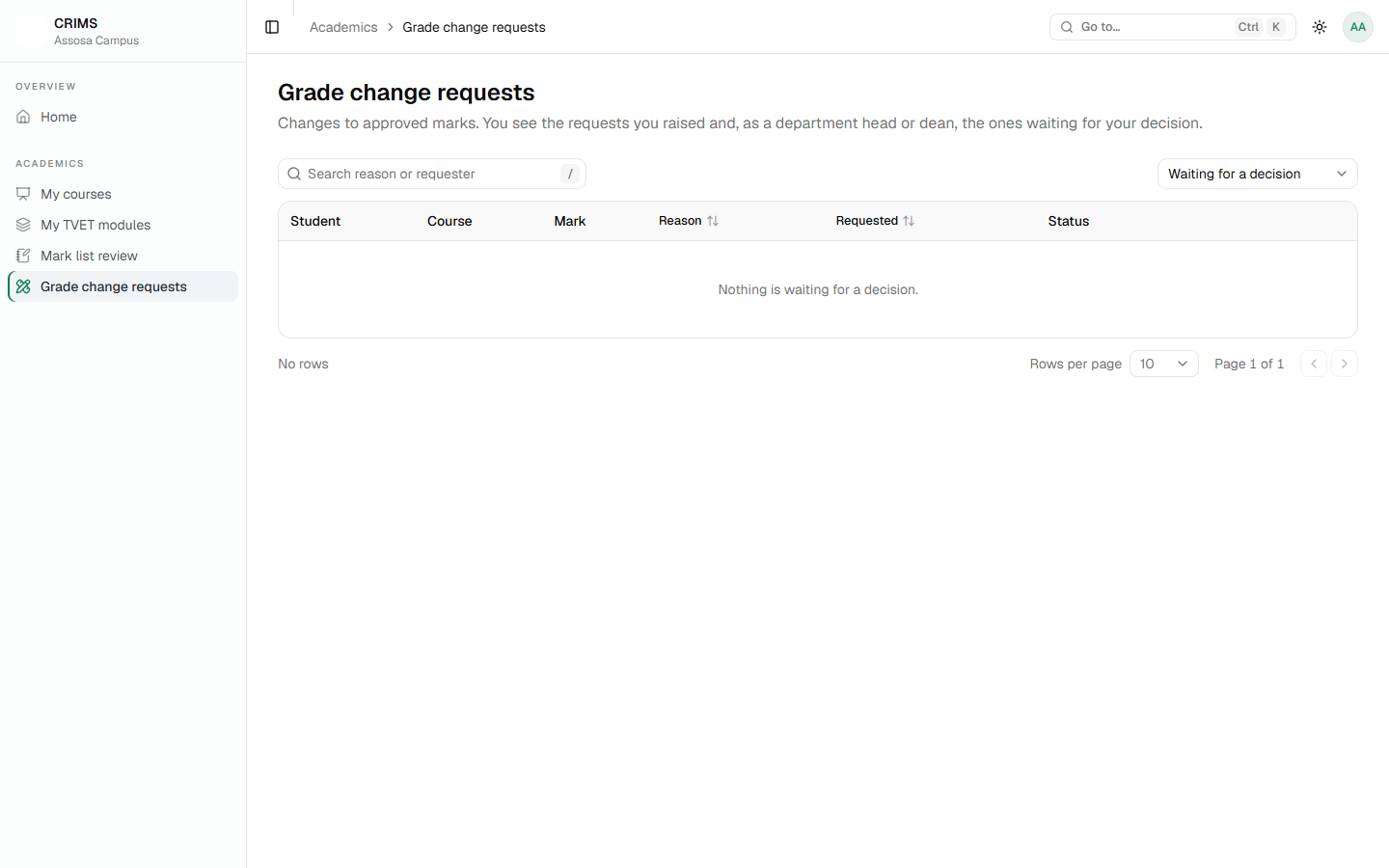
The page opens on what is waiting for a decision. Each row shows the course, the student, the mark now and the mark asked for, who raised it and when.
- Withdraw your own request while it is still undecided.
- Once decided, it cannot be withdrawn or changed.
16.4 Who decides
The head of the department that owns the course. Not whoever has a permission, and not the person who raised it — approving a grade change writes a mark, so it belongs to the person accountable for the department's grading.
Two exceptions, both deliberate:
- A dean covers every department and can decide across all of them.
- A head who teaches a course in their own department may approve their own request. Blocking that would deadlock a department whose head is its only instructor.
16.5 What happens when it is approved
The mark is changed to the requested value, and the change is recorded against the person who approved it. The student's grade report and transcript follow immediately.
If it is rejected, nothing changes. Either way the request is closed and stays as a record of what was asked and what was decided.
Part 4 — For department heads
Approving what instructors submit.
Department headChapter 17
Chapter 17 — Reviewing and approving mark lists
Part 4: for department heads.
A department head is an instructor who also heads a department. You do everything in Part 3 for your own courses, and this chapter as well for your department's.
Approving is what makes marks count. Until a head approves them, marks are not final: they do not appear on a transcript and they do not count towards a GPA. A department whose head never approves has done all the marking and produced no results.
17.1 The review page
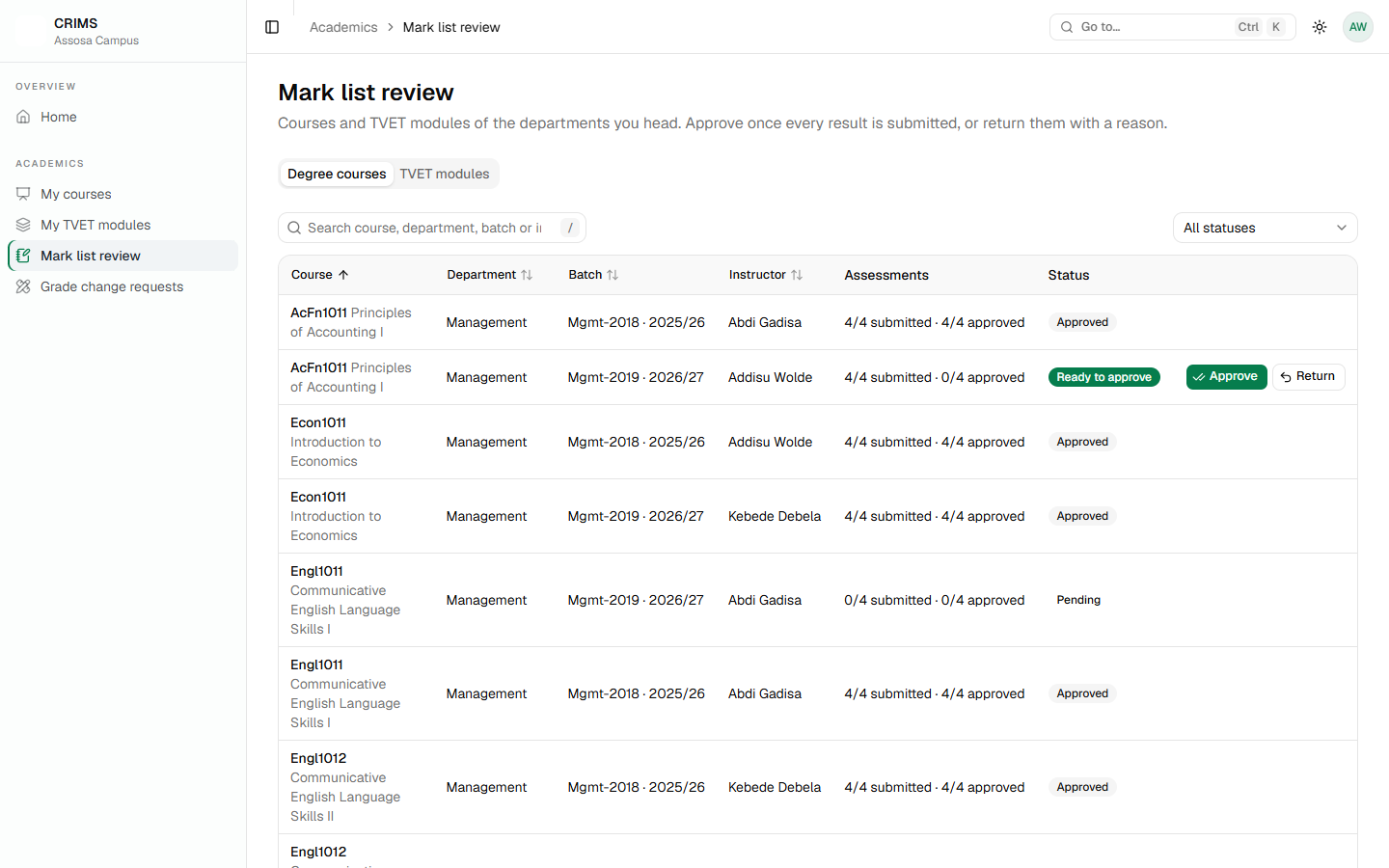
Each row shows the course, its instructor, how many marks are submitted and how many approved, and the reason the list was last returned if it was.
The status filter is the quickest way to work: set it to what is ready to approve and work down the list. The page opens showing what needs attention.
TVET modules are on their own tab:
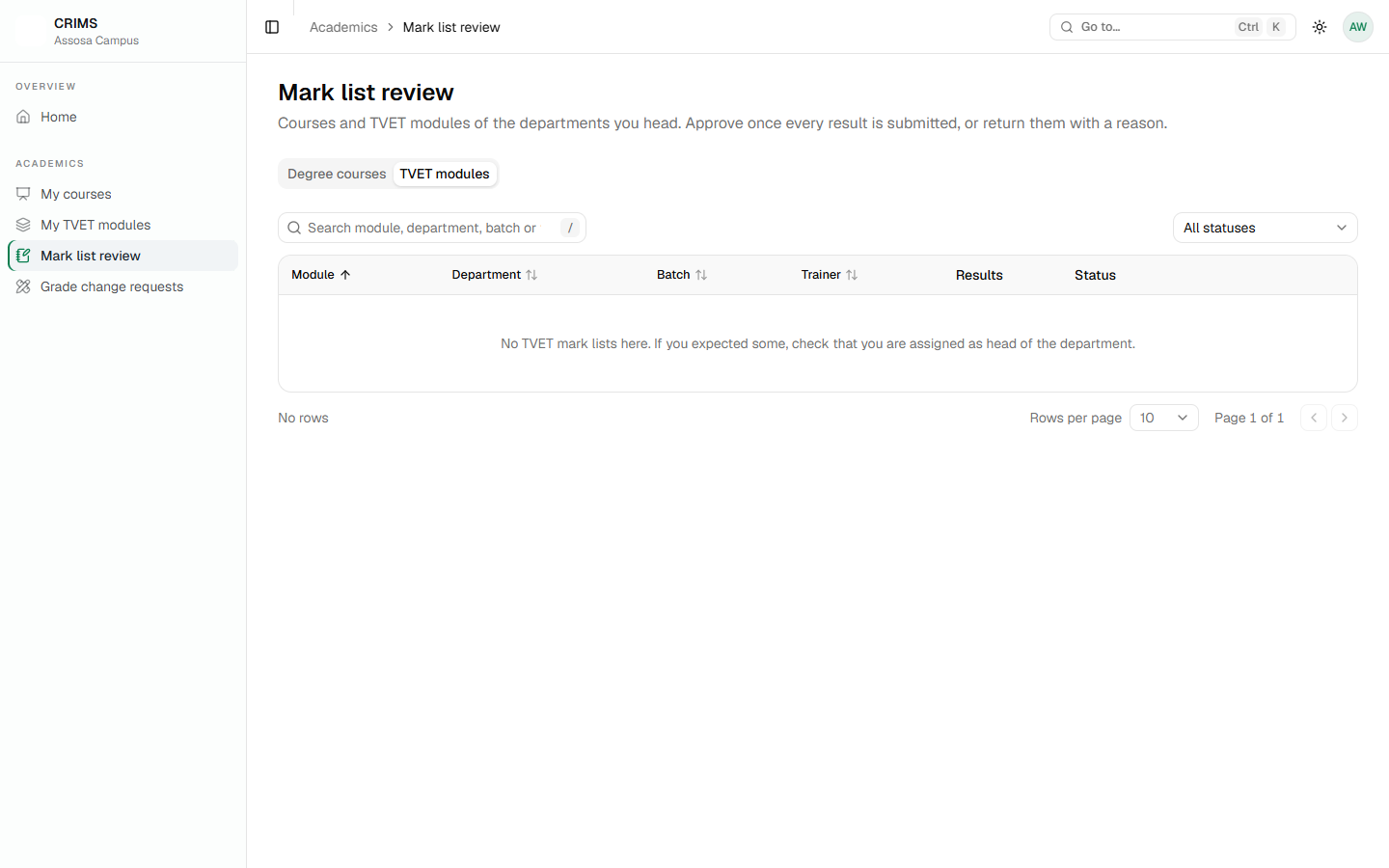
A TVET row counts what it expects: non-withdrawn trainees × the module's assessments. A module is not ready just because every result that exists is submitted — results that were never entered still count as missing.
17.2 Reading a mark list
Open a course to read its mark list.
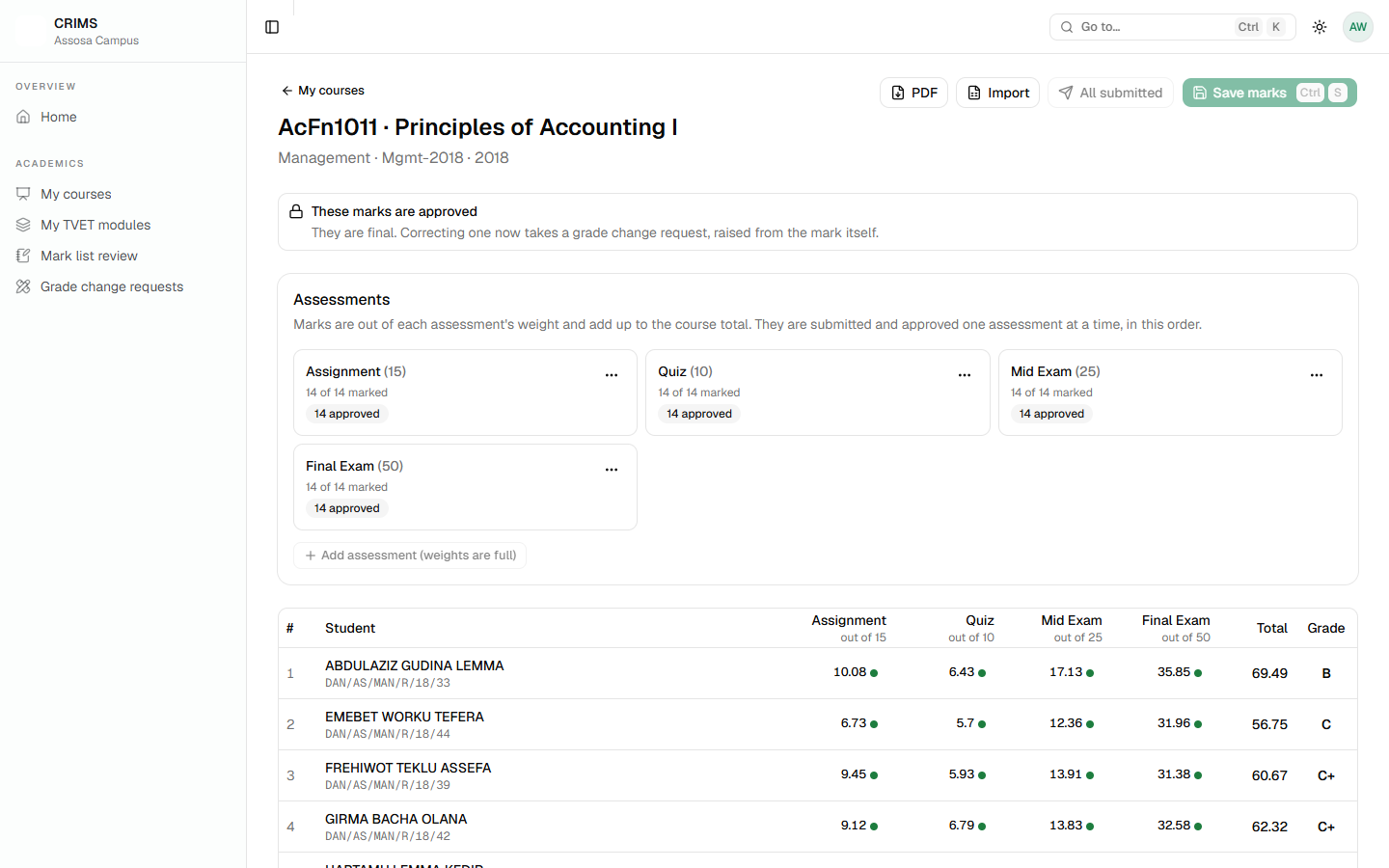
You can read any mark list in your department. You cannot change a mark. That is not a limitation to work around — it is the point of the separation. The instructor is responsible for the marks; you are responsible for accepting or refusing them.
Withdrawn students appear as W and are not counted.
17.3 Approving
Approve when the marks are right.
- Only a fully submitted mark list can be approved. If anything is still pending, approval is refused and says so.
- Approving is per assessment, in order, exactly as submitting is.
- Approving writes the marks as final. They count from that moment.
Approval is refused if the department's grade scale is missing or wrong, with a message saying so. The marks would have no letter, so approving them would produce a result nobody could read. Ask the registrar to fix the scale (Chapter 7); nothing needs re-entering afterwards.
17.4 Returning a mark list
If something is wrong, return it instead.
- A reason is required. It is shown to the instructor on their mark list, so write what needs correcting.
- Only submitted marks go back to pending. Marks already approved stay approved.
- A mark list with nothing submitted cannot be returned — there is nothing to send back.
Returning is the only way an instructor can correct a submitted mark. If one asks you to "unlock" their mark list, this is what they mean.
17.5 Grade change requests
Once marks are approved, correcting one is a grade change request (Chapter 16), and you decide it.
Your Grade change requests page opens on the ones waiting for you. Each shows the course, the student, the current mark, the requested mark and the reason.
- Approving writes the new mark and records you as the person who decided.
- Rejecting changes nothing, and closes the request.
- A decided request cannot be decided again.
You may approve a request you raised yourself for a course in your own department. That is allowed on purpose — a department whose head is its only instructor would otherwise be stuck.
17.6 What good practice looks like
- Work from the review page's status filter, not from memory.
- Return early rather than approving something doubtful. Returning is cheap; a grade change request after approval is a formal process.
- Watch the campus overview. It counts submitted marks waiting for approval and names the courses, so nothing sits for weeks unnoticed.
- Clear the queue before the academic year is closed. Closing warns about unapproved marks but does not stop you — and marks left unapproved still do not count.
Part 5 — Reports
For the registrar and college management.
ReportsChapter 18
Chapter 18 — Reports
Part 5: for the registrar and for college management.
18.1 The campus overview
The home page is the report management should look at first. It answers "what is the state of this campus, and what needs someone's attention?"
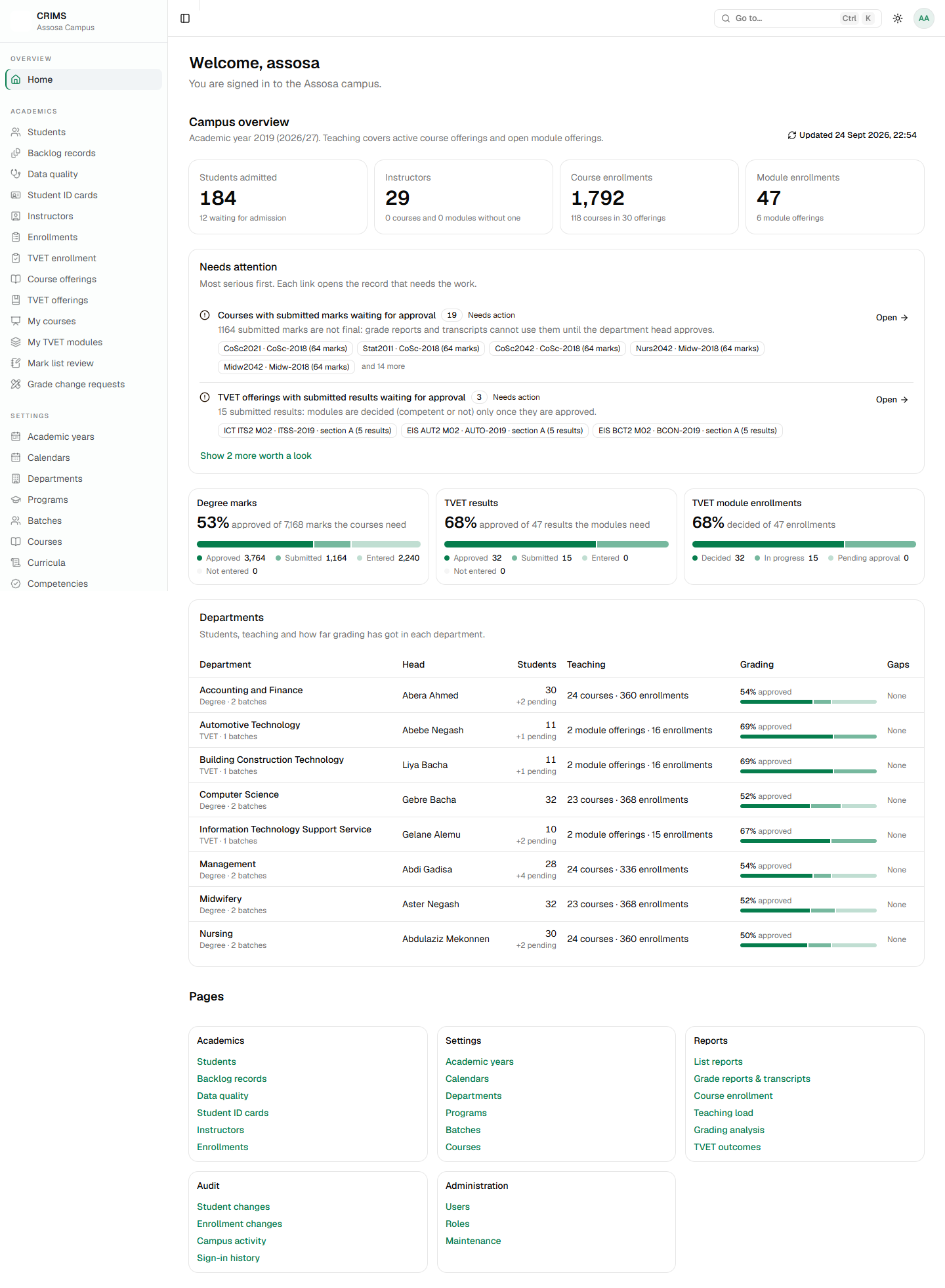
It has four parts:
The tiles — students admitted, instructors, course enrollments, module enrollments. Each links to the list behind it.
Needs attention — the heart of the page. A ranked list of things waiting for someone, most serious first, each with a count, an explanation and links straight to the records, not just to a page. Typical items:
- Departments with no usable grade scale — grading is blocked
- Submitted marks waiting for a department head
- TVET results waiting for approval, and module outcomes still undecided
- Courses with no instructor, modules with no trainer
- Departments with no head
- Students waiting for admission
- Duplicate enrollments, assessment weights that do not total 100
- Departments with no calendar for the current year
Progress meters — for degree marks and TVET results: how many are approved, submitted, entered, not started.
A row per department — head, grade scale state, students, and progress on both kinds of teaching.
This page is the fastest answer to "is grading on track?" If Needs attention is short, it is. Any new feature that creates work for somebody adds an item here, so the page stays the one place to look.
18.2 Grade reports and transcripts
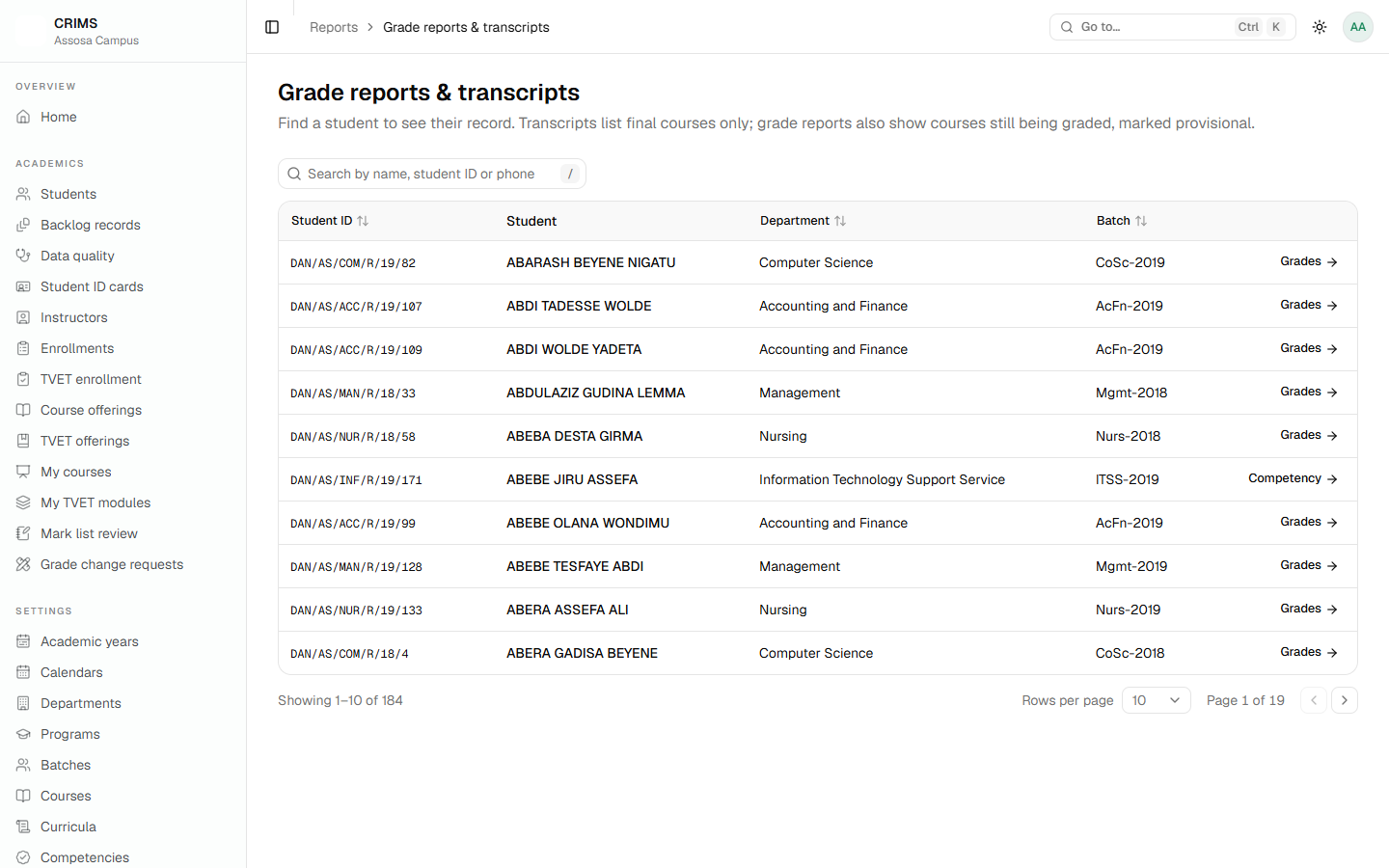
Find the student, then open their Grades tab.
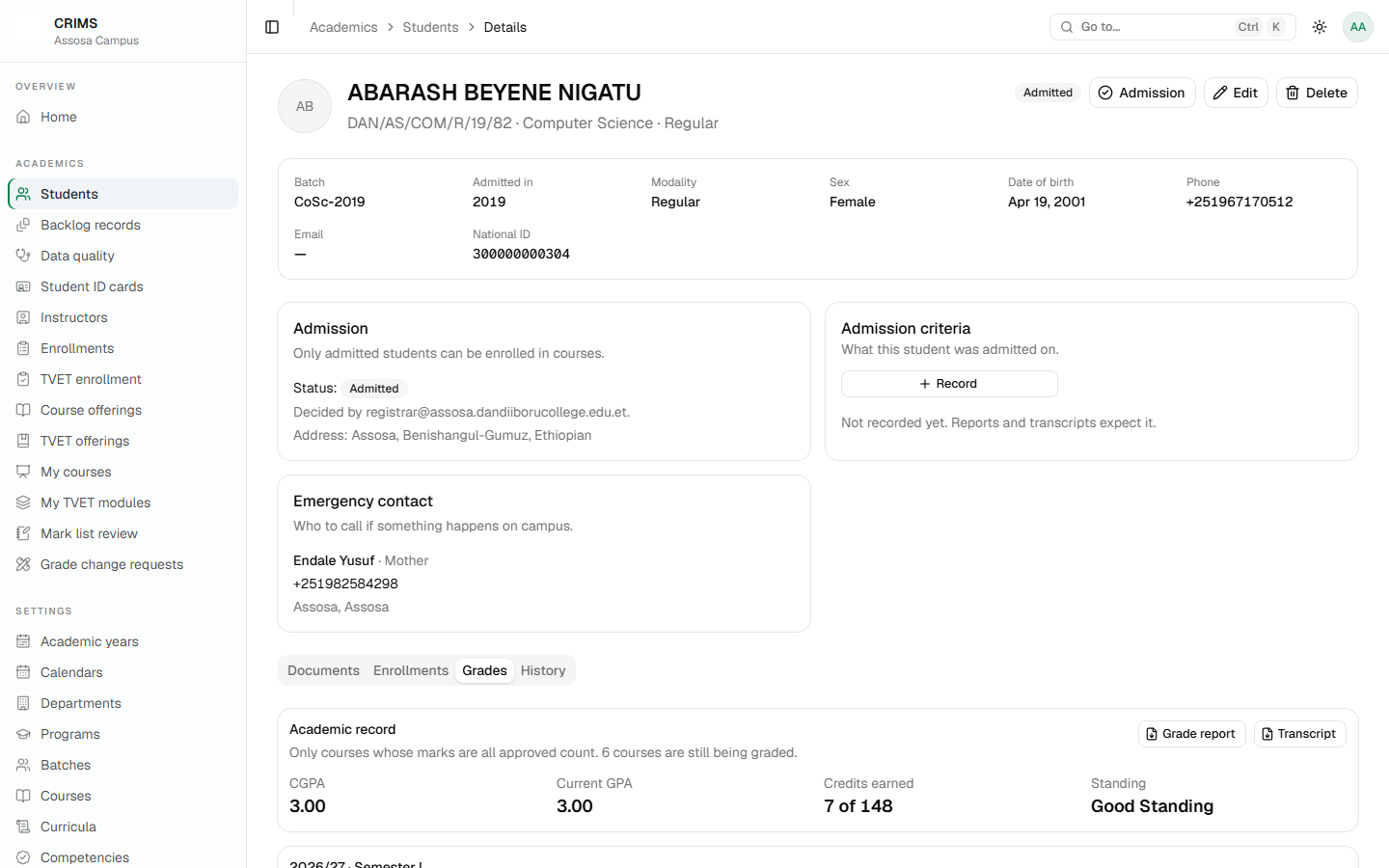
The difference between the two documents matters:
| Grade report | Transcript | |
|---|---|---|
| Courses included | All, including unfinished ones | Only courses whose marks are all approved |
| Provisional courses | Shown, labelled Provisional, outside the GPA | Not shown |
| Used for | Following progress | The official record |
A course is final when every one of its assessments has an approved mark. Until then it appears on the grade report as Provisional with the letter so far, and it does not count towards the GPA. A course with nothing entered shows as In progress; a withdrawn one as W.
A transcript is empty until marks are approved. This surprises people: all the marking is done, and the transcript shows nothing. The marks are submitted but not approved. See Chapter 17.
CGPA is total points divided by total credits, over final courses only. Current GPA is the latest semester that has counted courses.
Both print as PDF from the tab, for a student with the export permission.
18.3 Grading analysis
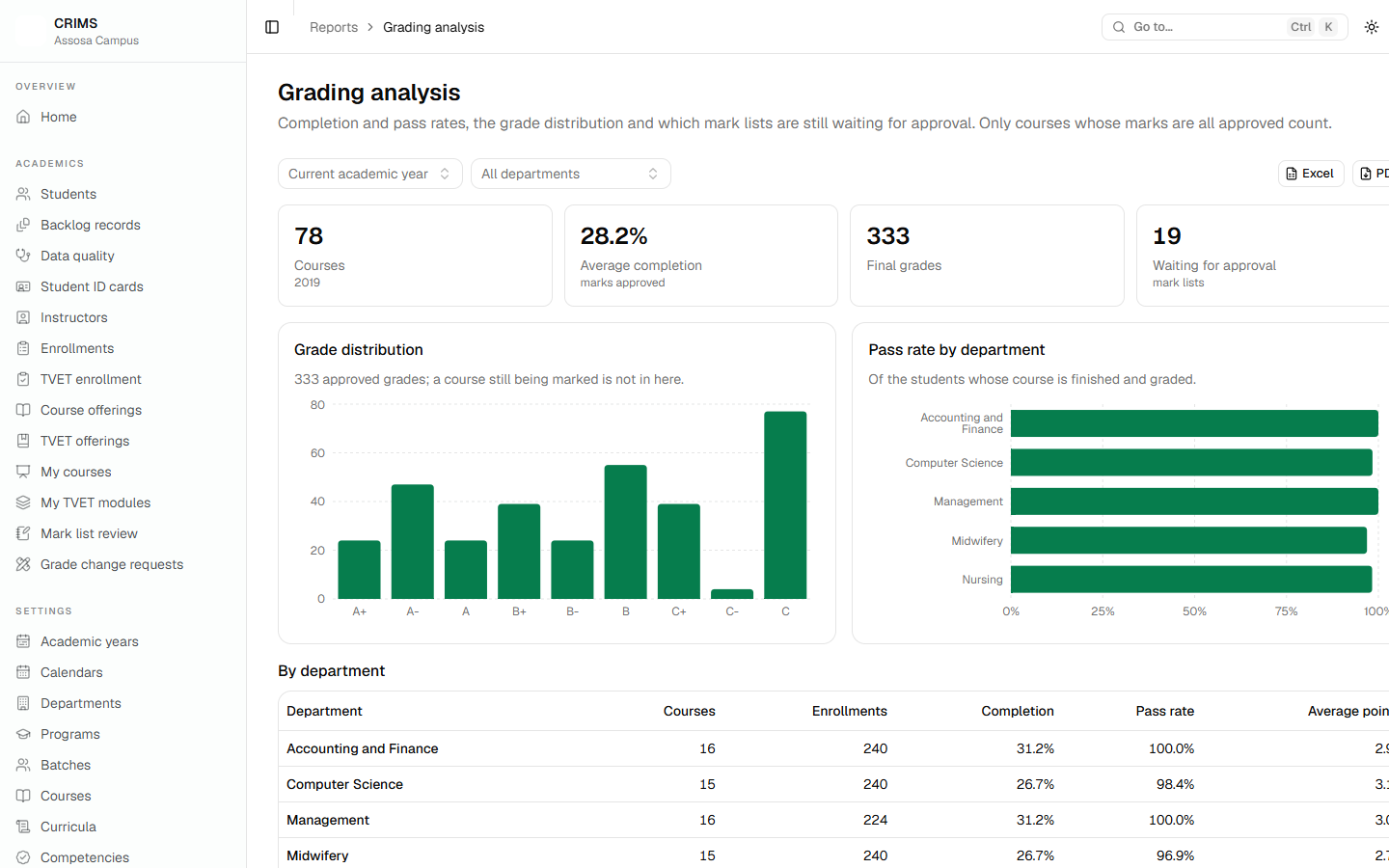
This answers how the marking year is going:
- How much is finished — courses whose marks are all approved.
- The distribution of final letter grades.
- Pass rates per department, and credit-weighted average grade points.
- Which mark lists are still waiting, and at which stage.
Only courses whose marks are all approved are counted. Passing is judged by the department's own grade scale and whether the course is core, not by a fixed list of letters.
Filter by academic year (the current one by default) and department.
18.4 Course enrollment
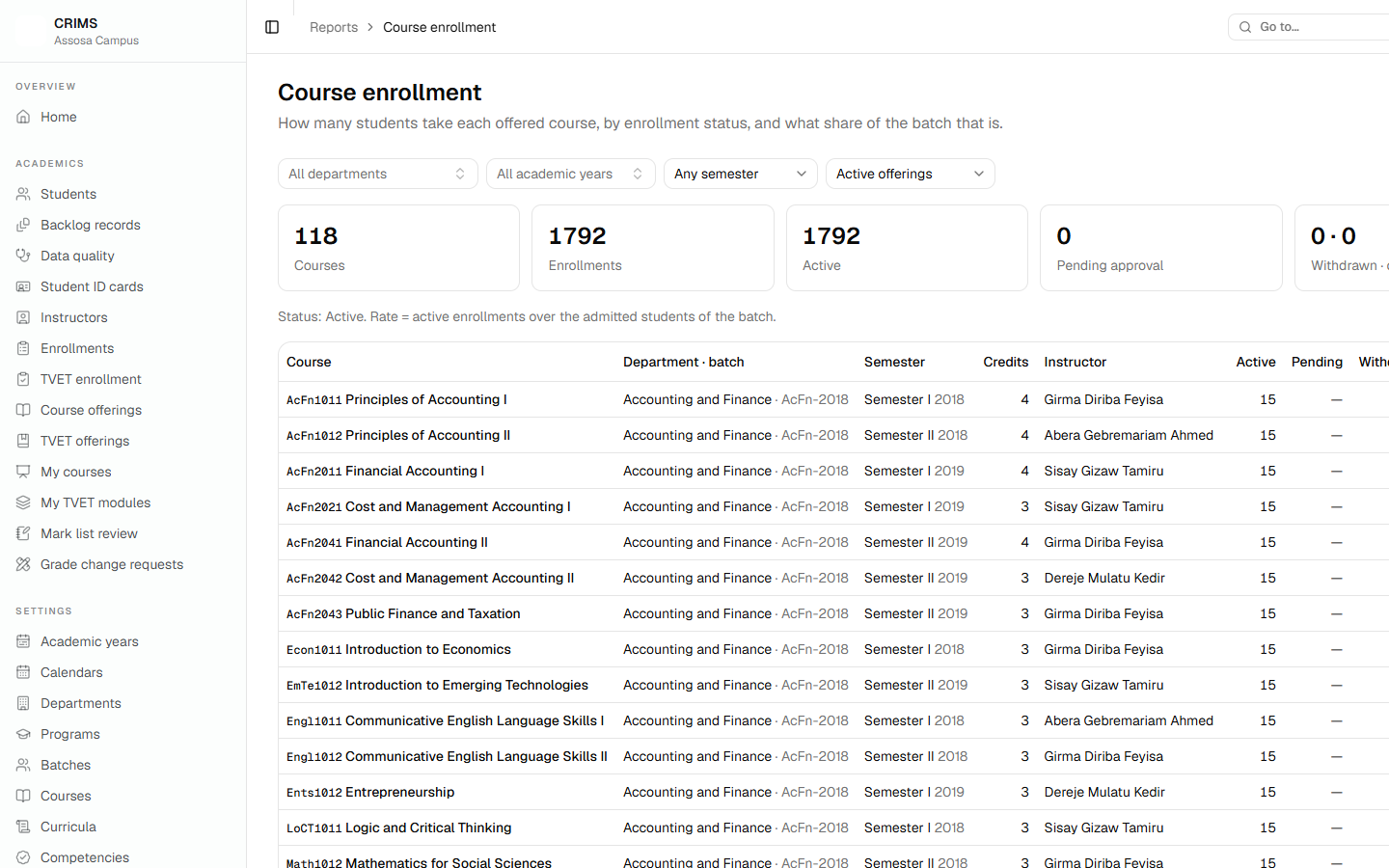
Per course: active enrollments (Enrolled and Approved), pending, withdrawn, and the enrollment rate against the batch's admitted students. Dropped students are outside the total. Useful for planning sections and rooms, and for spotting a course nobody has enrolled in.
18.5 List reports
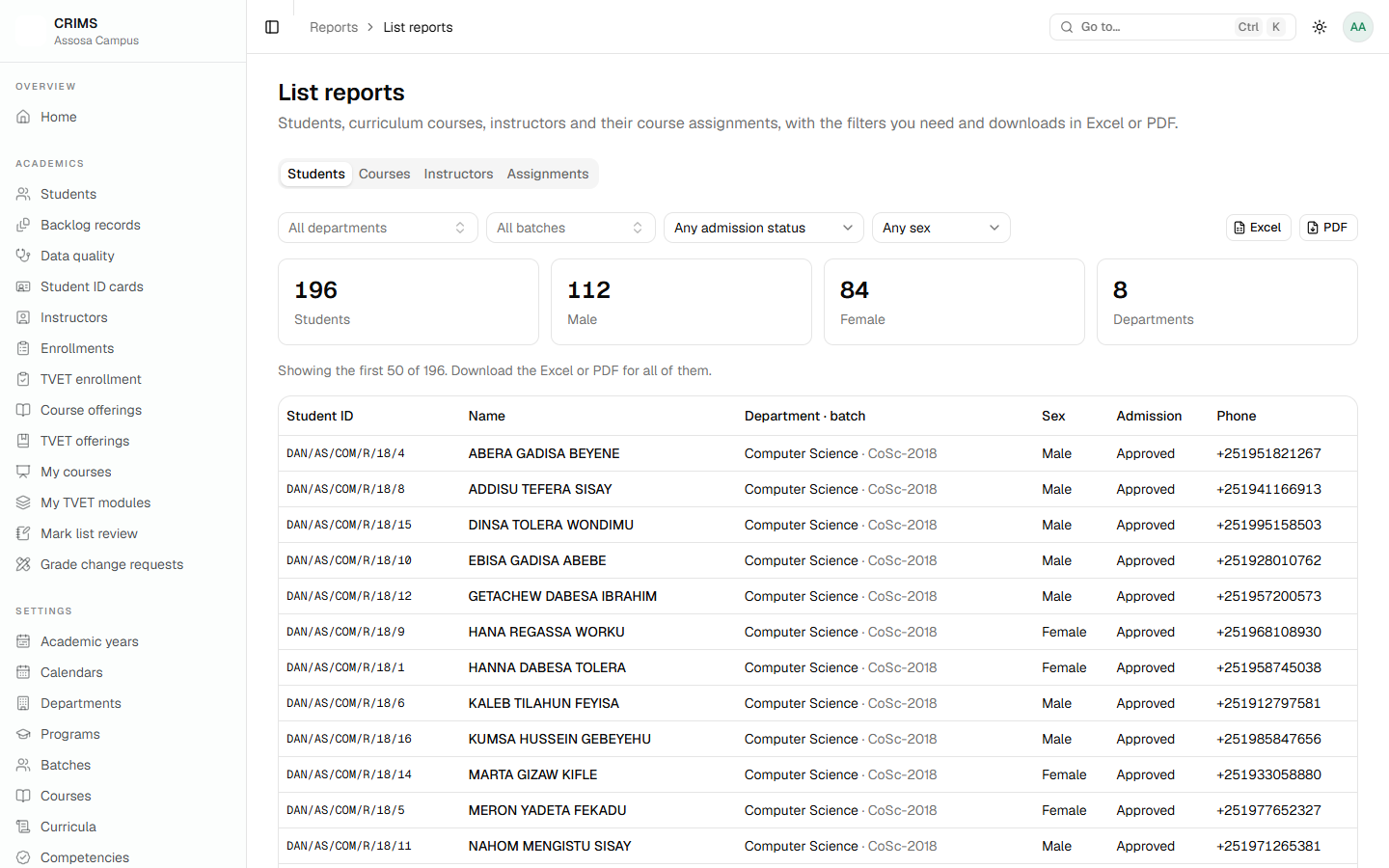
Four straightforward lists behind tabs, each with filters, a total and the first rows shown before you export. These are the ones to use for a census, a board paper or an audit.
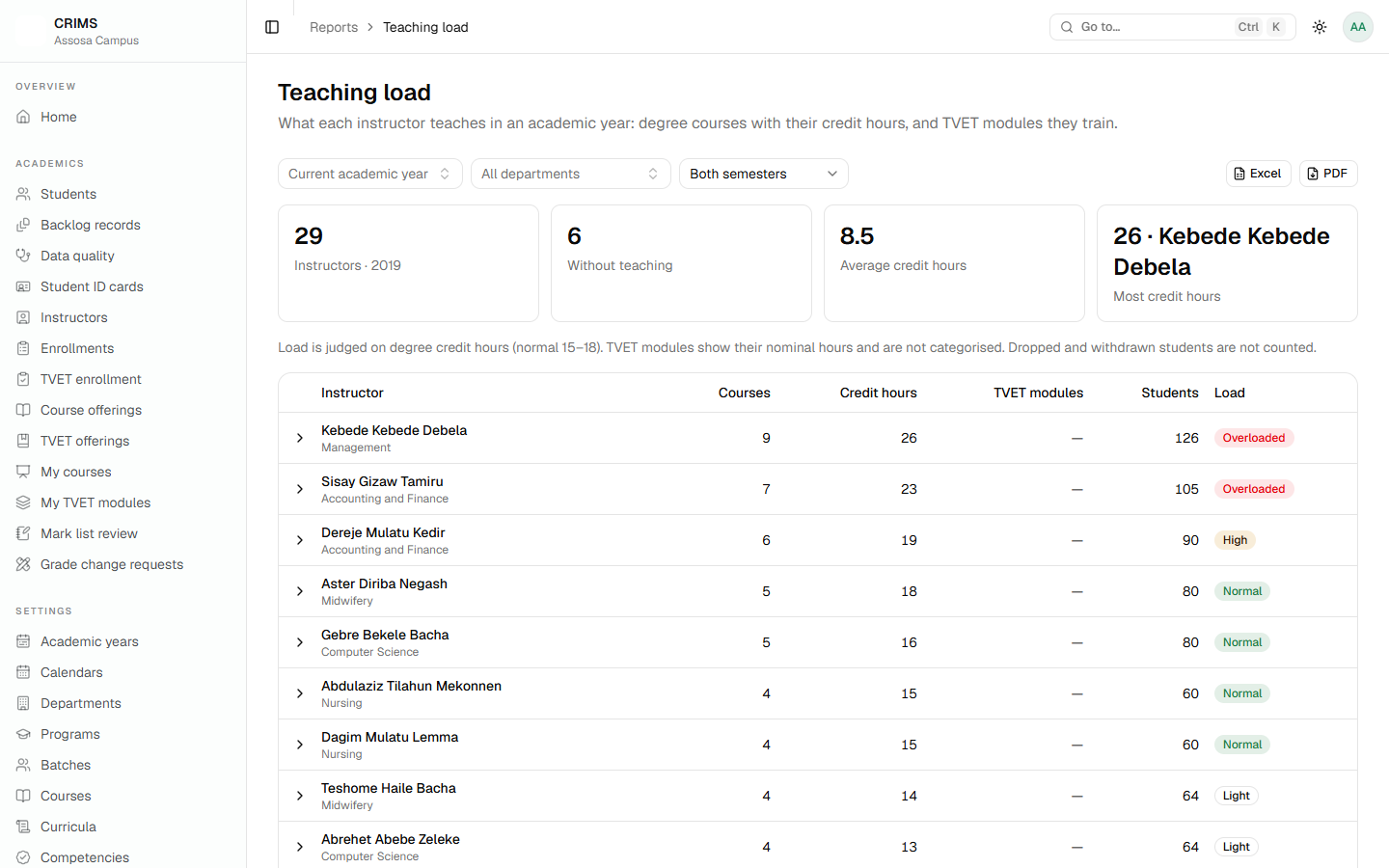
18.6 Teaching load
Per instructor, for one academic year: courses, credit hours, students, and TVET modules with their nominal hours. Dropped and withdrawn students are not counted. Filter by department and semester.
18.7 TVET outcomes
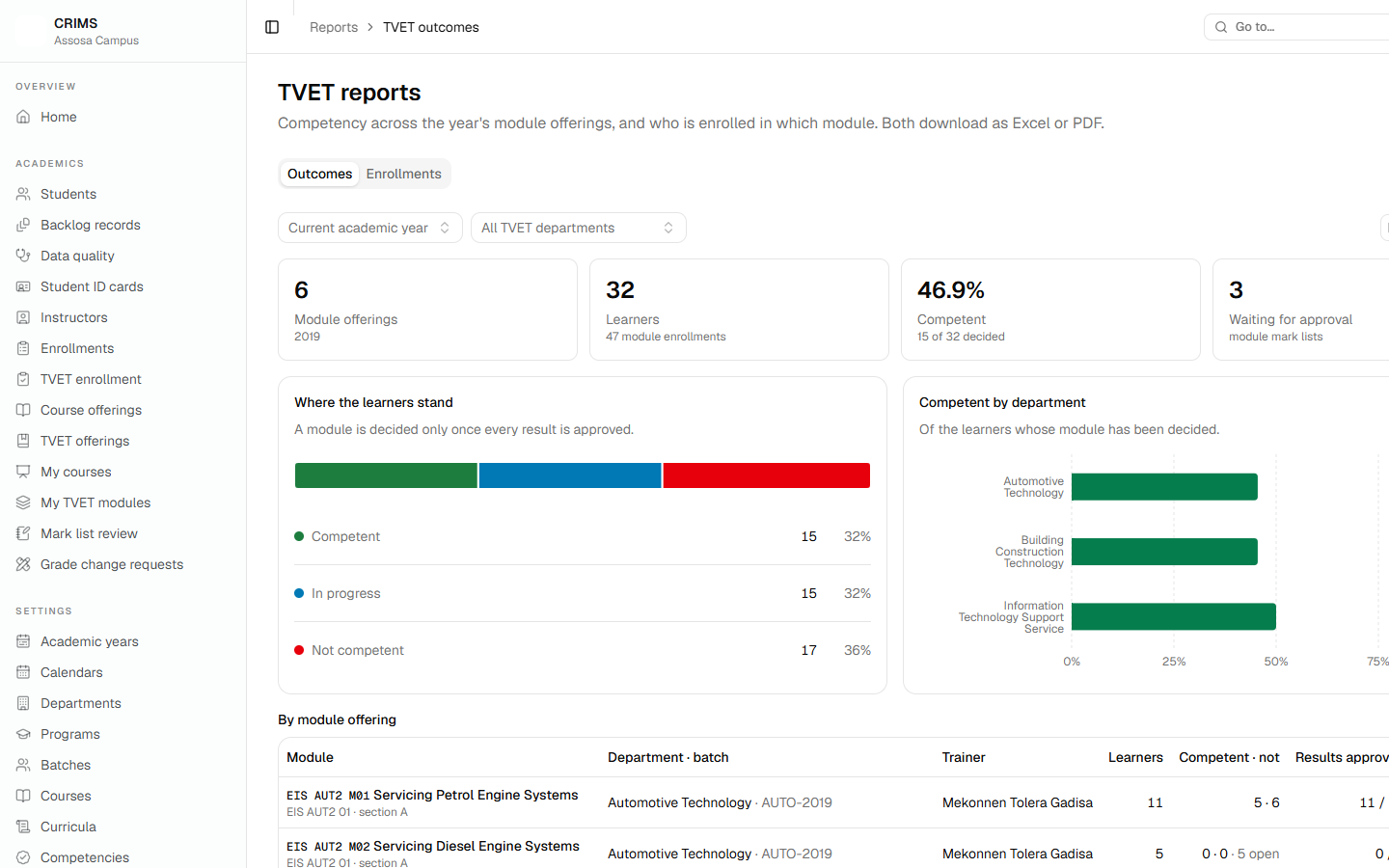
Outcomes and enrollments for TVET, by department, unit and module — the TVET equivalent of the grading analysis. A single trainee's competency record prints from their Competency tab.
18.8 Exporting
- Excel is a real
.xlsxworkbook — typed cells, a title, the filters you chose, a frozen header and an autofilter. Not a CSV renamed. - PDF is the same content laid out for printing and signing, with the campus header and the filters.
The filters you chose are written into the file, so a printed report says what it is a report of.
18.9 Which report answers which question
| The question | Where to look |
|---|---|
| Is grading on track? | Campus overview, then Grading analysis |
| What is blocking grading right now? | Campus overview → Needs attention |
| What did this student achieve? | Their Grades tab → transcript |
| How many students are in each course? | Course enrollment |
| How much is each instructor teaching? | Teaching load |
| How are the TVET trainees doing? | TVET outcomes |
| Who changed this record, and when? | Audit → Activity, Student changes, Enrollment changes |
| Who has been signing in? | Audit → Sign-ins |